Written by Nadie
Edited on
12 July 2024
·
15:23
How do you set up the Blaupunkt BlueBot robot vacuum?
Before you use your Blaupunkt BlueBot robot vacuum, you have to go through the set up first. In this article, we'll explain how to do this. You'll read which WiFi connection you should use and how to install the app. You'll also find solutions for a couple of common problems.
Connecting the robot vacuum in 3 steps
You can connect your Blaupunkt BlueBot robot vacuum to the Blaupunkt app with these 3 steps:
- Check your WiFi connetion.
- Download the app and register your product.
- Connect your BlueBot to the app.
Step 1: check your WiFi connection
There are 2 types of WiFi networks: 2.4GHz and 5.0GHz. Your Blaupunkt robot vacuum only connects to the 2.4GHz network. Is your smartphone connected to a 5.0GHz network? Choose the 2.4GHz network instead. Sometimes, only a 5.0GHz network is available. If this is the case, call your provider to ask for a 2.4GHz network. You'll be able to control your robot from the couch in just a few steps.
Step 2: download the app and register your BlueBot
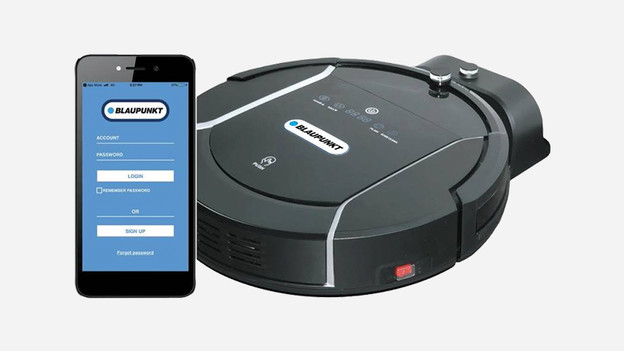
Scan the QR code you find inside the packaging of the robot vacuum. Can't find it? Go to the Google Play Store or the iOS App Store and search for 'BlueBot'. Install the app on your phone and sign in if you already have an account. If not, you can register. Enter your name and email address and create a password.
Step 3: connect your BlueBot to the app
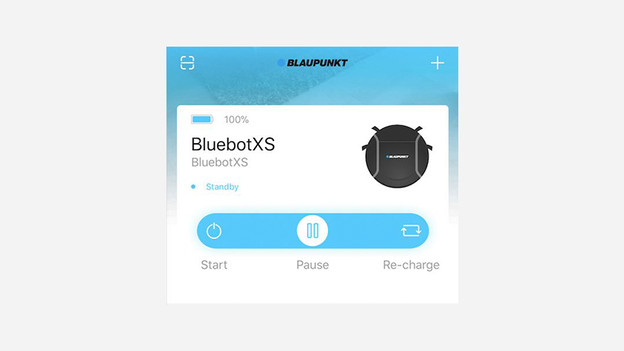
- Go to the home screen and tap 'Add device'.
- Tap the robot vacuum icon.
- Turn on your BlueBot robot vacuum. The robot will tell you out loud when it's turned on.
- Tap the button on your robot shortly twice. Let go of the button right away.
- The robot will now tell you it's connecting to the network and the WiFi icon on the robot will start to flash in green.
Is it not working?
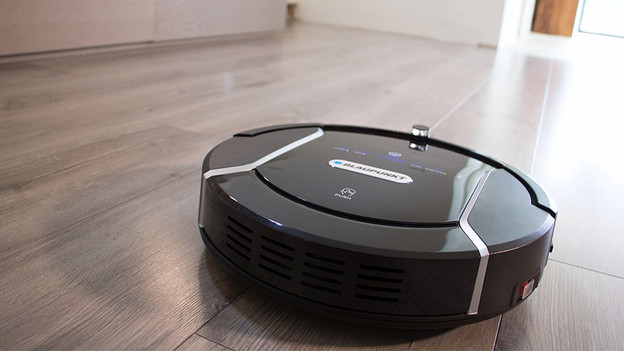
Is the app still not working? Try the following:
- Check your router settings: check in with your provider to see if your firewall or something else is blocking the access.
- Reconnect to the 2.4GHz network.
- Turn the robot off and wait for 5 minutes. Turn the robot back on.
Frequently asked questions
-
The mop doesn't get wet enough: the water tank drips water onto the mop. If the robot starts with a dry mop, it takes a while before it's entirely wet. Do you want the robot to start with a wet mop? Wet the mop under the faucet beforehand.
-
The robot always makes the same round: depending on the navigation method, the robot always chooses the best route. That way, it'll skip as few spots as possible and your floors will be as clean as possible.
-
How do I reset the robot: press and hold the large on/off button on the robot for about 10 seconds. Note that the robot isn't in the charging dock. Put the robot in the charging dock after about 10 minutes and let it charge to full.
Article by Nadie
Robot Vacuum Expert.