Written by Jorn
Edited on
1 October 2025
·
11:04
How do you download Netflix on the Nebula projector?
Do you want to watch Netflix on your new Nebula projector? Unfortunately, Netflix isn't a standard app. But it's easy to watch Netflix via your projector. In this article, we'll explain hot your can stream all your favorite series and movies in 4 simple steps.

Get started with Netflix on your Nebula smart projector
You can download Netflix via the Nebula App Manager. With the following 4 steps, you can start binge-watching in a few minutes.
Step 1. Go to the Google Play store
Step 2. Find the Nebula Manager app
Step 3. Install Nebula Manager
Step 4. Install Netflix

Step 1: go to the Google Play store
If you turn on the projector, you see a lot of apps. Navigate to the right in the upper row, until you reach the 'Google Play Store'. Open the Google Play Store.

Step 2: find the Nebula Manager app
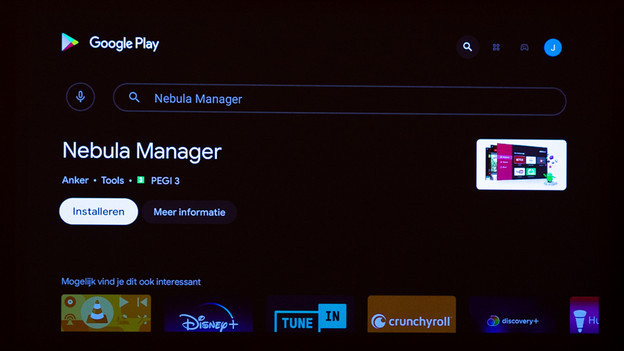
The Google Play Store opens. In the Google Play Store, you'll see a magnifying glass in the top right. Go to this magnifying glass and confirm your choice. This opens a search bar. Type 'Nebula Manager' and confirm your choice.
Step 3: install Nebula Manager
Now, install your Nebula Manager. Navigate to 'Open' and confirm your choice. This takes a few seconds. After the installation, you'll see 2 options. There's 'Open' and 'More information'. Choose 'Open'.

Step 4: install Netflix
You now see the Nebula Manager app. Navigate to the Netflix app. Choose 'Install'. Select the app again and confirm your choice. Choose 'Open'.
It's possible you see the notification 'The source of the app is unknown' when you download. That's okay. Choose 'Settings' in the notification'. Your settings appear on the right of the screen automatically. Make sure the access of 'Nebula Manager' is enabled. Choose 'Install again'.