
Written by Rowan
Edited on
20 April 2026
·
11:37
How do you install the latest macOS updates?
MacOS updates improve the stability, security, and performance of your Mac. That's why it's important to install the latest updates. You also make sure apps don't suddenly stop working. Here, we'll tell you how to install the latest macOS updates. It's just 2 minutes of work and you'll never have to worry about it again.
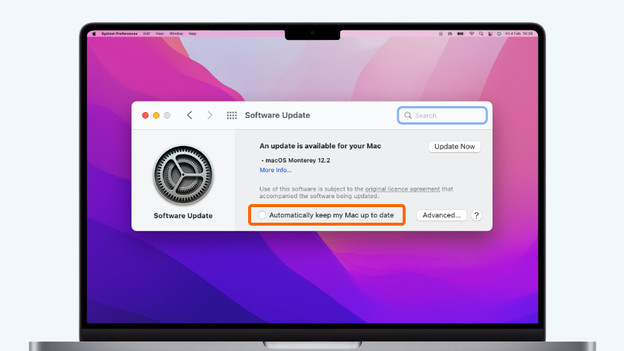
Update automatically
To make sure you're always up-to-date with the latest macOS updates, you can set up automatic updates. You can set it up in no time:
- Click the Apple logo in the top left corner of your screen and choose System Preferences.
- Now click Software Update.
- Don't you see Software Update? Use the App store to get the update.
- Check the box for Automatically keep my Mac up to date.
From now on, your Mac will automatically install updates. You'll receive a notification when your Mac needs to restart to perform the updates. Doesn't the moment suit you? You can always choose to perform the updates at a later time.

Update manually
Do you prefer to be in control? You can also perform the updates manually. You can do so as follows:
-
Click the Apple logo in the top left corner of your screen and choose System Preferences.
-
Now click Software Update to check if there are available updates.
-
Don't you see Software Update? Use the App store to get the updates
-
Click the button Update to install the updates.
-
Don't want your Mac to automatically install updates? Make sure you don't check the box for Automatically keep my Mac up to date.
Article by Rowan
Apple Expert.

