Written by Jan
Edited on
8 July 2025
·
15:06
6 tips for working at home with a Chromebook
Do you want to use your Chromebook to work from home? With these 6 tips, we'll help you get started in no time. For example, you'll learn how to connect a printer or connect to your company network via a VPN server.

Get started with working from home on a Chromebook
A Chromebook is suitable for working from home. But how? We'll help you get started with these 5 tips:
1: use Android applications 2: work together online with Google Workspace 3: save files online 4: work remotely via VPN 5: cast to a TV 6: connect a printer
Tip 1: use Android applications
A lot of applications now have a web app. You can use these apps directly in the Chrome web browser. Sometimes, an Android application is more practical. For example, because it offers more functions or because it's more stable while it runs. There are Android applications for familiar office programs like Microsoft Teams, Skype, and Outlook. You can install Android applications via the Google Play Store on your Chromebook.
Tip 2: work together online with Google Workspace
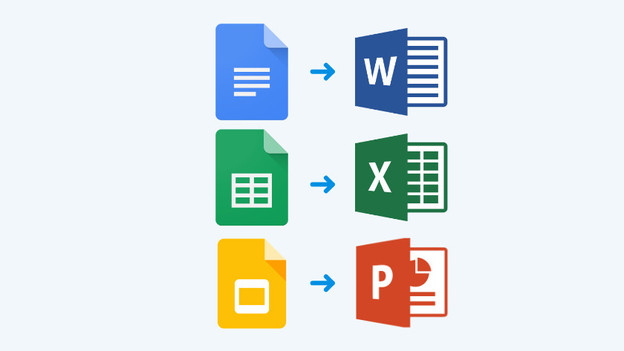
Google has made alternatives for Microsoft Office applications like Word, Excel, and PowerPoint. These are Google Docs, Google Sheets, and Google Slides respectively. With these Office alternatives, you can easily work together online by sharing your files with colleagues. You can also save your files online in Google Drive. That way, you can access your documents and presentations anywhere.
Tip 3: save files online
The storage space of Chromebooks is limited. That's why it's smart to save your files online via Google Drive or Dropbox. This has 2 big advantages. Firstly, you can access your files from wherever you log in. Secondly, you can also easily share online files with colleagues. That way, they also have access.

Tip 4: work remotely via VPN
With a Chromebook, you can log in to a work PC or network remotely via VPN. A Chromebook has a built-in VPN that lets you log in to your company network. Download the Windows Remote Desktop application from the Google Play Store to display and operate the desktop of a Windows PC on your Chromebook.
Tip 5: cast to a TV
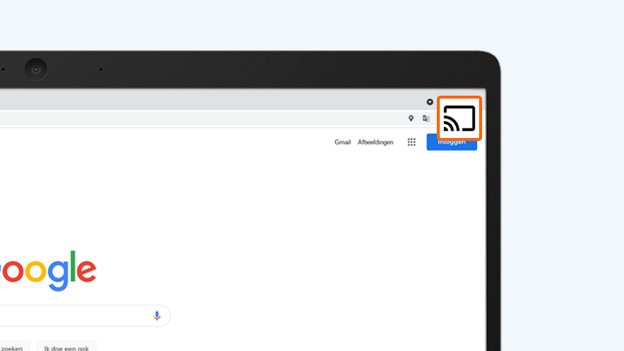
You can connect monitors to a Chromebook via HDMI or USB-C, so you can work from home more comfortably on a large screen. Do you have a TV instead of a monitor? You can cast Chrome tabs to a TV with Chromecast. That way, you can still work on a larger screen.
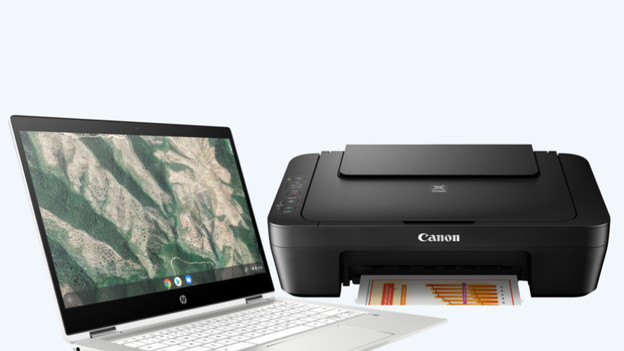
Tip 6: print documents
Do you prefer to print important documents? You can easily connect a printer to a Chromebook. A WiFi printer is connected to your Chromebook wirelessly. It's also possible to connect a printer via USB. If your Chromebook doesn't have a regular USB-A connector, you need a USB-C to USB-A adapter.