Written by Laurence
Edited on
27 January 2025
·
13:10
How do you connect your Samsung TV to the internet?
Do you want to connect your Samsung TV to the internet wirelessly or wired? Then follow the simple steps in this article. Before you know it, you'll be enjoying online apps, websites, or other smart functions.
Connect your Samsung TV to the internet
With these steps, you can easily connect your Samsung television to your wired network or WiFi network.
Step 1: open the menu
Step 2: open Settings
Step 3: open General
Step 4: open Network
Step 5: open Network settings
Step 6: set up a wired or wireless connection
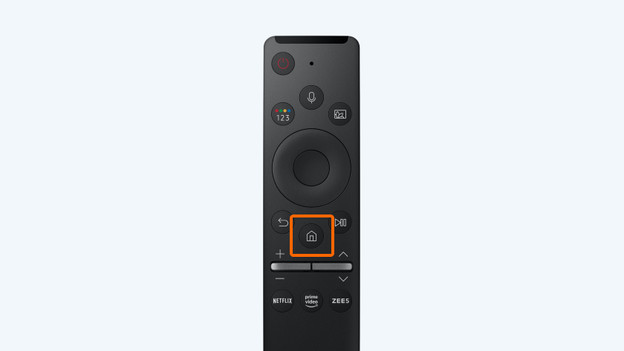
Step 1: open the menu
Press the 'Menu' button on your remote control.

Step 2: open 'Settings'
Go to the left in the menu bar until you reach Settings.

Step 3: open Connections
Select the menu 'Connections'.

Step 4: open Network
You'll find the Network option at the top of the list in the 'Connections' menu.

Step 5: open Network settings
After selecting this step, choose either a wired or wireless connection.

Step 6: make a wired or wireless connection
For a wired connection, connect your TV to the LAN port of your wall socket, router, or modem with an Ethernet cable. Select Wired. For a wireless connection, select Wireless. Choose the desired wireless network and enter your WiFi password.
Don't know your WiFi password? You can find your WiFi password on the sticker on the router of your WiFi network.
Isn't your connection working yet?
Do you see an error code after following these steps? Reset your Samsung television to factory settings and try again. Via the link on this page, we'll explain how to reset your Samsung TV to factory settings.
Article by Laurence
Television Expert.