
Written by Jelle
Edited on
1 December 2023
·
11:26
How do you solve common Chromebook problems?
With a Chromebook, you can get started right away, without complicated settings. But what if your Chromebook isn't what you expected? No worries, because you can easily and quickly solve most problems yourself. We'll give you 5 tips here to solve common problems with Chromebook yourself.

Get started with solving common Chromebook problems
With these 5 tips, you can quickly solve your Chromebook problems:
- Tip 1. Restart the Chromebook.
- Tip 2. Check if your Chromebook has updates.
- Tip 3. Use the guest mode.
- Tip 4. Perform a hard reset.
- Tip 5. Revert the Chromebook to factory settings.
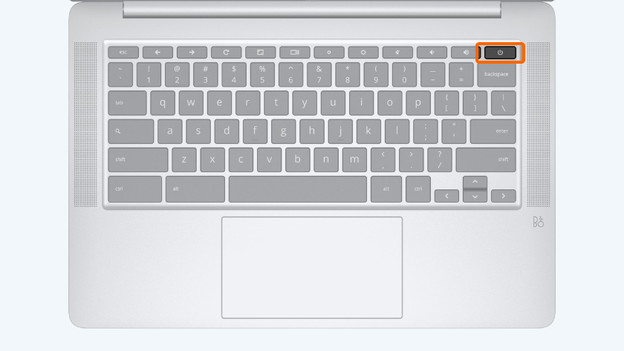
Tip 1: restart the Chromebook
You can easily solve most problems by restarting the Chromebook. Your Chromebook will automatically solve most errors after a restart.
- Press and hold the power button for 5 seconds.
- Wait until the Chromebook has completely shut down.
- Press the power button again.
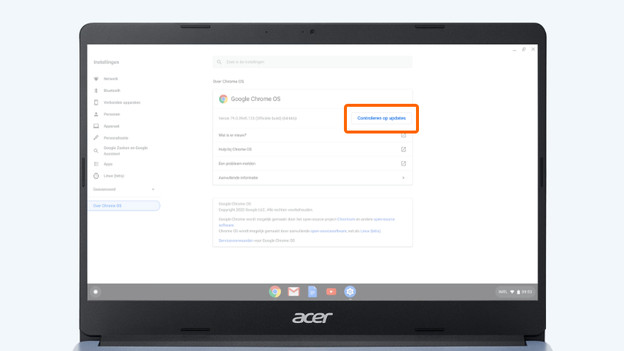
Tip 2: check is there are updates
Your Chromebook will normally update itself automatically. Make sure that you have the latest updates installed on your Chromebook:
- Open the status area in the bottom right of the screen.
- Click on settings.
- Click on 'About ChromeOS' in the menu.
- Click on the button 'Check for updates'.
- Wait for the updates to download.
- Open the status area in the bottom right of the screen.
- Click on 'Update' and select 'Restart to install updates'.
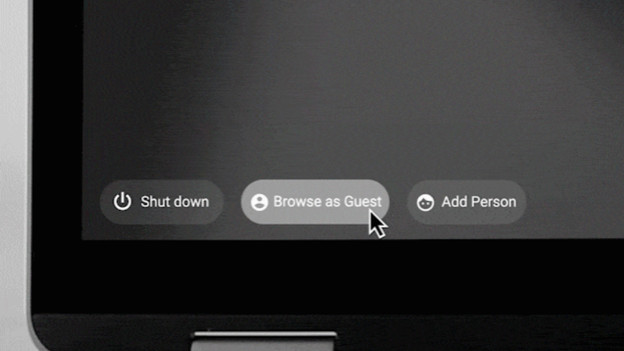
Tip 3: use the guest mode
Some problems arise because of some settings of your profile. To check if that's the case, use the guest mode:
- Open the status area in the bottom right of the screen.
- Click on the button 'Log out'.
- Click on the button 'Browse as guest' in the bottom left of the screen.
- Check if the problem is gone.
- Does the problem disappear in guest mode? Revert the settings of your profile to the standard settings.
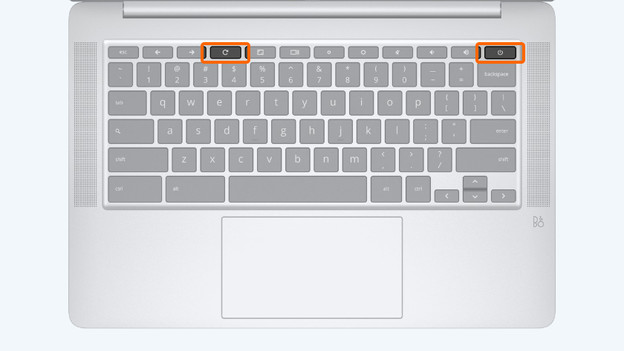
Tip 4: perform a hard reset
Don't the tips work? You can perform a hard reset:
- Open the status area in the bottom right of the screen.
- Press the power icon to turn off the Chromebook.
- Hold the refresh button. You can recognize this button by the arrow that forms a circle.
- Press the power button while you hold the Refresh button.
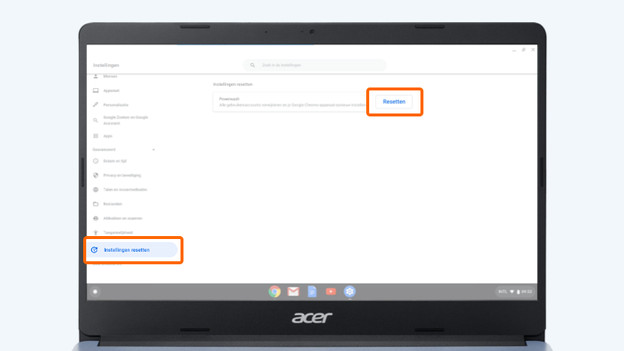
Tip 5: revert the Chromebook back to factory settings
If a hard reset doesn't solve your problems, you can revert the Chromebook back to factory settings. You'll lose files that you stored locally.
- Open the status area in the bottom right of the screen.
- Click the settings icon.
- Scroll down and click on 'Advanced'.
- Click on 'Reset settings'.
- Click on the button 'Reset'.
- Log in again with your Google account when the process is finished.
Article by Jelle
Laptop Expert.

