
Written by Gaby
Edited on
23 August 2022
·
12:56
3 tips when your Philips Wake Up Light won't connect to the app
Want to use your Philips Wake Up Light with the accompanying SleepMapper smartphone app? It's important that your light alarm clock and your phone are connected to the same WiFi network. So check your WiFi router and the signal it transmits first. After that, make sure your phone isn't using internet via 4G or 5G. It should be connected to WiFi. In this article, we'll explain exactly how to do that.
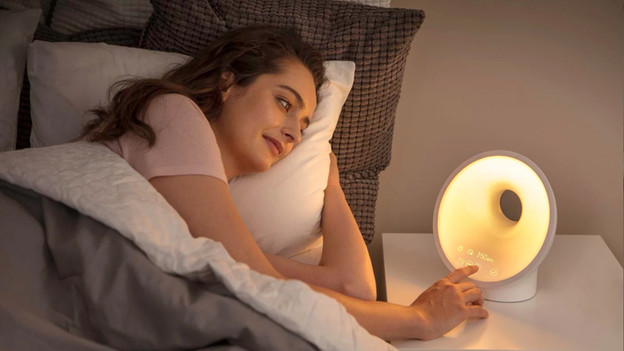
Connect your alarm clock to the app and to WiFi
Won't your Philips Wake Up Light connect to the app on your phone? We'll give you 3 tips to solve this problem.
- Tip 1: check your WiFi router
- Tip 2: check the connection on your phone
- Tip 3: place the products within the range of your WiFI router
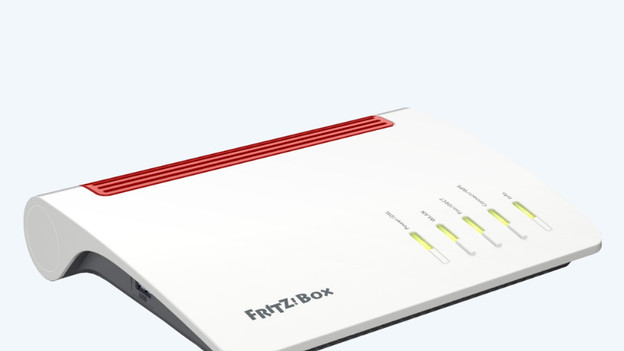
Tip 1: check your WiFi router
To set up your light alarm clock and the smartphone app, you need a 2.4GHz bandwidth. Follow these steps:
- Log in to your WiFi router with the instructions of your internet provider.
- Choose the 2.4GHz in the WiFi settings and temporarily turn off the 5GHz network.
- Set up your light alarm clock on the 2.4GHz network according to the Philips manual.
- After you've installed it, switch back to the bandwidth you want.
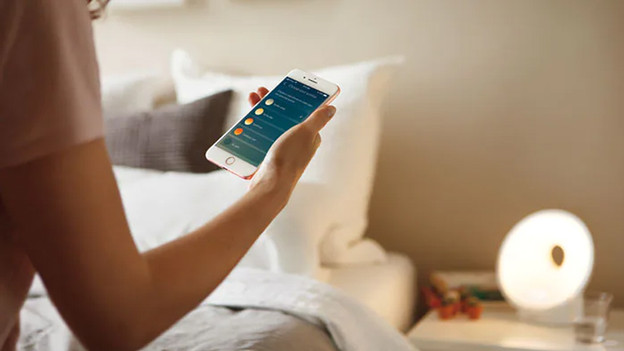
Tip 2: check the connection on your phone
Can't get the smartphone app to synchronize with the light alarm clock? Check which network your phone is connected to. Your phone has to be connected to the same WiFi network as the light alarm clock, not to 4G or 5G.
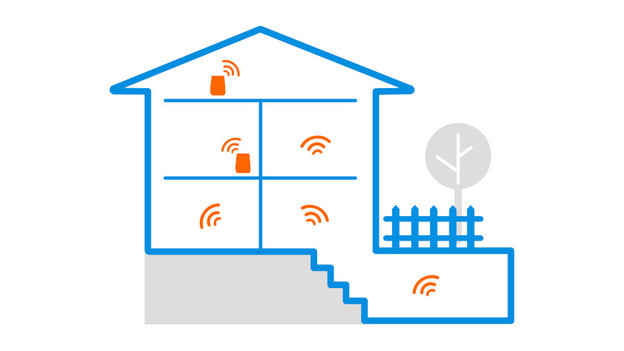
Tip 3: check the range of the WiFi router
Sometimes, the light alarm clock and the phone are outside of the range of the WiFi router. In that case, place the light alarm clock and the phone closer to the router and reconnect the devices with the WiFi network.
Article by Gaby
Alarm Clock Expert.

