Written by Megan
Edited on
30 December 2024
·
08:50
How do you prepare your MacBook for trade-in in the store?
Before you trade in your MacBook in the store, prepare with the following steps. Back up your device via Time Machine and turn off Find My Mac. This way, you'll be done fast in the store and can easily trade in your old MacBook for a new one.
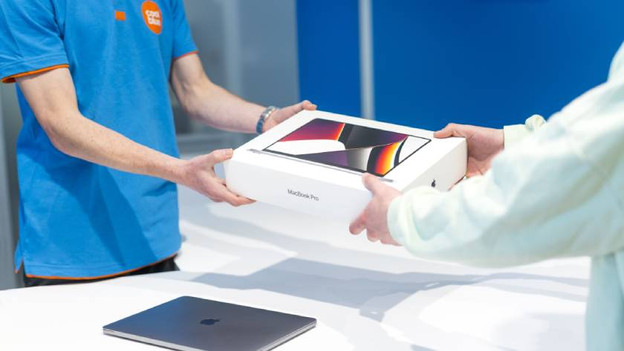
Prepare your MacBook
- Make a backup
- Turn off Find My Mac
- Take your ID with you to the store

Step 1: make a backup
Before you come to the store, back up your device. After the expert in the store checks your device, they'll deletes all data and take the MacBook. Thanks to a backup, you won't lose any data.
- Go to 'System Settings'.
- Click 'Time Machine' or use the search bar.
- Follow the steps on the screen. Your backup is in progress.
It's important that you don't reset your MacBook to factory settings yet. Otherwise, the expert in the store won't be able to perform the necessary checks quickly.
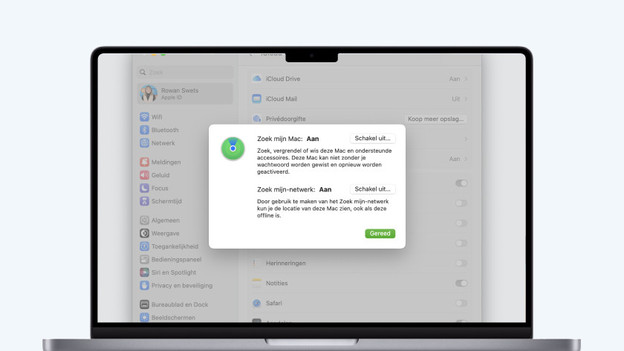
Step 2: Turn off Find My Mac
Turn off Find My Mac on your MacBook. When this is enabled, Activation Lock is on. We can't then take your device in that case.
- Go to 'System Settings' of your MacBook.
- Click on your name or Apple ID and go to iCloud.
- Scroll down and select 'Show all' under Apps that use iCloud.
- Click 'Find My' or 'Options' next to 'Find My'. Disable the function.

Step 3: bring your ID
Come to the store and bring your ID. Bring the original charger as well. The expert will check your MacBook. They'll also check whether all important functions work. After the check, they'll tell you how much your old MacBook is worth. You can use this trade-in value as a discount on a new MacBook or convert it into CoolblueCredit.
Article by Megan
Upgrade Expert.

