Written by Daniel
Edited on
5 September 2024
·
07:56
How do I set up my ASUS router?
Do you have a brand new ASUS router that you're going to install? The installation will take you less than 10 minutes with this step-by-step plan.
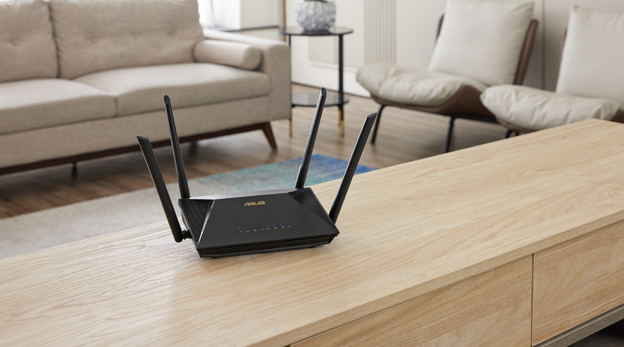
Getting started with your ASUS router
During installation, make sure you have network cables, your new ASUS router, and access to your modem. Then, follow these 5 steps:
- Step 1: find the right spot for your router
- Step 2: connect your router to your modem
- Step 3: connect your first laptop or desktop to your router
- Step 4: set up your WiFi network
- Step 5: how do you connect extra ZenWiFi mesh routers?

Step 1: find the right spot for your router
Choose a central location for your router. Preferably, place it between your most important devices. Make sure there are as few disruptors as possible near your router. In the fuse box is actually the worst spot, because it places your router in a cabinet with electrical jammers. It's better to place it on a cabinet in the hallway.
Step 2: connect your router to your modem
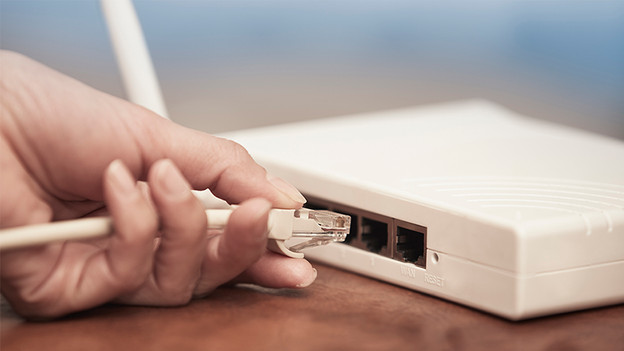
Before you switch on the router, unplug your modem from the socket. Your modem must be switched off, so your router is the only product sending the signal. Then, connect the modem to the WAN connector of your ASUS router via a network cable. First, switch on your modem to connect it to your router and transfer the data to your router only. After that, switch your router back on by connecting it to the power.

Step 3: connect your first laptop or desktop to your router
There are 2 ways to set up your first device. Connect your laptop to a LAN connector on your router with a network cable, or you go for the wireless setup if you don't have a network cable. In that case, search for the WiFi network with the name of your router. You'll find the name of your router on the back of the product. Connect your desktop or laptop to it.

Step 4: set up your WiFi network
In both cases, the web page opens automatically after step 2. Here, you can choose a username and password for your router. You can then choose a name and password for your WiFi network. After this, you can connect more devices by linking them to your new network. To do this, use the password you just set.

Step 5: how do you connect extra ZenWiFi mesh routers?
When you set up your ZenWiFi routers, place each station within 3m of each other. Connect 1 of the routers to a modem, as you would with a regular router. Then, switch on both routers. After that, switch on Bluetooth and open the ASUS app on your smartphone. The app then helps you set up your extra ZenWiFi stations.

