
Written by Evany
Edited on
28 December 2022
·
11:19
Compare the Apple iPad to a drawing tablet
You can make the most beautiful drawings and sketches on both the Apple iPad and a drawing tablet. For a drawing tablet, you often need another device, while the iPad is a standalone device. In this article, we'll compare the way of use, the available sizes, and more.
Way of use
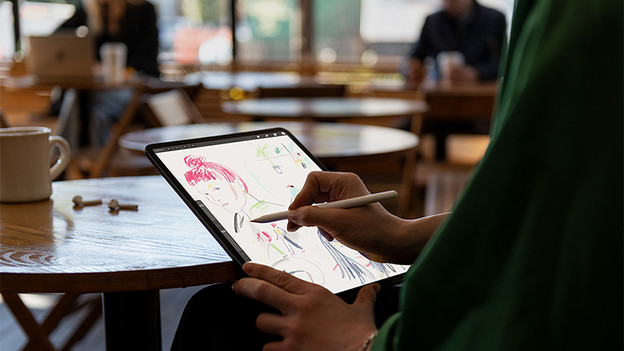
Apple iPad: standalone device
You can use the Apple iPad as a standalone device. Use the Apple Pencil to draw directly on the iPad screen without the need for any other device. That makes the iPad ideal for working on the go. The Apple Pencil isn't included with the iPad. You need to purchase this separately.
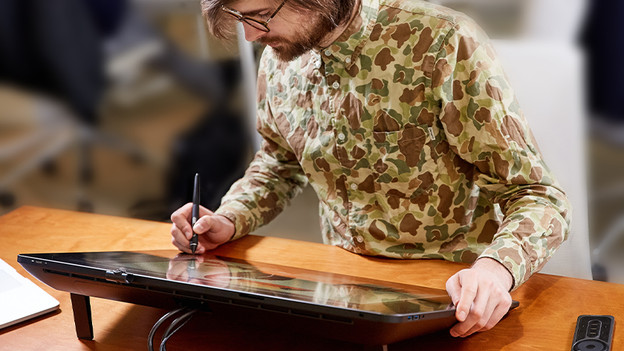
Drawing tablet: desktop or laptop required
You can connect a drawing tablet to another device, such as a desktop or laptop. This means that you can't use a drawing tablet on its own. As a result, using a drawing tablet is difficult when you're on the go.
Drawing surface
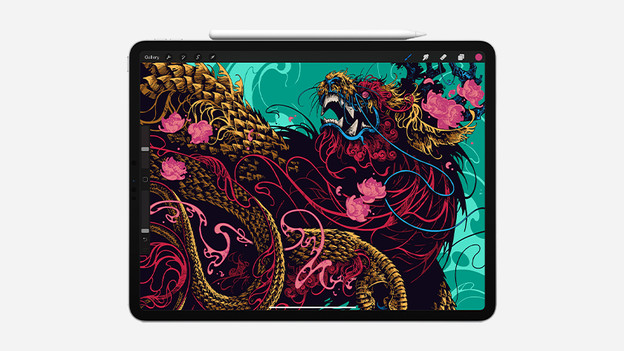
Apple iPad: Retina display
You can draw directly on the screen of the iPad and that's where you see your designs appear. It feels just like drawing on paper, but with extra features. You have access to many tools in several drawing apps. You can work even more detailed with the Apple Pencil.
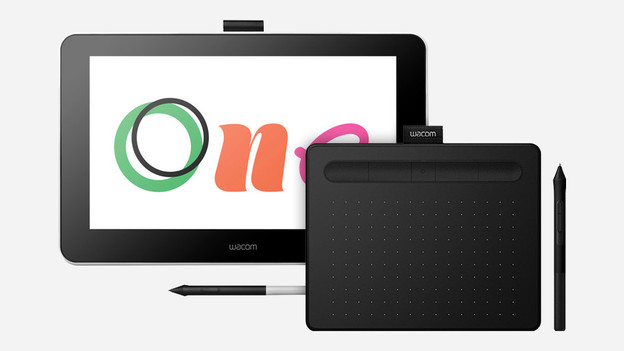
Drawing tablet: with or without screen
There are drawing tablets with and without a screen. The drawing tablets which allow you to draw directly on the screen are the more expensive models. There are also drawing tablets that serve as a drawing surface. With these drawing tablets, you see your designs appear on a laptop or monitor. If you have no experience with this, it can take some getting used to.
Size
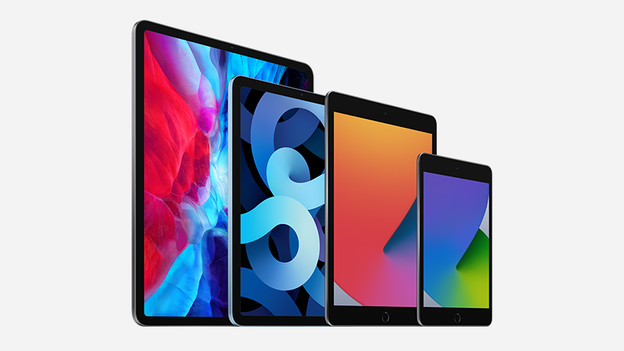
Apple iPad: limited sizes
The Apple iPad comes in different sizes. The iPad Mini is the smallest version with a 8.3-inch screen. The iPad Pro is the largest iPad with a 12.9-inch screen. If you're used to drawing on a large surface, even the 12.9-inch screen of iPad Pro may be too small.
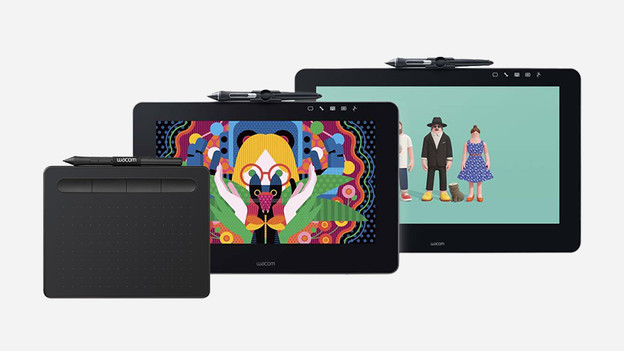
Drawing tablet: many different sizes
Drawing tablets range from small to as large as 32 inches. That means you have a lot of choice. If you like to work on a large surface, then it's logical to choose a large drawing tablet. The advantage of a large drawing tablet is that you can work in even more detail.
Versatile or specialist
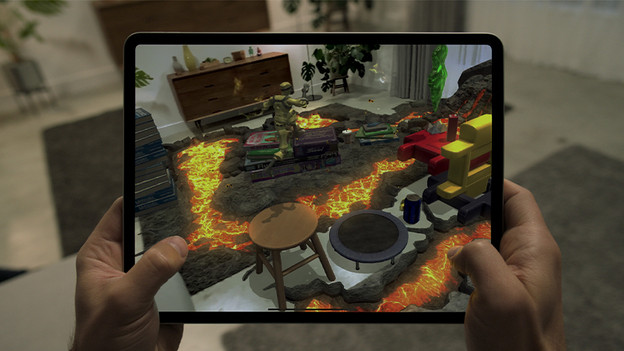
Multifunctional: also suitable for gaming and watching series
You can do much more than just draw on the Apple iPad. You can also use it to watch movies, play games, or just keep up with your email and social media with the many available apps. You can put the iPad in a comfortable viewing angle with a book case. You need to buy this separately.
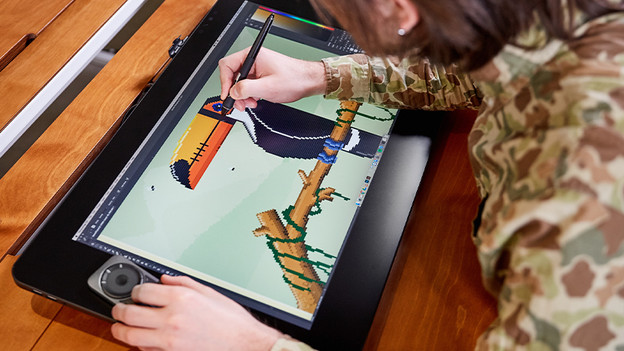
Specialist: only for drawing
A drawing tablet is made specifically for drawing. As a result, drawing tablets are available at a lower price than the most affordable iPad. The more expensive and larger drawing tablets sometimes offer more user-friendliness than an iPad. The desktop software you use on a drawing tablet may also offer more features than the mobile version for iPad.
Comparison Apple iPad and drawing tablet
| Apple iPad | Drawing tablet | |
|---|---|---|
| Weight | 300 - 641g | 250g - 7kg |
| Inch size | 8.3 - 12.9 inches | Up to 32 inches |
| Usage advice | Watching movies and series, drawing, image editing, text processing | Drawing and photo editing |
| Software | Apps from the App Store | Software on desktop or laptop |
| Power supply | Integrated battery | Via desktop or laptop |
Conclusion
The choice of an Apple iPad or a drawing tablet depends on your own use. Do you only want to draw? We recommend you buy a drawing tablet. Drawing tablets are often more extensive in terms of drawing options and more affordable than an iPad. If you want to do more than just draw and like to work when you're on the go, the iPad is better. You also don't have to connect an iPad to another device to get started with it.
Article by Evany
Tablet Expert.

