Written by Daniël
Edited on
8 July 2025
·
15:06
How do you connect the Nest thermostat to Heat Link?
Do you want to connect your Nest Thermostat to the Nest Heat Link? We'll explain how to make a connection and what to do if the connection doesn't work. You can read how to connect the Nest Thermostat and the Heat Link to each other below.

Get started with the Nest Heat Link
Make sure you have a working WiFi signal to set up the Heat Link and the Nest Thermostat. In this article, you can read the following steps to make a connection between the 2 products.
- Tip 1: check the status light of the Heat Link
- Tip 2: turn on the heating manually with the Heat Link
- Tip 3: check the connection (error code H71)
- Tip 4: check the wires (error code H71)
- Tip 5: check the power (error code H72)
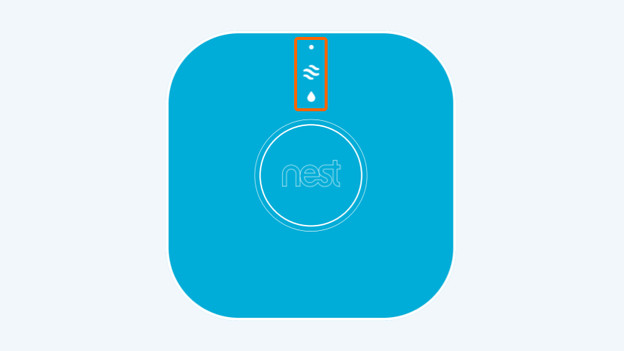
Tip 1: check the status light on the Heat Link
You can connect the Nest Heat Link to your Nest Thermostat. You can see 3 lights on the front of the Heat Link, which indicate the status of the Heat Link. You only need the upper light for the setup. When you power up the Heat Link, the upper light blinks slowly in blue. Wen you have also set up the thermostat, the connection should go automatically. The installation was successful if the upper light lights up in green.

Tip 2: turn on the heating manually with the Heat Link
Sometimes, the setup isn't successful the first time. Does the thermostat gives an error notification, but do you see a yellow status light on your Heat Link? In that case, you can also turn the heating off and on manually by pressing the only large button on the front of your Heat Link. This is a temporary solution, so you don't have to be cold for a while. We'll now get started with the problem.

Tip 3: check the wireless connection (error code H71)
The yellow light on the Heat Link indicates it couldn't make a connection with your thermostat. There's probably a problem with the connection between the 2 devices. You'll also see an H71 error code on your thermostat. If the thermostat is set up wirelessly on a stand, try to place the thermostat closer to the Heat Link. Afterwards, check the connection by choosing 'devices' in the settings of the thermostat, choose 'Heat Link', and choose 'test'. Try to connect the thermostat by wire if this doesn't work.
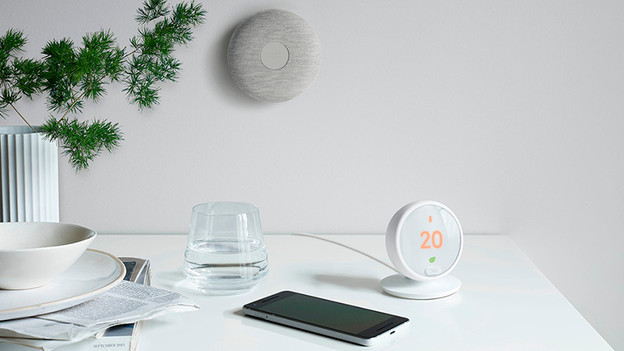
Tip 4: check the wired connection (error code H71)
Did you connect the thermostat by wire, but do you still get the H71 error code? Go through the steps of the setup again. Restart the Heat Link by pressing and holding the button on the front of the Heat Link for 10 seconds. The blue light starts blinking. When the light turns green, the setup was successful.

Tip 5: check the power (error code H72)
Do you get an H27 notification on your thermostat? In that case, the thermostat doesn't get enough power. For a wireless connection, check if the connector is plugged into the socket properly. Do you still have the H72 error code? Try a wired connection by stripping a power cable and connecting it to the thermostat. Not sure how to do this? Buy a connection cable which you can connect to the thermostat right away.