
Written by Deanne
Edited on
28 January 2025
·
08:54
3 tips if your @ button doesn't work anymore
Did you type an @ or at sign, but does your computer turn it into quotation marks or other marks? Often, that's because the keyboard has switched to another language. Read how to switch this back here.

3 tips to get your @ key to work again
Sometimes, you enter characters on your keyboard that then appear differently on screen. There are 3 ways to change this:
- press Windows + space bar
- change the keyboard language to United States in the settings
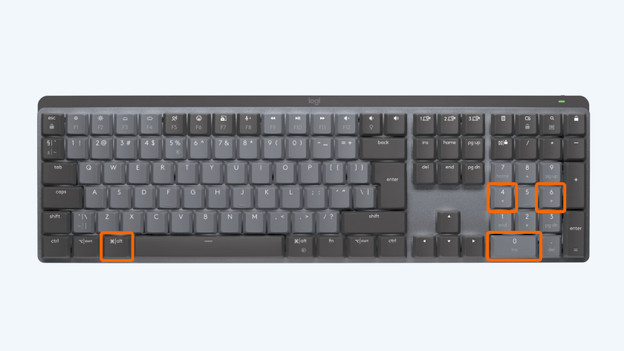
- use the key combination Alt + 0 + 6 + 4

Tip 1: press Windows + space bar
- To change the input language via your keyboard, press the following 2 keys at the same time: Windows + space bar.
- It often happens that you press this key combination by mistake and unknowingly change your keyboard input language. By pressing these keys again, you set the input language back to what you're used to.
- For the Dutch keyboard, you have to choose the keyboard layout of the United States.
Tip 2: change the language in your settings
Does your keyboard language switch often? Change the input language of your keyboard via your laptop settings. The most used combination is Dutch and United States (international) for the keyboard layout. This is how you do it:
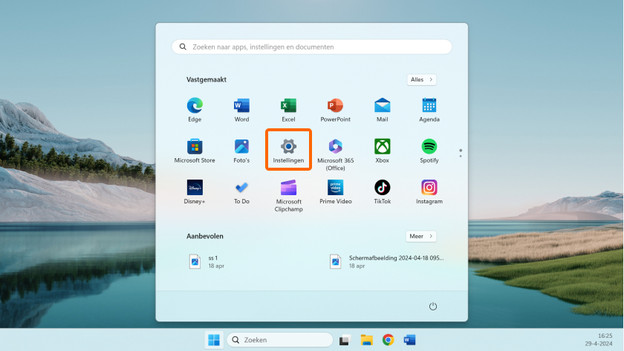
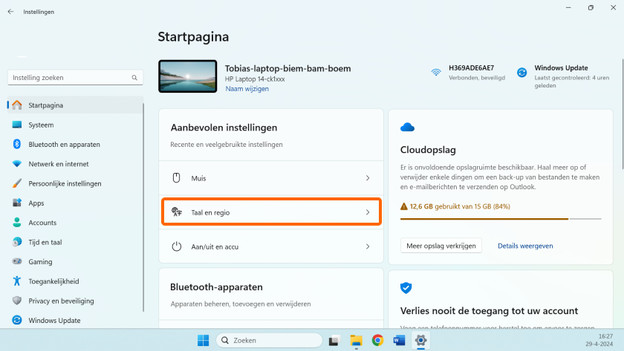
- Go to Settings and click on Time & Language.
- Click on Language and go to Preferred languages.
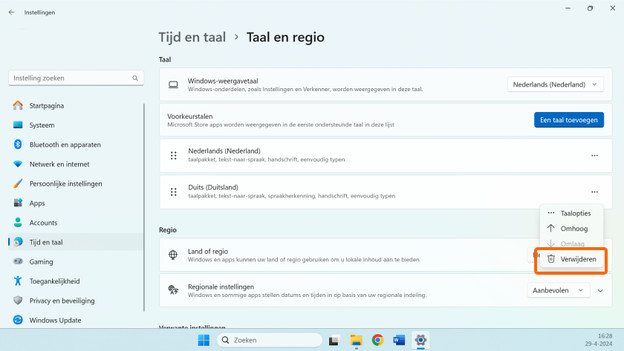
- Remove all languages except Dutch under Preferred languages.
- Then click the 3 dots next to Dutch and go to Language options.
- Check at installed keyboards if the keyboard is set to United States (international). Is there another keyboard? Remove it and add United States (international).
Go to Settings and click Time & Language.
Click Language and go to Preferred languages.
Remove the languages you don't need.
Click the 3 dots.
Check if it says United States international.


Tip 3: type an @ with a key combination
Note: this tip only works with a numeric keypad.
In addition to changing your keyboard layout, there's a different key combination to type an @. Use the following key combination to type an @:
Alt + 0 + 6 + 4.
Make sure to use the Alt key on the left of your keyboard and the numbers on the numeric keypad on the right.

