
Written by Gijs
Edited on
14 October 2024
·
08:05
How do you set up your Apple Watch?
Yes! You're new Apple Watch has arrived. You probably want to start working out with it right away, find out which apps you're going to use, or check your heart rate. You'll have to set up the Apple Watch first. But how does that work? In this article, we'll tell you step by step how to set up your Apple Watch for the first time.
Voorbereiding
- On your iPhone, go to Settings and then to Bluetooth. Turn on Bluetooth.
- Make sure your iPhone is connected to WiFi or a mobile network.
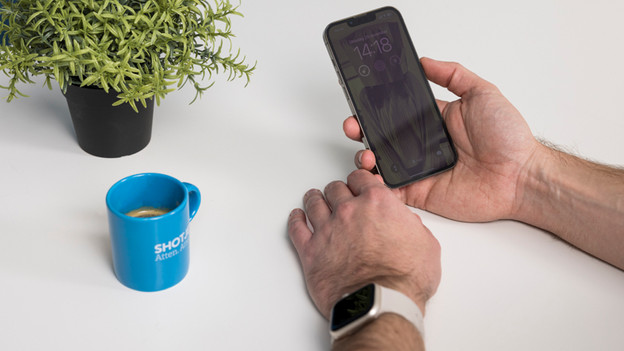

Step 1: turn on and put on the Apple Watch
- Turn on the Apple Watch by pushing the button on the side until the Apple logo appears.
- It'll take a while before the logo disappears.
- Won't the Apple Watch turn on? Charge it with the charging cable first.

Step 2: hold the Apple Watch next to your iPhone
- Hold the Apple Watch next to your iPhone and wait for the Use your iPhone to set up this Apple Watch notification to appear.
- Tap Continue.
- Keep your Apple Watch and iPhone close together while following these steps.

Step 3: point the camera at the Apple Watch
- As soon as you see the blue cloud animation on your Apple Watch, point the camera of your iPhone at the watch face of your Apple Watch.
- Are you unable to use the camera for some season? Tap Pair Apple Watch manually and follow the steps.
- If you don't get the Pair my Apple Watch notification, open the Apple Watch app and tap Start pairing.

Step 4: set up as new or restore from a backup
- If this is your first Apple Watch, set it up as a new Apple Watch. Do this by tapping *Set up Apple Watch".
- Update your Apple Watch with the latest WatchOS, if necessary.
- If you've had an Apple Watch before, choose Backup.

Step 5: log in with your Apple ID
- Log in with your Apple ID, if necessary.
- You can also do this later. To do this, go to the Apple Watch app on your iPhone, tap General, and then Apple ID.

Step 6: choose settings
- Your Apple Watch will now show you which setting it'll share with your iPhone.
- For example, do you have Find My iPhone, Location Services, and WiFi Calling switched on? These settings will also be activated on your Apple Watch.

Step 7: set a passcode
On the next screen, you'll see the option to set a passcode. With a code, your information on the Apple Watch is better protected. As soon as you take it off, the Apple Watch locks automatically.
- Tap Create a Passcode on your iPhone.
- Enter the code on your Apple Watch.
- If you don't want a passcode, tap Don't Add Passcode. We do recommend you set a passcode.
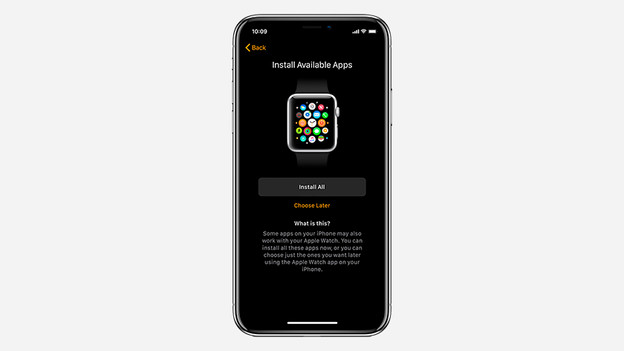
Step 8: choose functions and install apps
You can then enable functions like SOS and Activity by following the steps. You can also choose to install apps on the Apple Watch now. These are apps that you've already installed on your iPhone and are also suitable for your Apple Watch.
- Tap Install everything.
- Don't want that? Tap Choose later.
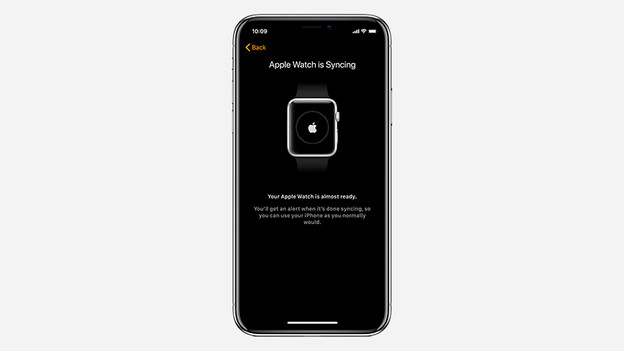
Step 9: be patient
You'll now have to wait for all your data to be transferred. It depends on the amount that has to be transferred, but this could take a while. Keep your Apple Watch and iPhone close together during the transfer. Once all your date is transferred, Apple Watch will notify you with a tap on your wrist. You can then push the gear button on the side of your Apple Watch, also known as the 'Digital Crown'. Now, it's ready for use!

Bonus step 10: calibrate your Apple Watch
If you're working out with your Apple Watch, you want the watch to track your activities as accurately as possible. That's why it's smart to calibrate your Apple Watch right away. This way, you set up your Apple Watch even more accurately. Read how you can do that in the article below.
Article by Gijs
Smartwatch Expert.

