
Written by Eveline
Edited on
28 October 2024
·
16:23
How do I update my TomTom with MyDrive Connect?
With the TomTom MyDrive Connect app, you can update the software and install the latest maps on your TomTom navigation system. This app also allows you to plan your routes beforehand, so you can focus on the road during your trip. In the following 6 steps, we'll explain how to install MyDrive Connect on your computer.
Get started with installing and updating
Read how to set up and update your TomTom navigation system in 6 steps here.
- Set up and log in
- Connect with PC
- View and download updates
Step 1: install and log in
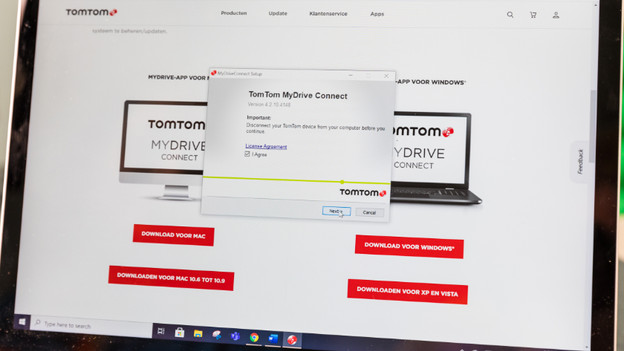
Go to the TomTom MyDrive Connect download page. The app is available for Windows and Mac. Click the version of MyDrive Connect that's suitable for the operating system of your computer. The download will start. If the installation doesn't start automatically, you can look for the file 'installmydriveconnect' and double click the name. The app will ask you to accept the license agreement. Click on 'Next' and then 'Install'. Log in with your TomTom account under the header 'Log in to MyDrive Connect'. Don't you have an account? Go to the header 'Don't have an account?' and click 'Create account'.
Download MyDrive Connect for Windows or Mac
Allow the installation
Click 'I agree' and 'Next'
Click 'Install'
Log in with your account or create one of you don't have an account yet




Step 2. connect to your PC
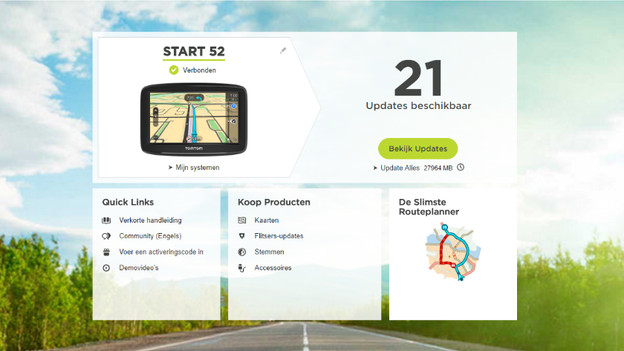
Connect your TomTom navigation system to your computer with the included USB cable. In MyDrive Connect, you can see if your navigation system is connected under the 'My systems' header. If your TomTom is connected to your computer, you see the status 'Connected'. If your TomTom isn't connected to your computer, it'll say 'Not connected'. Always connect the included USB cable directly to the USB port of your computer, not to a USB hub. Otherwise, it won't work.
If you connect your TomTom to your computer, the program will ask you to add the navigation system. Click 'Add'. Note: don't disconnect the system while you add it. If your TomTom is connected, you'll see this message.
Connect your TomTom to your PC with the USB cable
Check if you're connected


Step 3: view and download updates
Under 'My navigation systems', you can also so if there are any updates and how many there are. If there are any updates, go through these steps:
- Click 'View updates'.
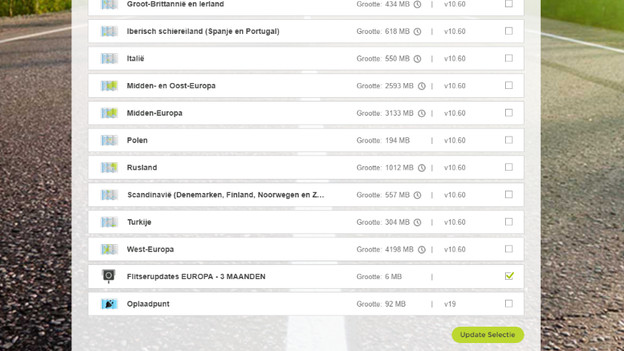
- Select what you want to update
- Click 'Update selection'.
- If you accept the installation of the updates, click 'Accept and install'.
- You'll now see the progress of your updates.
- Only disconnect your TomTom when the updates are complete.
Click 'View updates'.
Select what you want to update
Click 'Update selection'
Click 'Accept and continue'


Article by Eveline
Navigation System Expert.

