
Written by Gijs
Edited on
21 April 2023
·
14:42
How do you use the Files app on iPad or iPhone?
It's useful to have your files with you anytime, anywhere. You can use the Files app for this. You can collect all your files and store them locally or in the cloud with this. You can even add files from other cloud services such as Dropbox to it. This way, you have all your files within reach in a clear overview in a single place, on all your devices. We'll explain how this works, how to set it up, and how to organize it below.
Before you start
You have to keep a number of things in mind when using the Files app. You iPhone or iPad needs at least iOS 11 or iPadOS 13. You need to have iCloud set up and iCloud Drive turned on. You need to be logged in on all your devices with the same Apple ID.
- Tip 1: add apps to the Files app.
- Tip 2: organize files from iCloud.
- Tip 3: tag files and change tags.
- Tip 4: create new folders.
- Tip 5: share files and collaborate.

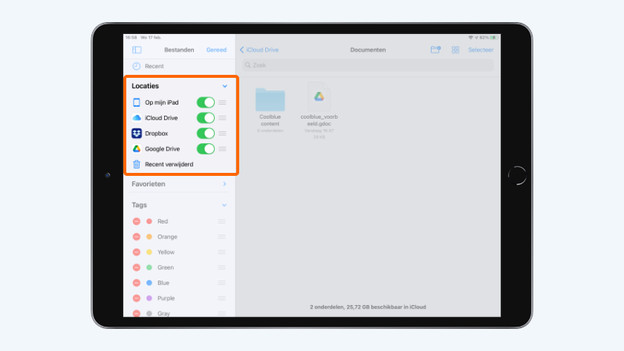
Tip 1: add other apps
In the Files app, you can also add files from other apps such as Dropbox and Google Drive. This way, you have all your photos and files in one place.
- Download Dropbox, for example, and set this app up on your iPad.
- Open the Files app.
- Under 'Locations', you'll see 'More locations'. Tap it.
- Tap the slider next to the icon. Tap 'Done'.
- Now you also have access to your Dropbox files in your Files app.
Tip 2: Organize your files

Move iCloud Drive files
- Open the Files app and choose iCloud Drive under 'Locations'.
- Press the file you want to move for one second. You now see a dropdown menu. Tap 'Move'.
- Now tap another folder or cloud service where you want to move the file to. Tap 'Move'. The file is now moved.

Move files from the cloud of other apps
- Open the Files app and choose for example Google Drive under 'Locations'.
- Press the file you want to move for one second. You will now see a dropdown menu. Tap 'Move'.
- Now tap a folder or other cloud service where you want to move the file. Tap 'Copy'. The file has now been moved.
Tip 3: add tags and labels

Add a tag
You can easily add tags to bundle and organize your files. You can give files you need for work the tag 'Work', for example.
- Open the folder where the file you want to tag is located in the Files app.
- Press the file for one second. Tap 'Tags' in the dropdown menu.
- You'll now see a list with various tags. Press 'Work'. The file now has this tag.

Change tags
- In the Files app, tap the circle with 3 dots. You'll find this circle at the top of your screen.
- Choose *Change navigation column'.
- Scroll down and choose the tag you want to change. Then enter a new name for the tag.
- Tap 'Done'. The name of the tag is now changed.

Tip 4: create a new folder
- Open the Files app.
- Choose the cloud service you want to add a folder to, such as Google Drive.
- Then tap the folder with the plus icon. You'll find this icon at the top right corner of the screen. Or press an empty spot in the folder for a second. You'll see 3 options. Tap 'New folder'.
- Insert the name of the now folder. You've now created a new folder.
Tip 5: share files and collaborate

Share files
-
You can easily share files with friends and colleagues via the Files app.
-
Open the Files app. Press the file you want to share for one second.
-
You'll now see a dropdown menu. Choose 'Share'.
-
Choose how you want to share the file. Via AirDrop, Messages, or Mail for example.

Collaborate
Collaborate with your colleagues on the same file.
- Open a Keynote, Numbers, or Pages document.
- Tap the icon with the figure and plus icon. You'll find this at the top of the screen.
- Choose how you want to invite someone. For example, via Messages or Mail.
Article by Gijs
Apple Expert.

