Written by Jorn
Edited on
15 January 2025
·
10:42
How do you connect a Samsung soundbar to a Samsung television?
Your new Samsung television and soundbar came in. Connect the soundbar to your television for a new listening experience. In this article, we'll explain how to connect your Samsung soundbar to your television with an HDMI cable in 6 steps.
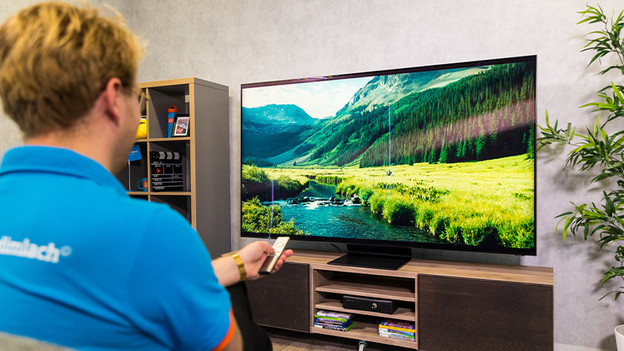
Connect your Samsung soundbar to your Samsung TV step by step
For these steps, you'll need your television, your soundbar, a remote, and an HDMI cable. Go through the following 6 steps and enjoy your new television and soundbar combination as soon as possible.
Step 1. Connect the soundbar to power.
Step 2. Connect the HDMI cable to your soundbar.
Step 3. Connect the HDMI cable to your television.
Step 4. Press and hold the 'ID set' button for 5 seconds.
Step 5. Press and hold the 'Up' button for 5 seconds.
Step 6. Select your soundbar in the audio settings.

Step 1: plug in the soundbar
Make sure the television is placed in the desired spot. Plug the connector of the power cord of your television into the socket. Connect the soundbar to the socket with the power cord via the power input on the back of the soundbar.

Step 2: connect the HDMI cable to the soundbar
You can connect the HDMI cable to the soundbar via one of the HDMI inputs on the back of the soundbar.

Step 3: connect the HDMI cable to your television
Connect the other end of the HDMI cable to the HDMI input on the back of your television. You can recognize the right HDMI input on your television by the 'ARC' or 'eARC' indication next to the HDMI input.
Now, connect the other end of the HDMI cable to an HDMI input on the back of your television. You can often recognize the right HDMI input by the 'ARC' or 'eARC' indication next to the input.

Step 4: press and hold the 'ID set' button for 5 seconds.
Make sure to the soundbar is turned off. Press and hold the button 'ID set' on the back of your subwoofer for at least 5 seconds. Let go of the button when the light on the back of the subwoofer starts blinking.
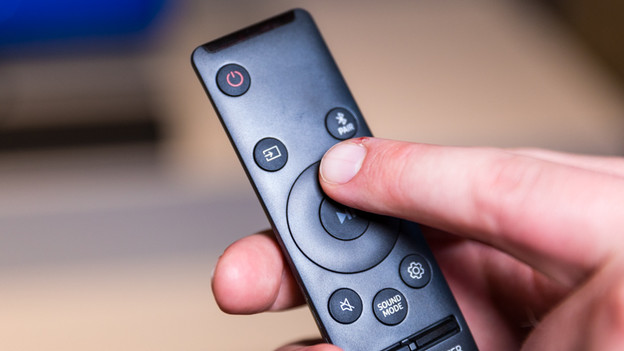
Step 5: press and hold the 'up' button for 5 seconds.
Grab the remote of the soundbar and press and hold the 'Up' button for at least 5 seconds. If the light on the back of the subwoofer stays on instead of blinking, the subwoofer and soundbar have been connected.
Turn on the soundbar. The soundbar should now automatically play the audio of the television. Isn't this the case? Go to step 6.

Step 6: select your soundbar in the audio settings.
Go to the settings of your television by clicking the cogwheel icon on the remote of the TV. Select audio settings, followed by the soundbar you just connected under 'Audio output'. The soundbar should now be connected to your television.
Article by Jorn
Televisions & projectors