
Written by Mark
Edited on
12 July 2024
·
15:23
How do you connect the Logitech G435 to your PC or phone via Bluetooth?
There are different ways to connect the Logitech G435 to your PC or phone. One way is via a Bluetooth connection. In this article, you can read how to connect your Logitech G435 to your phone or PC via Bluetooth.
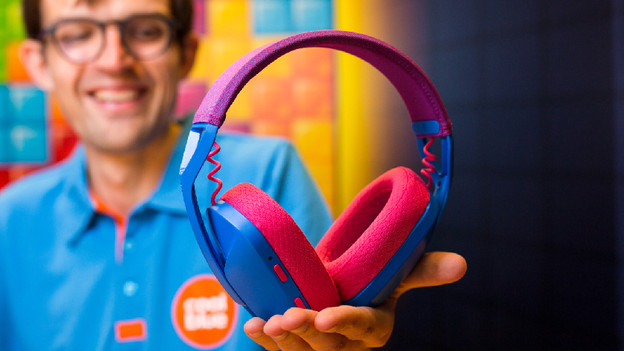
Connect the Logitech G435 in 2 steps
Go through these 2 steps to connect your Logitech G435 via Bluetooth.
Step 1. Turn on Bluetooth
Step 2a. Connect to smartphone
Step 2b. Connect to PC

Step 1: turn on Bluetooth
Before you can connect the G435 to your appliance, it's important to turn on Bluetooth on your headset. Go through the following steps to start the connection.
-
Turn on your G435 by pressing the 'on' button.
-
Press and hold the 'on' button and the 'mute' button for 3 seconds.
-
Check if the light above the 'on' button is blue and blinks rapidly.
Your G435 is now ready to be connected to the desired appliance.

Step 2a: connect to your smartphone
Go through the following steps to connect your headset to your smartphone.
- Open 'Settings' on your smartphone.
- Select 'Bluetooth'.
- Search the Logitech G435 in the list of devices and tap 'Connect'.
Can't find the right menus? We're happy to help you with the following article.

Step 2b: connect to your PC
Go through the following steps to connect your headset to your PC.
- Open 'Settings' on your PC.
- Select 'Bluetooth'.
- Search the Logitech G435 in the list of devices and tap 'Connect'.

