
Written by Sem
Edited on
6 October 2025
·
10:38
How do you downgrade from Windows 11 to Windows 10?
If you're not happy with Windows 11, you can easily downgrade your laptop or PC back to Windows 10. Keep in mind that Microsoft won't support security updates for Windows 10 from 14 October 2025. In this article, we'll explain 2 ways in which you can revert Windows 11 back to Windows 10.
Warning before you downgrade: end of support Windows 10
From 14 October 2025, Microsoft won't support security updates for Windows 10 anymore. This means that you're less protected from viruses and other security risks with Windows 10. That's why we don't recommend downgrading to Windows 10.
Did your PC have Windows 11 when you received it from the manufacturer? It's impossible to downgrade to Windows 10. Are you using Windows 11 in S mode? Turn off S mode first before you perform the downgrade to Windows 11.
Downgrade to Windows 10 in 2 ways
You can downgrade from Windows 11 to Windows 10 in 2 ways. Below, we'll explain both ways.
- Method 1: downgrade via settings
- Method 2: downgrade via clean install
Note: ensure a stable internet connection when you perform the downgrade.
Method 1: downgrade via settings
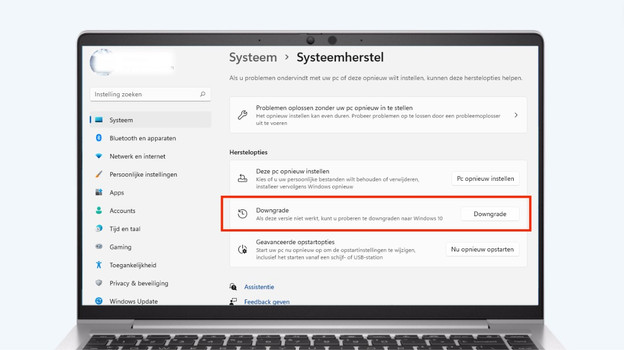
If you installed Windows 11 less than 10 days ago, you can easily go back to Windows 10 via the Windows settings.
1: go to the settings of your PC. Click 'System' on the left in the bar and then 'Recovery'. 2: on the screen with recovery options, you'll find the option 'Go back'. Click the 'Go back' button to downgrade from Windows 11 to Windows 10. 3: select a reason for your downgrade to Windows 10 and click 'Next'. 4: click 'Check for updates' if you experience problems. If not, you can click 'No, thanks'. 5: now click 'Next' 2 times and finally 'Go back to Windows 10'.
Method 2: downgrade via clean install
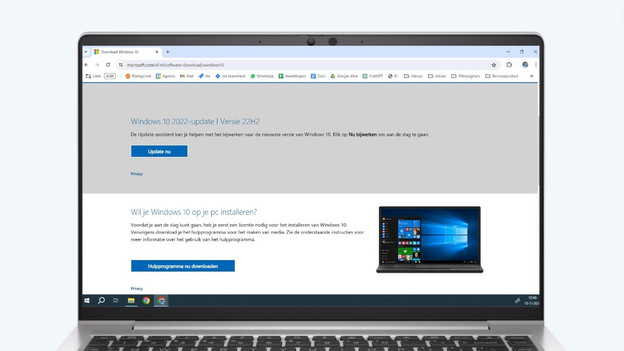
If Windows 11 has been on your laptop or PC for longer than 10 days, you can only downgrade to Windows 10 by reinstalling your computer.
Note: you lose all data on your computer when you do this. Back up your data, so you don't lose it.
1: Open your browser, go to 'Download Windows 10' and click 'Download now'. 2: Open the file once the download is complete, accept the Terms and Conditions, and click 'Upgrade this PC now'. 3: Once the Windows 10 Setup download is complete, you can choose what you want to keep. Click 'Nothing', because this isn't possible. Then click 'Install'. 4: Your PC or laptop will now install Windows 10.
Article by Sem
Laptop Expert.