Written by Jorn
Edited on
10 January 2025
·
15:56
How do you download Netflix on the BenQ projector?
Great, you got your new BenQ projector, and you want to watch Netflix. Unfortunately, Netflix isn't a standard application on the BenQ projector. Luckily, we know a way to still install Netflix on your BenQ projector. In this article, we'll explain how you can stream all your favorite series and movies in 6 simple steps.

Get started with Netflix on your BenQ smart projector
You can download Netflix via 2 different apps. There's the BenQ Apps Manager, and Aptoide. Follow these 6 steps and you can install Netflix on your projector in no time.
Step 1. Go to the Google Play Store
Step 2. Find the BenQ Apps Manager app
Step 3. Install the BenQ Apps Manager
Step 4. Install Aptoide
Step 5. Find Netflix
Step 6. Put Netflix on the home menu
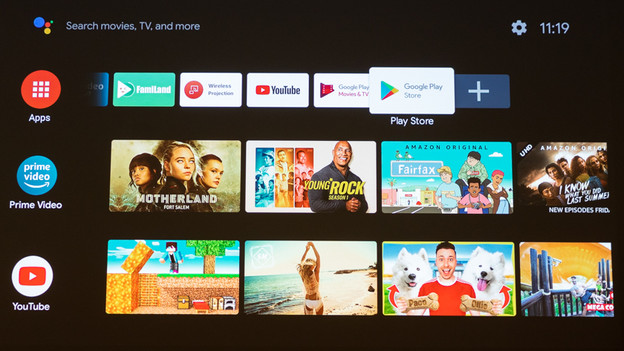
Step 1: go to the Google Play store
Turn on the projector. You'll see different rows with tiles. Each tile is an app. Navigate to the far right on the upper row of tiles, until you reach the 'Google Play Store'. Confirm you choice.

Step 2: find the BenQ Apps Manager app
The Google Play Store opens. In the Google Play Store, you'll see a magnifying glass in the top right. Go to this magnifying glass and confirm your choice. This opens a search bar. Type 'BenQ app manager' and confirm your choice. Navigate to 'Apps Manager' and confirm your choice.

Step 3: install BenQ Apps Manager
Now you can install the Apps Manager. Navigate to 'Install' and confirm your choice. This takes a few seconds. When the app is installed, you'll see the 2 options 'Open' and 'Uninstall'. Choose 'Open'.

Step 4: install Aptoide
You're now in the Apps Manager. Go to 'Store' in the Apps Manager, and choose 'Aptoide'. Apps Manager now requests access. Choose 'Allow'. Aptoide will start downloading.
It's possible you see the notification 'The source of the app is unknown' when you download. That's okay. Choose for 'Settings' in the notification'. Your settings appear on the right of the screen automatically. Make sure the access of 'Apps Manager' is enabled. Choose 'Install' again.

Step 5: find Netflix
The Aptoide app opens. Navigate to the right, until you see 'Netflix'. Confirm your choice. A new window opens. Choose 'Install'.
You might get 'The source of the app is unknown' as a notification. Make sure you've also enables access for 'Aptoide'. This works the same way as in step 4.

Step 6: put Netflix on the home menu
You can find the Netflix app in the Aptoide app under the 'Channel' header. Do you want to have the Netflix app directly on your smart platform? Go to 'Channel', select the Netflix app, and press 'Ok'. Have fun streaming!