
Written by Mark
Edited on
12 July 2024
·
15:23
How do you solve connection issues with your Logitech G Pro X Wireless?
You want to game online with your Logitech G Pro X Wireless gaming headset. But, you're having problems with the connection to your PC. It often helps to check the settings or to reinstall the software. In this article, we'll explain how to do this. That way, you can continue your game with your friends soon again.

Solve connection problems with your Pro X Wireless
Go through these 4 steps to solve connection problems with your Pro X Wireless.
Step 1. Update your drivers
Step 2. Check your settings
Step 3. Activate your microphone
Step 4. Reinstall the Logitech G Hub software

Step 1: update your audio drivers
It's important that the audio drivers of your PC are up to date. Go through the following steps to update your drivers.
Click the search bar at the bottom left next to the 'Windows' logo and search for 'Device Manager'.
Click 'Audio inputs and outputs' and select the Logitech G Pro X Wireless.
Click the 'Driver' tab and select 'Update driver'.
Choose 'Search automatically for updated driver software'.

Step 2: check your microphone settings
The microphone settings have to be set properly. Go through the following steps to check your microphone settings.
-
Click the search bar at the bottom left next to the 'Windows' logo and search for 'Microphone privacy settings'.
-
Click 'Change' and enable the microphone.
-
Scroll down and enable 'Allow apps to access your microphone'.
-
Your programs now have access to the microphone of your headset.

Step 3: activate your microphone
Go through the steps below to activate your microphone on your PC.
-
Click the search bar at the bottom left next to the 'Windows' logo and search for 'Control Panel'.
-
Click 'Hardware and Sound' followed by 'Sound'.
-
Click the tab 'Recording' in the window that appears.
-
Check if there's a green check next to your Logitech headset. If not, right-mouse click and select 'Enable'.
-
Click 'Ok' followed by 'Apply'.
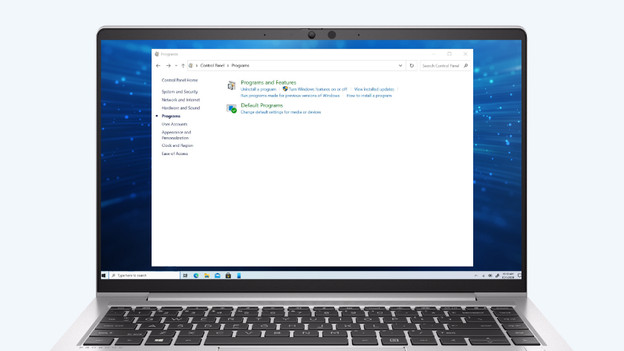
Step 4: reinstall the Logitech G Hub software
Go through the steps below to reinstall the Logitech G Hub software on your PC.
- Click the search bar at the bottom left next to the 'Windows' logo and search for 'Control Panel'.
- Click 'Programs and Features' and select 'Logitech G Hub'.
- Click 'Uninstall' and restart your PC.
- Download the software again via the link below.
- Disconnect your headset and restart your PC.
- Open the Logitech G Hub and reconnect your headset.

