
Written by Mark
Edited on
12 July 2024
·
15:23
How do you solve sound problems with your Astro A10 on consoles?
Do you have sound problems with your Astro A10? For these problems, you can check the cable or go through the settings of your console. We'll explain how to solve sound problems with your Astro A10 if you play on a console in this article.

Solve Astro A10 sound problems on consoles
Go through the steps below and solve sound problems with your Astro A10.
Step 1. Check your cable
Step 2a. Go through the PlayStation settings
Step 2b. Go through the Xbox settings
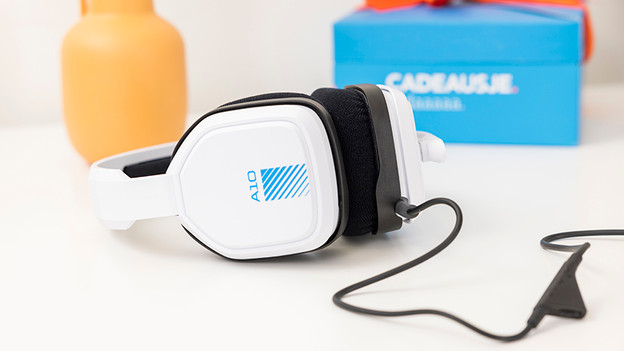
Step 1: check your cable
The key to a good sound is a proper connection and a cable without damages. Check if the cable of your headset isn't damaged. Check if it's plugged into the input of your headset properly too. Press the 3.5mm cable firmly into the input of the ear cup and listen to the sound coming out of your headset again. Are the sound problems still there? Go to the next step.
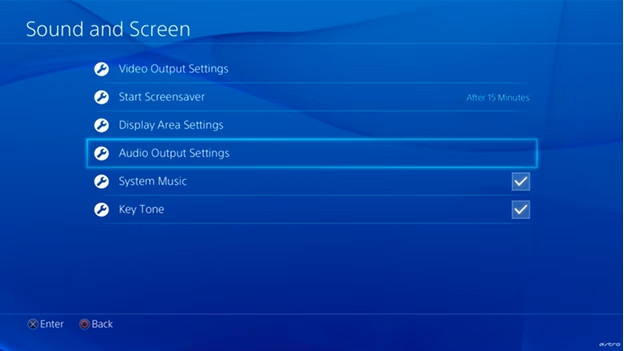
Step 2a: go through the PlayStation settings
Follow the steps below and go through the sound settings of your PlayStation console.
- Go to 'Settings' on your PlayStation.
- Select 'Devices' and then 'Audio devices'.
- Go to 'Output to headphones' and check if your headset is connected.
- Select 'All Audio' and test your headset again.
The sound problems of your Astro A10 should be solved.

Step 2b: go through your Xbox One settings
Follow the steps below and go through the sound settings of your Xbox console.
- Press the 'Home' button and go to 'Settings'.
- Go to 'General' and choose 'Volume and Audio Input'.
- Select 'Chat Mixer' and check if 'Party chat output' is set to 'Headset'.
- Go to the 'Speaker Audio' column and turn off 'Bitstream out' under 'Optical Audio'.
The sound problems of your Astro A10 should be solved.
Article by Mark
Gaming Expert.

