Written by Jorn
Edited on
21 March 2025
·
16:32
How do you remove stripes on the screen of your Samsung TV?
Do you see vertical or horizontal stripes on the screen of your Samsung TV? Or do parts of the image flash in white or other colors? You can often easily solve this with a soft reset or by changing the settings of your TV. In this article, you can read how to remove the stripes on the screen of your Samsung TV.
Remove stripes on your screen
First, turn your television off and on again. Do you still see stripes on the screen? Try these 7 tips.
Tip 1: do a soft reset.
Tip 2: change the aspect ratio.
Tip 3: perform a self diagnosis.
Tip 4: check your connected devices.
Tip 5: check your cables.
Tip 6: update the software of your TV.
Tip 7: reset your TV to factory settings.

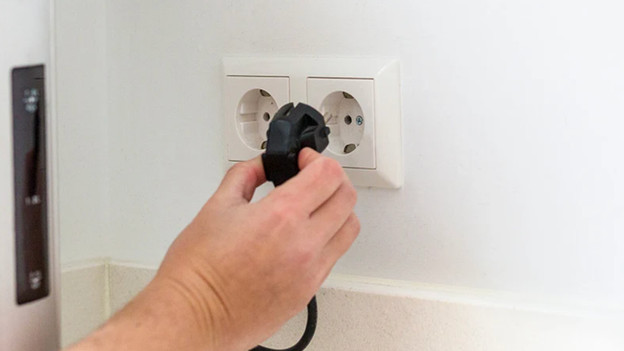
Tip 1: perform a soft reset
A simple soft reset is sometimes already enough for image errors. To do that, turn off the television with the remote. Then, remove the plug from the socket and wait 2 minutes. After that, put the plug back in and turn on the TV.

Tip 2: change the aspect ratio
Do you only see a black or colored stripe along the edge of the screen? Choose a different aspect ratio. Go through the following steps to do that.
-
Open the menu with the 'Home' button on your remote.
-
Go to 'Settings'. You can recognize this option by the gearwheel icon in the menu.
-
Go to 'Image'.
-
Go to 'Image size settings'.
-
Select '16:9 standard'.

Tip 3: perform a self diagnosis
With a self diagnosis of your Samsung TV, you can check whether the stripes on your screen are an error of the screen itself or of one of your connected devices. Follow these steps.
-
Open the menu with the 'Home' button on your remote.
-
Go to 'Settings'. You can recognize this option by the gearwheel icon in the menu.
-
Go to 'Support'.
-
Go to 'Self diagnosis''.
-
Select 'Test image'.
-
You'll see an image on the screen. Don't see any stripes? That means that the problem is most likely a connected device.
-
Still see stripes on the test image? Continue to tip 6.
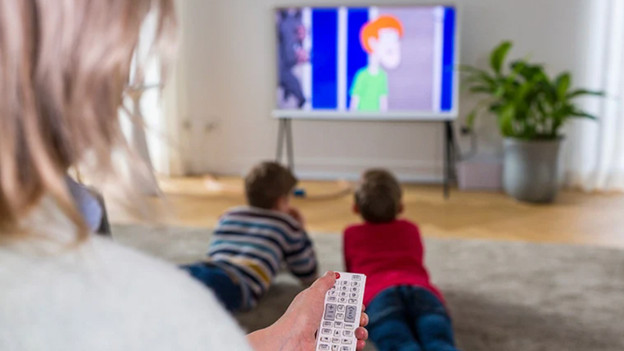
Tip 4: check your connected devices
Do you use external devices with your television via an HDMI cable? Sometimes, one of your connected devices causes image errors. Press the 'Source' button on your remote and select a different source. Don't see any stripes with these other sources? That means that the device that does display the stripes is the problem. Perform a soft reset on this device. Turn it off and unplug it from the socket. Wait 2 minutes and plug it back in. You can now turn the device back on.

Tip 5: check your cables
Does your connected device still show stripes on the screen? It could be that the HDMI cable is old or broken. Check whether the stripes change if you move the HDMI cable slowly. Do you see any movement? Disconnect the HDMI cable from the TV and connect it again. Do you still see stripes? Connect your external devices with a different and newer HDMI cable.
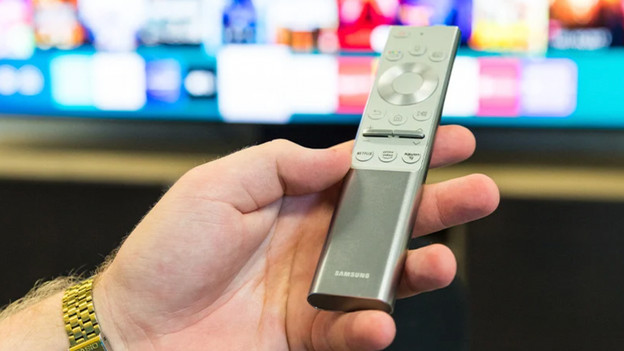
Tip 6: update the software of your TV
Outdated software could also be the cause of image errors. That's why you should check whether there's a software update available for your TV.
-
Open the menu with the 'Home' button on your remote.
-
Go to 'Settings'. You can recognize this by the gearwheel icon in the menu.
-
Then, go to 'Support'.
-
Select 'Software update'.
-
The TV will indicate whether there's a software update available. If there is, download and install it. After the installation, you have to restart the TV.
-
Turn on the 'Automatic update' option if you want the TV to automatically install new software updates from now on.

Tip 7: reset your TV to factory settings
A hard reset sometimes helps solving image errors on a Samsung TV. This is a last resort, because it deletes all your saved settings and apps from your television. Follow the steps below to do that.
-
Open the menu with the 'Home' button on your remote.
-
Go to 'Settings'. You can recognize this option by the gearwheel icon in the menu.
-
Then, go to 'General'.
-
Select 'Reset'.
-
Enter the PIN code. Don't have a PIN code yet? Enter '0000'.
-
Select 'Reset' to confirm the reset.
-
The television will restore and turn itself off once the reset is done. After that, the TV turns back on automatically. Doesn't that happen? Turn on your TV with the remote.
Article by Jorn
Television Expert.