Written by Jorn
Edited on
22 September 2023
·
14:22
How do you download Netflix on your Optoma projector?
Your friends have arrived, the popcorn is ready, and the projector is all set up. But what's this? You can't find the Netflix app on your Optoma projector. No worries. In this article, we'll explain in 4 steps how to download Netflix on your Optoma smart projector.
Download Netflix on your Optoma smart projector
You download Netflix on your Optoma smart beamer through the Marketplace app. With these 4 simple steps, you can be binge-watching in just a few minutes.
Step 1. Find the Marketplace app
Step 2. Open the Marketplace app
Step 3. Find the Netflix app
Step 4. Install the Netflix app
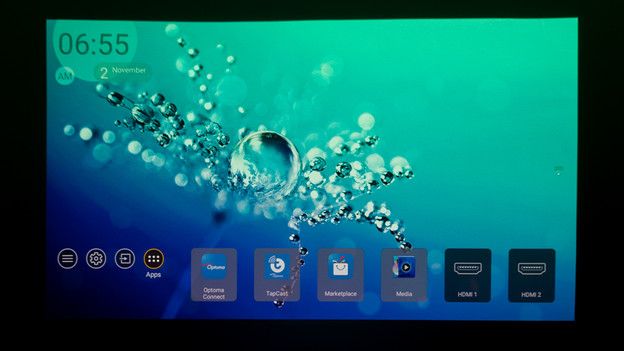
Step 1: find the Marketplace app
Once your Optoma smart projector turns on, you'll see a main menu with different apps. You might see the Marketplace app listed right away. Navigate to it and open the app.
Don't see the app listed? At the bottom left of the screen, you'll see 4 circles with figures in them. Navigate to the rightmost circle with 6 dots in it. Confirm your choice. An overview of applications opens.

Step 2: open the Marketplace app
You'll find various apps in the overview. Find the app that says 'Marketplace'. Confirm your choice. The Marketplace app opens. You're now in the Marketplace app. This app is comparable to a normal app store. Navigate to the circle with a looking glass at the top right. A new window opens.
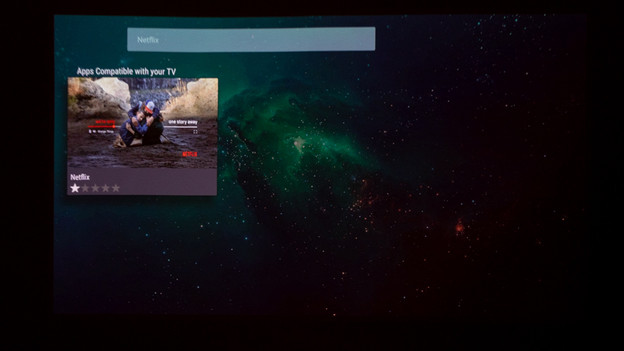
Step 3: find the Netflix app
Navigate to the search bar at the top of the screen. Type 'Netflix' here. A tile appears with the Netflix app. Navigate to this tile and confirm your choice.

Step 4: install the Netflix app
You're almost there. Navigate to 'Install'. The app starts downloading. You may still have to give permission to download the app. Click 'Allow' for that. The settings then open automatically. Is the app installed? Navigate to 'Open' and confirm your choice. Enjoy!