Written by Jesper
Edited on
21 April 2023
·
14:42
2 tips when the internet on your OnePlus smartphone doesn't work
Can't you make a WiFi or cellular data connection all of a sudden? You can often solve that with a reset or update. In this article, we'll explain how you do that quickly and easily.

Tips for if internet doesn't work
There are different solutions to this problem. Go through these tips from top to bottom.
- Tip 1: restart
- Tip 2: update your smartphone

Tip 1: restart
It can help to soft reset your OnePlus smartphone. This is the same as a reboot. To do this, follow the next steps:
- Press and hold the standby button and the volume up button together.
- Release when the device turns off.
- Switch the device on again by pressing and holding the standby button.
Tip 2: update your smartphone
Sometimes, the connection doesn't work because your smartphone doesn't have the most recent software. Go through the following steps to update your device. You have to download an update, so this option isn't possible if both your WiFi and mobile data don't work.
- Make sure your device is charged at least 60%. Otherwise, put the phone on the charger.
- Does WiFi work like it should? Make sure your smartphone is connected to WiFi.
- Go to Settings. That's the icon with the cogwheel.
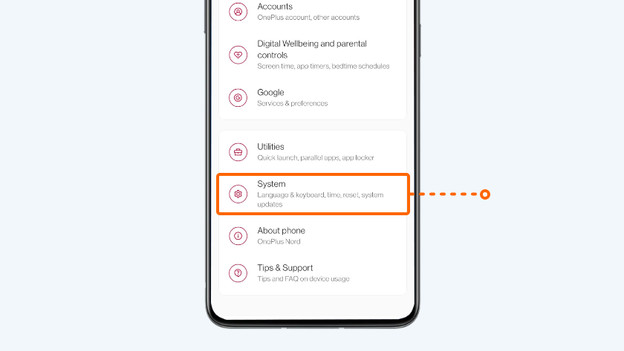
- Scroll down and choose System.
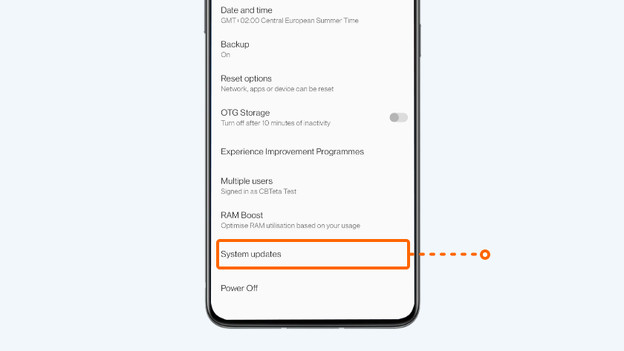
- Tap System updates.
- Is there an update? Choose Download & install now.
3. Go to settings
4. Choose System
5. Tap System updates

Article by Jesper
Smartphone Expert.