
Written by Mark
Edited on
27 July 2026
·
09:46
How do you connect your gaming headset to your PC or laptop?
Do you have a new gaming headset and are you not sure how to connect it to your PC or laptop? There are various ways to connect your headset, like a wired or wireless connection. In this article, you can read how to connect your headset.

Get started with your PC gaming headset
You connect your gaming headset to the PC or gaming laptop in one of the 4 ways below:
- Wired via a 3.5mm cable.
- Wired via a USB-A cable.
- Wirelessly with a USB dongle.
- Wirelessly via Bluetooth.
And finally, you adjust the sound settings of your PC. You can read how to do this further down in the article.

Wired via a 3.5mm cable
You can connect most wired gaming headsets via a 3.5mm audio cable. This is often included in the box of the headset, but there are gaming headsets with a built-in cable as well. You simply plug this into the audio port of your PC or gaming laptop. Some gaming headsets have a separate connector for the microphone. You can plug this into the green and pink ports of your PC or gaming laptop.

Wired via a USB-A cable
Some gaming headsets need to be connected via a USB-A cable. You can simply plug this cable into the USB port of your PC or laptop. Doesn't your PC or laptop have a USB-A port or are all in use? You need a USB hub to connect your gaming headset.
Wireless via a USB dongle
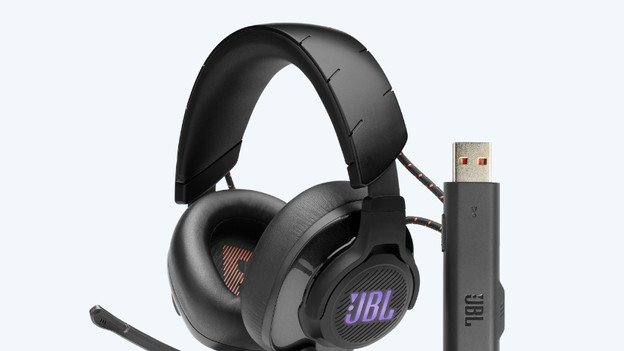
You can connect most wireless gaming headsets to your PC or gaming laptop via a USB-A dongle. In this case, the same applies as with the wired USB cable. Plug the USB dongle into one of the USB-A ports and get started. You can connect some gaming headsets via a USB-C dongle. Not all PCs have these ports. Doesn't your PC or laptop have a USB-C port? You'll have to connect this headset to your PC with a cable.
Wireless via Bluetooth
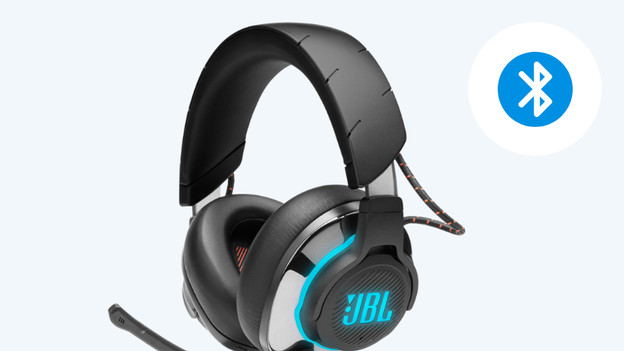
You can connect some gaming headsets via Bluetooth. Go through the following steps and connect your headset to your PC or laptop via Bluetooth.
- Switch on the gaming headset.
- Press and hold the Bluetooth button until the light turns blue.
- Enable Bluetooth on your PC and select your headset.
Your headset has now been connected to your PC or laptop.

Set the sound on your PC or laptop
Your headset has now been connected to your PC and you hear the game sounds via the headset. Don't hear anything from your headset? Go through the following steps.
- Click on the Windows logo at the bottom left.
- Choose 'Settings' followed by 'System'.
- Click 'Sound'.
- Select your headset in the 'Input' and 'Output' menus.
All sounds will now go via your gaming headset.
Article by Mark
Gaming Headset Expert.

