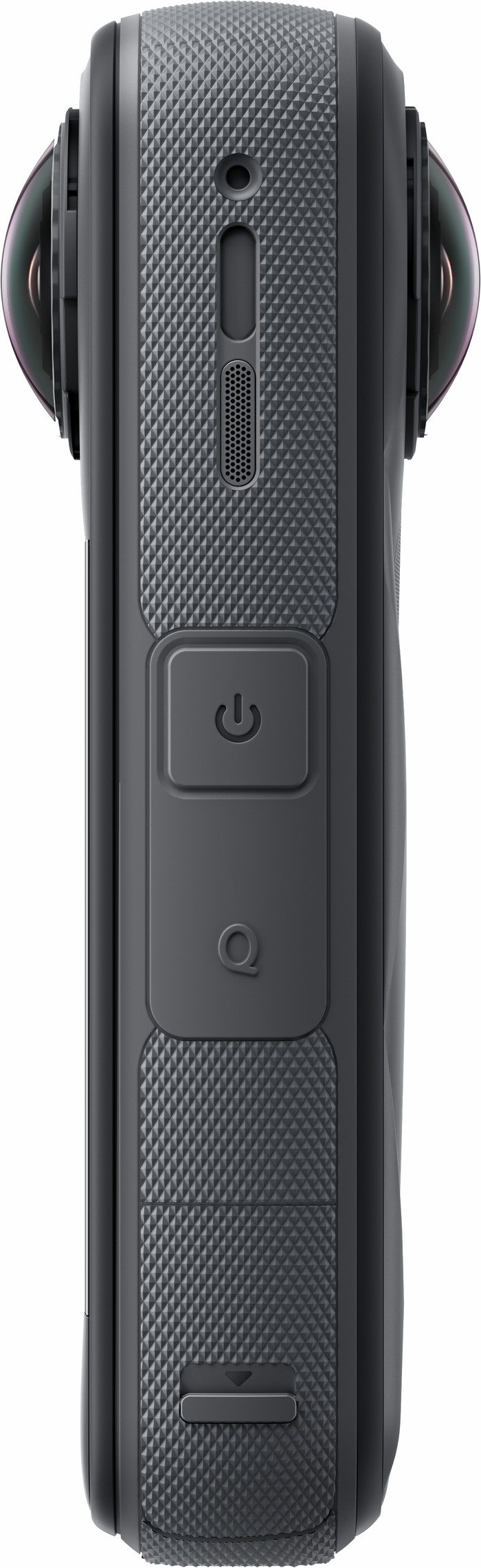
The Insta360 X5 is a true all-in-one camera for the adventurous videographer. I find InstaFrame a useful new feature, where I record 360-degree and flat video images at the same time. I only miss the lens guards that protect the lenses from scratches.
High image quality
The X5 has a larger image sensor than its predecessor, the X4. I take the camera with me during an indoor snowboarding lesson. There is little daylight here, but I notice while filming that the images still look clear and that they have little noise. I make 360-degree images in 8K resolution. The camera films everything around me, so I don't have to pay attention to my composition while snowboarding. For TikTok, I cut a 9:16 angle of view from the 360-degree images. After I crop the images, 2.7K videos remain for social media. These images are less sharp than 8K or 4K images, but it is fine for social media.
Design and battery life
I think the longer battery life is an improvement compared to the X4. I film with this camera for about 3 hours in 5.7K resolution. When I record 8K 360-degree images, the battery only lasts 1.5 hours. The design of the camera is similar to its predecessors. While filming in 360 degrees, I swipe across the large screen to adjust the image or quickly change the recording mode. I do think it's a shame that the Standard Bundle doesn't include lens guards. The lenses are round and protrude, which makes me afraid that they will get damaged. The Essentials Bundle does include lens guards. The advantage is that you can replace the lenses of the X5 with a new pair if they get damaged.
Recording modes
InstaFrame is a new feature of Insta360. With this, the camera simultaneously films 360-degree and flat action camera images. For example, I make a vlog for both Instagram and YouTube. I share the flat videos on social media immediately after filming, for example in my Instagram stories. The camera simultaneously films 360-degree images that I then carefully edit for an extensive vlog on YouTube. This way, I also show my surroundings in the video and switch between different angles.
Editing videos in the app
I easily edit my videos in the Insta360 app. This works very quickly and is user-friendly. On the screen of my smartphone, I rotate the preview until I have found the desired image. If I add a 'key frame', the video continues from this image. This way, I can easily switch between what I see in front of and behind me.