Welcome to your environment! You can order everything from your assortment with your personal budget here.

You can always return to the normal Coolblue website by clicking here.

Your outstanding budget (incl. VAT) is always visible here, so you know exactly how much you can spend.

Coolblue home

Die Website ist auf Englisch, möchtest du sie auf Deutsch ansehen?

Help with your product
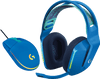
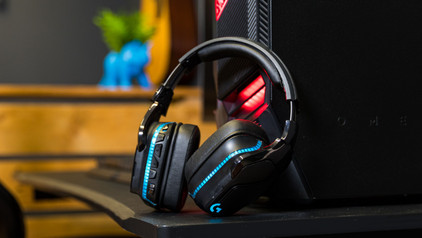
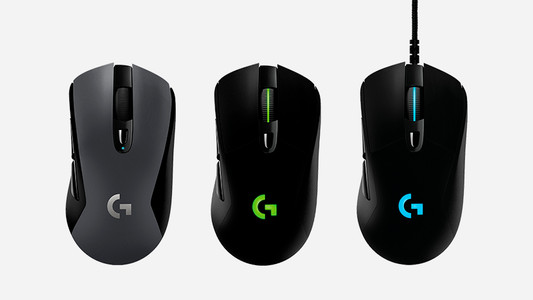
Logitech G733 Lightspeed Wireless Gaming Headset Blue + Logitech G203 Gaming Mouse
0 reviews

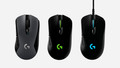
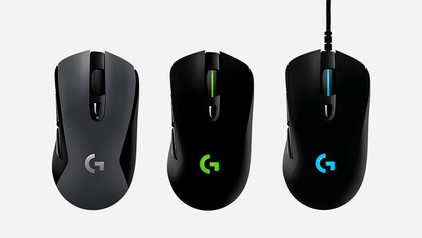
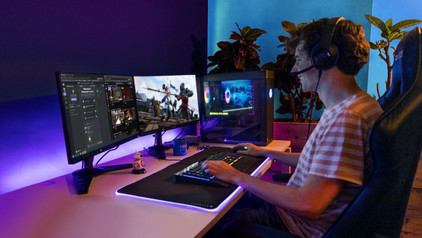
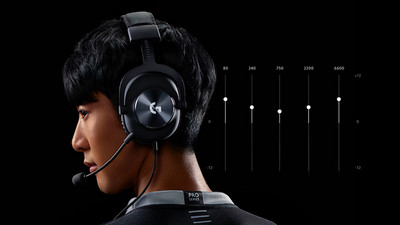
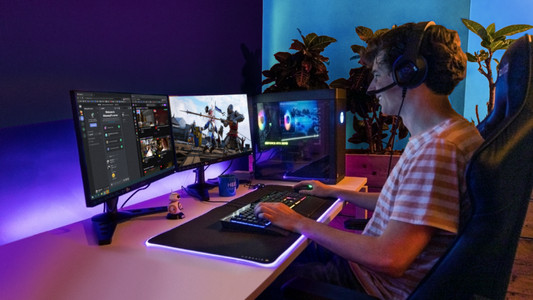
The Logitech G733 Lightspeed Wireless Gaming Headset + Logitech G203 Gaming Mouse is a set that a serious gamer can put to good use. Take advantage of DTS sound, so you hear your opponents coming around the corner. This way, you're always one step ahead of your opponent. The headset is wireless, so there are no cables running to your computer. And you can easily walk to the fridge to fill up your glass without taking off the headset. The microphone is detachable, so if you're not using it you don't need to attach it to the headset. Just like any real gaming headset, the G733 headset and the G203 gaming mouse both have RGB lighting. You can match the lighting, so your gaming rig has a unified look. Do you have more Logitech G accessories? Why not synchronize the lighting, so all accessories have the same color pattern.

Read all tips here

Which product do you want to see articles about?

How do I solve problems with the scroll wheel of my Logitech gaming mouse?

With some Logitech gaming mice, you can experience issues with the scroll wheel. For example, it's possible that the scroll wheel stutters or scrolls the wrong way. In this article, you can read how to install a firmware update that solves these problems.

How do you use your mouse and keyboard on the PS5?

You can connect a gaming headset to your PlayStation 5, as well as a mouse and keyboard. This is a great solution when you're more of a PC gamer with a mouse and keyboard, because aiming is more difficult with a PS5 controller. In this article, we'll explain how to connect a mouse and keyboard to your PlayStation 5.

How do I update my drivers using the Logitech Gaming Software?

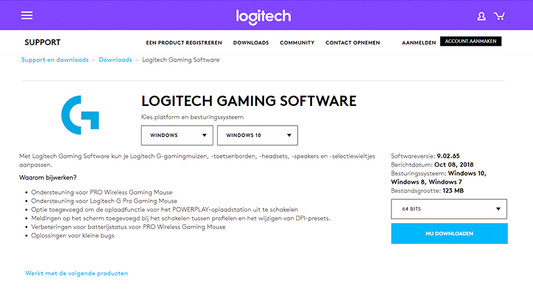
Once you've installed the Logitech Gaming Software, you can get started with the latest drivers, lighting patterns, and other customizable settings on your (new) Logitech gaming gear. On this page, I'll explain how you install the program step by step.

How do I update my drivers using the Logitech Gaming Software?

Once you've installed the Logitech Gaming Software, you can get started with the latest drivers, lighting patterns, and other customizable settings on your (new) Logitech gaming gear. On this page, I'll explain how you install the program step by step.

How do I solve problems with the scroll wheel of my Logitech gaming mouse?

With some Logitech gaming mice, you can experience issues with the scroll wheel. For example, it's possible that the scroll wheel stutters or scrolls the wrong way. In this article, you can read how to install a firmware update that solves these problems.

How do you use your mouse and keyboard on the PS5?

You can connect a gaming headset to your PlayStation 5, as well as a mouse and keyboard. This is a great solution when you're more of a PC gamer with a mouse and keyboard, because aiming is more difficult with a PS5 controller. In this article, we'll explain how to connect a mouse and keyboard to your PlayStation 5.

How do I update my drivers using the Logitech Gaming Software?

Once you've installed the Logitech Gaming Software, you can get started with the latest drivers, lighting patterns, and other customizable settings on your (new) Logitech gaming gear. On this page, I'll explain how you install the program step by step.

Subjects

Didn't find your answer?

Find an answer to your question quickly and easily via our customer service.

Coolblue specialist
Personal chat Digitalk.
You're now chatting with Coolblue customer service
This chat is closed
foo
Oeps File size is larger than 5MB. Upload a smaller file.