Written by Prescious
Edited on
17 October 2025
·
08:17
How do you use your mouse and keyboard on the PS5?
You can connect a gaming headset to your PlayStation 5, as well as a mouse and keyboard. This is a great solution when you're more of a PC gamer with a mouse and keyboard, because aiming is more difficult with a PS5 controller. In this article, we'll explain how to connect a mouse and keyboard to your PlayStation 5.

Connect mouse and keyboard in 2 steps
You need your PlayStation 5, keyboard, and mouse for the connection. Keep in mind that the PlayStation 5 only has 2 USB-C ports and 1 USB-A port. Are you already using a port on your PS5? We recommend a USB hub.
- Step 1. Connect a mouse and keyboard
- Step 2. Set up your mouse and keyboard
Step 1: connect a mouse and keyboard
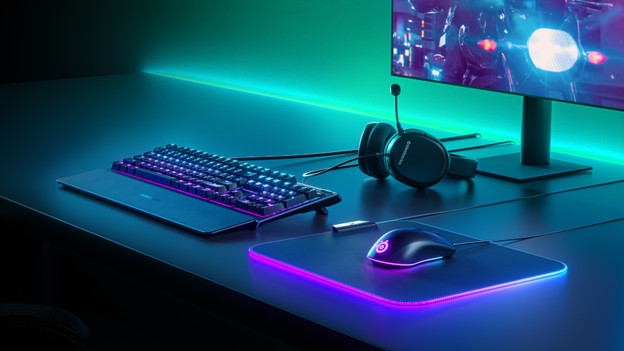
Via cable
- Start up your PS5 and log in to your account.
- Are you using a USB hub? Connect the USB hub to your PS5.
- Connect your mouse and keyboard to your PS5 with the included USB cable or connect them to the USB hub.

Via Bluetooth
- Start up your PS5 and log in to your account.
- Turn on pairing mode on your mouse and keyboard. How to turn on pairing mode differs per accessory, so check the manual of your accessory for this.
- Go to your PS5 settings and select 'Accessories'.
- In 'Accessories', select 'General' and go to 'Bluetooth accessories'.
- A list with Bluetooth devices near you will pop up automatically. Choose the mouse and keyboard you want to connect.
After pairing
After you've paired them, your mouse and keyboard will connect automatically. Aren't they connecting automatically? Go to your registered accessories and select your mouse and keyboard.
Step 2: set up your mouse and keyboard

Set up keyboard
- Go to your settings and choose 'Accessories'.
- Choose 'Other Accessories' and adjust the following settings:
- Select a keyboard language.
- Key Repeat (Delay): how long it takes before you can use the same key again.
- Key Repeat (Rate): how quickly the same key gets repeated when you use it again.

Set up mouse
- Go to your settings and choose 'Accessories'.
- Choose 'Other Accessories' and adjust the following settings:
- Type: choose left or right-handed.
- Pointer Speed: how quickly your pointer moves.
Article by Prescious
Gaming Expert.