
Written by Maurits
Edited on
23 December 2023
·
13:55
Get started with your Bose QuietComfort Ultra Headphones
You just purchased the Bose QuietComfort Ultra Headphones and you want to get started with them as soon as possible. In this article, we'll help you get started in 5 steps. You can read how to connect the headphones, how to adjust the sound, and much more.

Get started with the QuietComfort Ultra Headphones
With the following 5 steps, you'll get the most out of your Bose QuietComfort Ultra Headphones.
Step 1: connect your headphones
Step 2: download the app
Step 3: turn on Bose Immersive Audio
Step 4: adjust noise canceling
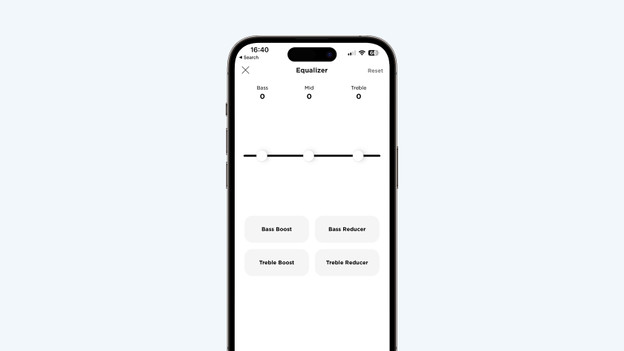
Step 5: adjust sound preferences
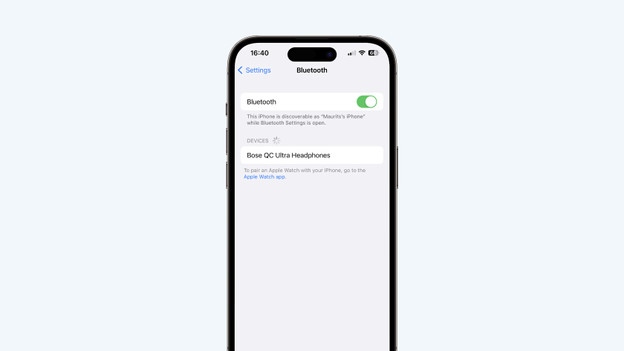
Step 1: connect your headphones
When you turn on the headphones for the first time, they search for a Bluetooth connection right away. Switch on Bluetooth on your smartphone, laptop, or tablet as well. 'Bose QC Ultra Headphones' will appear on your screen. Put on your headphones and select this device. You'll then hear a sound in both ears. This is the CustomTune technology. This technology scans your ears and adjusts the sound reproduction accordingly. This way, you listen to music that's tailored to your ears.
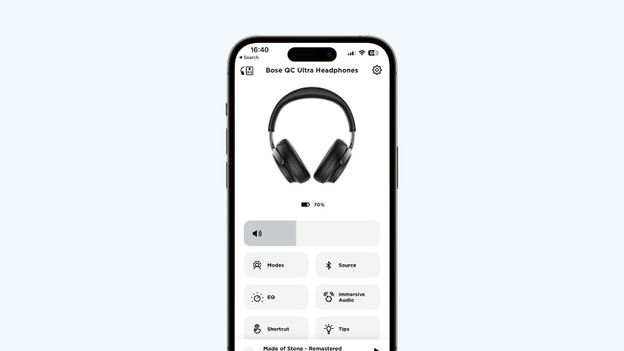
Step 2: download the app
When you connect your headphones to a smartphone or tablet, download the Bose Music App. Use this app to go through steps 3, 4, and 5.
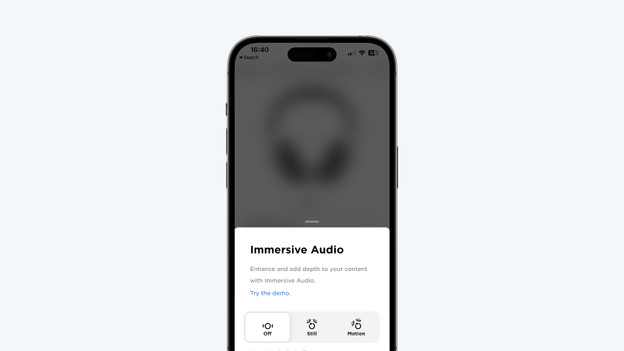
Step 3: turn on Bose Immersive Audio
In the Bose Music App, you can enable Bose Immersive Audio. This is the Bose technology for spatial audio. This way, instruments sound as if they're playing around you, instead of in your ear. In the app, tap the 'Immersive audio' button. Then, choose 'Static' if you want to experience spatial audio while sitting down. Choose 'Dynamic' if you want to hear spatial audio while you walk.
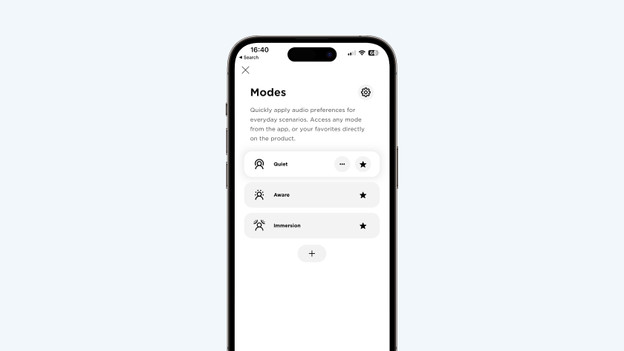
Step 4: adjust noise canceling
With the Bose Music App, you determine how much ambient noise you want to hear. Go to 'Modes' in the app. This contains 3 noise canceling options. Choose 'Silent' if you don't want to hear anything from your surroundings. If you want noise canceling while you listen to music via Bose Immersive Audio, choose 'Immersion'. Want to hear ambient noise? Select 'No NC'. And with the + icon, you can set how much you want to reduce ambient noise.
Step 5: adjust sound preferences
You can adjust your sound preferences in the Bose Music App. This allows you to listen to music the way you want. Go to 'EQ' in the app. Then, set your sound preferences with the 3-band equalizer. For example, you can emphasize the bass and treble, while the mids remain the same.

