Written by Jesper
Edited on
25 August 2026
·
09:04
Getting started with Galaxy AI on your Samsung smartphone
Galaxy AI is smart software that you'll find on a number of Samsung smartphones, such as the S24 series. For example, you can easily edit photos and look up something via the internet with this artificial intelligence. In this article, we'll explain how to use the most popular Galaxy AI functions.

Getting started with Galaxy AI
In this article, you can read how to use the following Galaxy AI functions:
- Tip 1. Circle to Search
- Tip 2. Remove objects from photos
- Tip 3. Create a unique background
- Tip 4. Summarize article
- Tip 5. Adjust the writing style of messages
Tip 1: circle something and look it up via Google
With Circle to Search, you can search for objects or people you see on your screen via Google. It doesn't matter which app you're using.
-
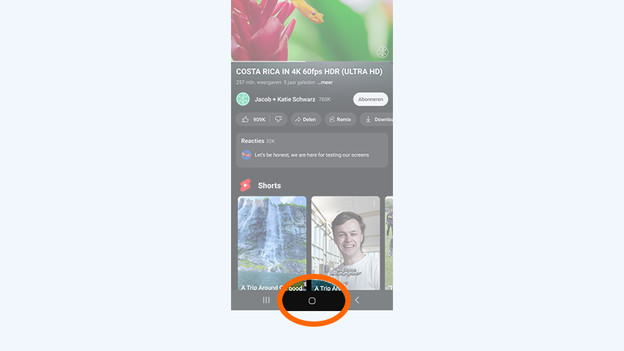
Press and hold the square home button at the bottom of the screen. Don't have any buttons set? Hold your finger in the same position for a moment, at the bottom center.
-
A kind of layer will appear over the screen. You can now circle the object you want to look up.
-
A Google screen will open with information about your item. That can be informative, but sometimes you can also see where you can buy an item.


Tip 2: remove objects from photos
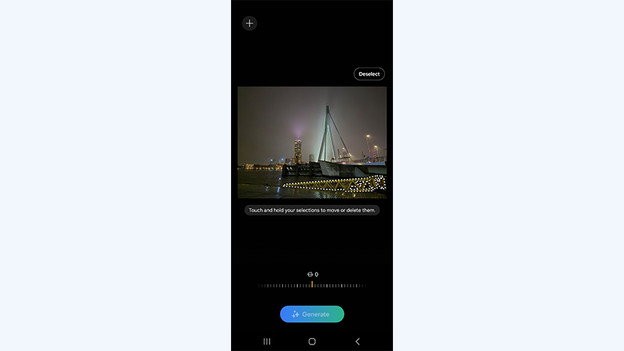
Galaxy AI removes distracting objects from your photos. For example, I'm removing a bright yellow staircase that's ruining my photo here.
- Open your photo in Gallery and tap the pencil.
- Now, tap the 3 small stars.
- Circle the object you want to remove or press and hold the object.
- Your device will now select the object. Press and hold this again.
- Tap the eraser tool.
- Choose Generate. Galaxy AI will now remove the object.




Tip 3: have a background made
You can have Galaxy AI create a unique background for you. Simply indicate what the background should look like.
- In the settings menu, go to Background and style.
- Select Change backgrounds.
- Scroll down and click on the Generative collage.
- Choose one of the options under Create something new.
- Tap the highlighted words to let Galaxy AI create a background to your liking.
- Choose Generate.
- Tap Set and choose where you want to set the background.
- Select Next and then tap Done.


Tip 4: summarize articles
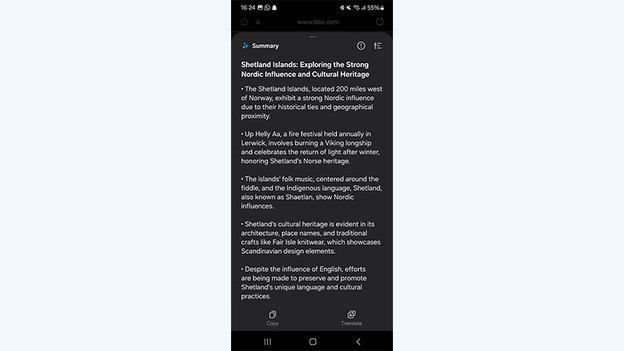
Don't have the time or desire to read an entire long article? With Galaxy AI ,you get a short summary in a few seconds.
- Open an article in the Samsung web browser.
- Tap the 3 stars at the bottom of the bar.
- Select Summary.


Tip 5: change the style of your text
With Chat Assist, Galaxy AI can make your text suitable for different situations. You can make your text professional, informal, or suitable for social media, for example.
- Write a text in a message app like WhatsApp or in your Notes.
- Tap the 3 stars at the top of your keyboard.
- Choose Writing style.
Galaxy AI will now convert your text into different styles.


Article by Jesper
Smartphone Expert.