Written by Laurence
Edited on
27 January 2025
·
13:10
How does the LG Magic Remote work?
With the LG Magic Remote, you select an option by pointing at it. That saves you a lot of pressing on number and arrow buttons. You'll still need the buttons sometimes though. In this article, you'll find out what all the buttons on this remote are for. The Magic Remote used in this article goes with an LG OLED TV from 2022, but the explanation is also suitable for older versions.
Different LG remotes
Some LG televisions include a standard remote, instead of a Magic Remote. Does your remote look different than the remote in this article? Read our advice on the standard remote.
Guide, number buttons, and more actions

Guide
When you press this button, the channel guide will appear. You can scroll through a list of all the channels that you can watch. If you press this button and hold it for more than 1 second, a list with all the channels and programs you've saved will appear.

Number buttons
If you press the 0 button for more than 1 second, you open a list of numbers on the screen. Then, you can assign a TV channel or app to each number. If you then press a number button for more than 3 seconds, you'll go directly to your favorite channel or app. If you press and hold the 9 for longer than a second, the menu will appear.

More actions and AD/SAP
Press this button and you'll get access to a small menu that displays more function of the remote. If you press and hold this button, you can switch on audio description (AD/SAP). If you want to switch this off again, you can press and hold the same button for more than a second.
Volume, mute, and program buttons

Volume
With these buttons, you can adjust the volume of the TV. Turn the volume up with the plus and down with the minus.

Mute
This turns the sound on or off. If you hold the button for more than 1 second, you open the accessibility menu. You can set the subtitle options via this menu, among other things.

Program buttons
You can switch channels with this.
Home screen, voice recognition, and source selection

Home screen
This button opens the home screen. In this screen, you can easily switch between your settings, connected sources, smart functions, and TV channels. If you press the button for more than 1 second, you'll open a list of your most recently opened apps and sources.
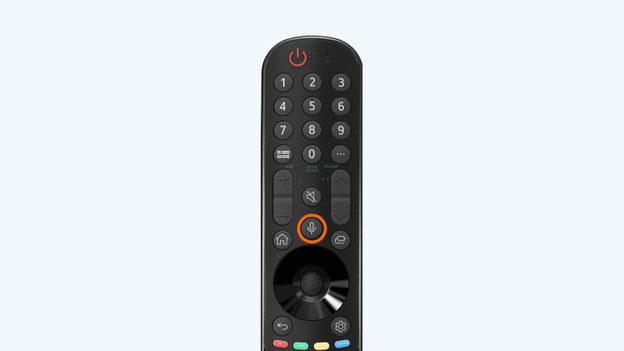
Voice recognition
You can use a voice command to search for a website or video. You do this by speaking the search term loud and clear while holding down the button. Hold the top of the remote as close to your mouth as possible. Note: this function only works when the TV is connected to the internet.

Source selection
With this button, you can select different connected playback sources. You can easily switch between 2 HDMI devices, such as your digital decoder and game console, for example. If you press the button for more than 1 second, you open a list of all sources.
Back, wheel, and quick settings

Back
This button takes you back to the previous menu. Press the button for more than 1 second to close all open menus.

Wheel/OK
Turn the wheel up or down to scroll quickly through a list of programs or functions. The OK button is in the center of the wheel. This selects an option. Are you watching a video on the smart platform of the TV? You can pause it by pressing the wheel.

Quick settings
When you press this button, you'll see a list with the most important settings on the screen. This way, you can quickly adjust the image or sound reproduction, for example.
Colored buttons, recording button, and streaming services

Colored buttons
With the colored buttons, you can choose between different options. What these options are differs per menu. If you can use these buttons, this is indicated in the menu on the screen.

Recording button
Press and hold this button for longer than a second to start a recording. This only works if your TV provider allows you to record and you connect an external storage device to the TV.

Streaming services
With these buttons, you can start one of the streaming services like Netflix or Amazon Prime Video right away. You won't have to go to the menu first.
Article by Laurence
Television Expert.