Written by Jesper
Edited on
21 April 2023
·
14:42
How do you back up your Android smartphone?
A backup is a copy of all your data, photos, and files. It's important to make such a backup when you switch to a new smartphone or when you reset your device. In this article, we'll explain step by step how to make a backup of your Android smartphone.
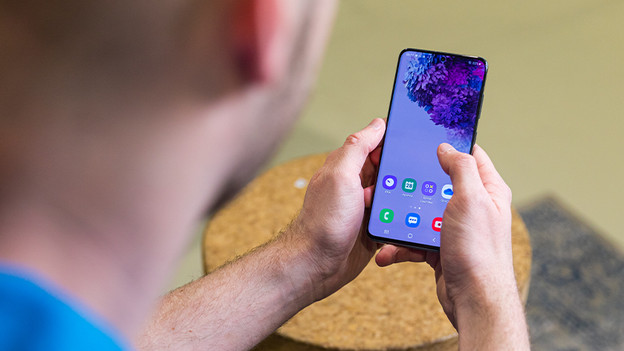
Make a backup of your Android smartphone
It's easiest to make a backup via Google. This method works on any Android smartphone. Plus, you probably already have a Google account to download apps from the Play Store, for example. You can make a backup via Google as follows:
- Step 1: open Google Drive and go to Settings
- Step 2: make a backup
- Step 3: download Google photos and make a backup
- Step 4: open Google photos and turn on backup
Step 1: open Google Drive and go to Settings
-
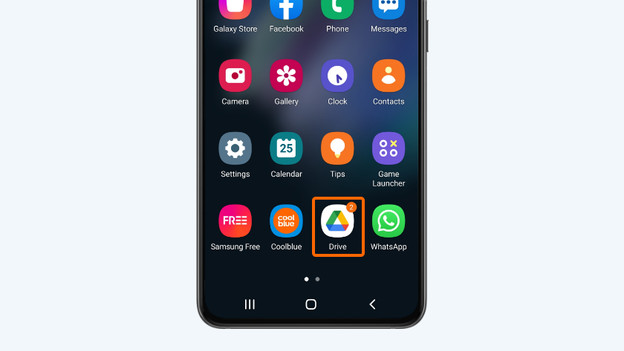
Open the Google Drive app. Don't have it on your smartphone yet? You can download it from the Google Play Store.
-
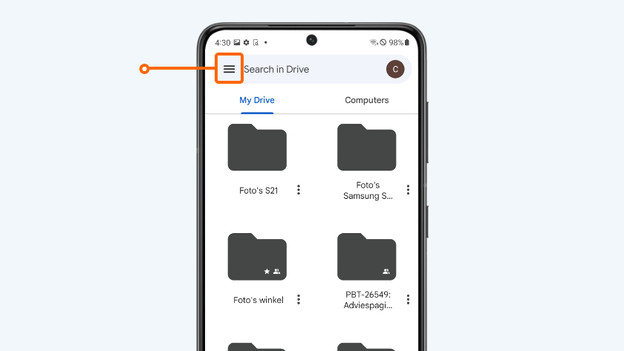
Tap the 3 dashes in the top left corner
-
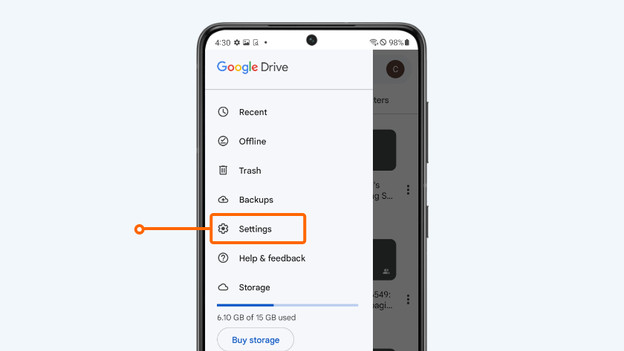
Select Settings
1. Open the Google Drive app.
2. Tap the 3 dashes in the corner.
3. Select Settings.
Step 2: Make a backup
-
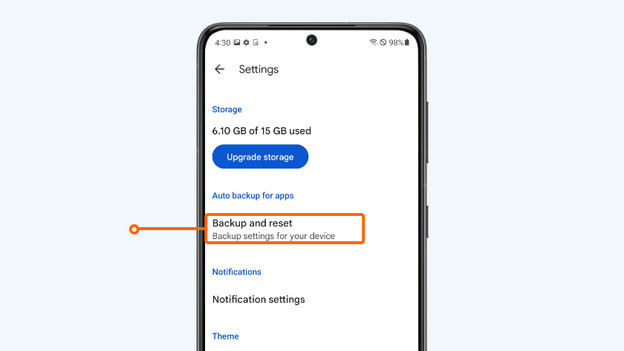
Tap Backup and reset
-
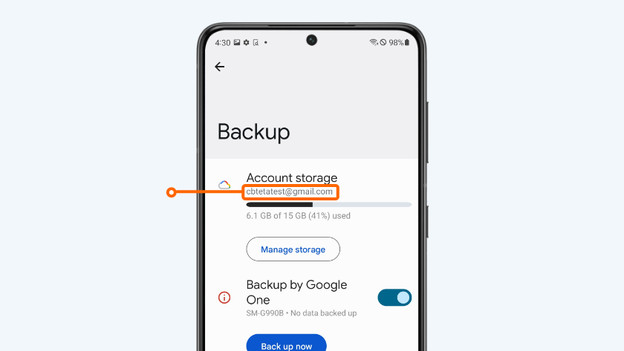
Check if you're logged in with your Google account under Account. Is this not the case? Then tap Account to log in to your account.
-
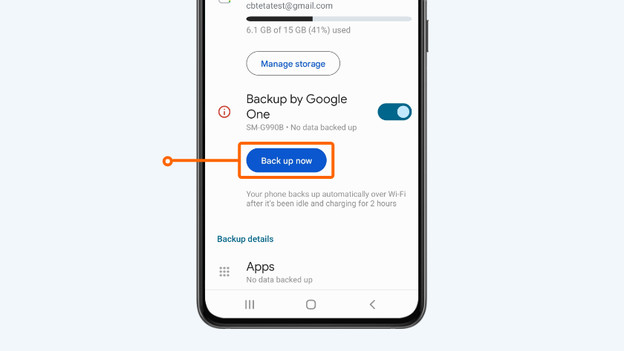
Choose 'Backup now'
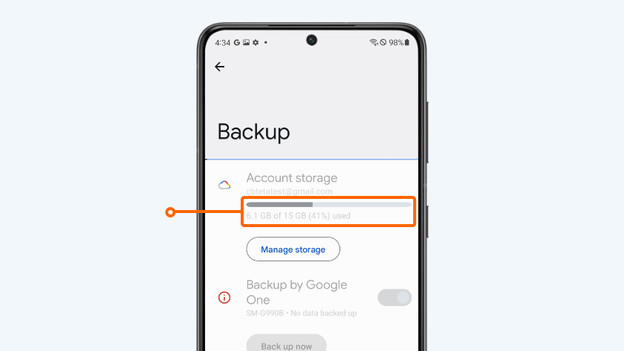
Your smartphone will now backup your apps, data, and contacts. You can see the backup progress in the blue bar at the top of the screen. Want to backup your photos and videos as well? Then go to step 3.
1. Tap Backup and reset.
2. Check if you're logged in with your Google account.
3. Choose Backup now.
Check the backup progress in the blue bar at the top of the screen.
Step 3: download Google Photos and make a backup
-
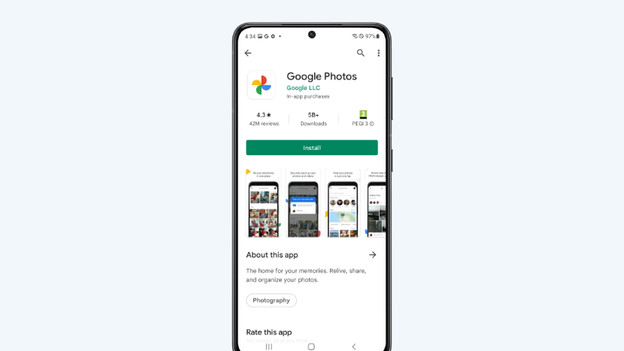
Download the app Google Photos from the Play Store. Already have this app on your device? Proceed to Step 4.
-
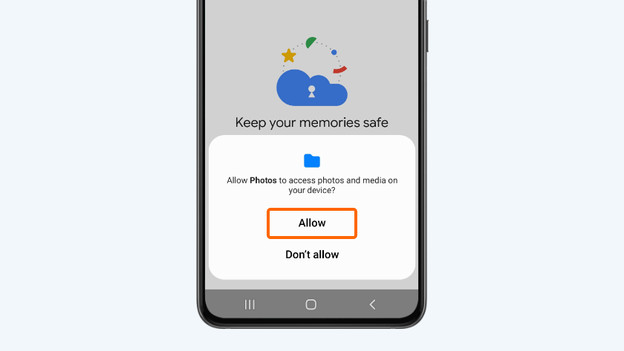
Open the Google Photos app and click Allow.
-
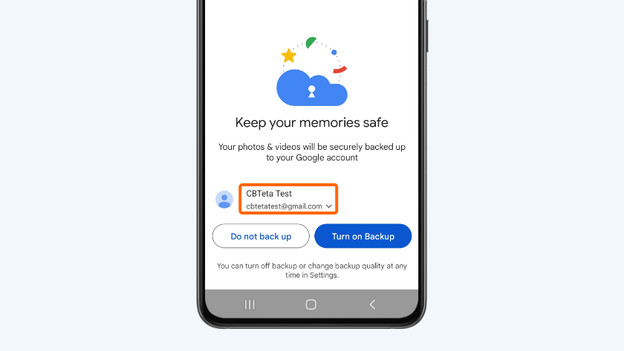
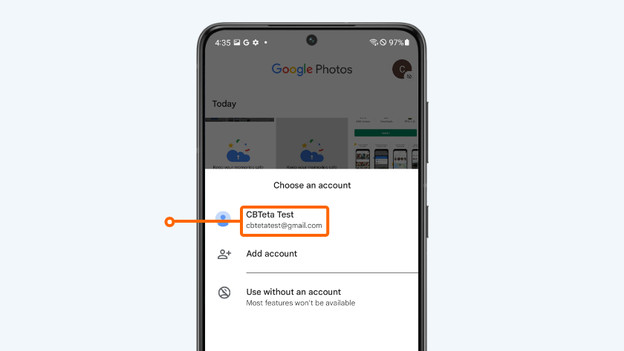
Check if your account is selected. Is this not the case? Then click the current account. Then log in by tapping Add account.
-
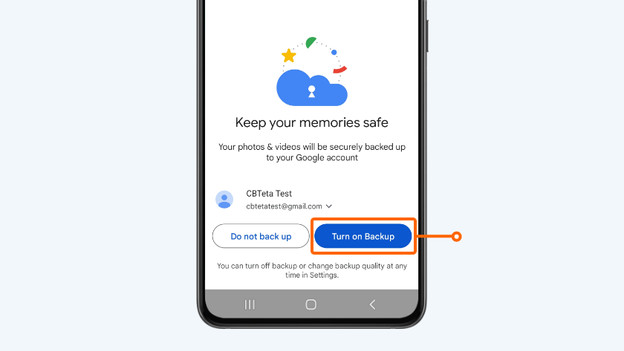
Tap Enable backup
-
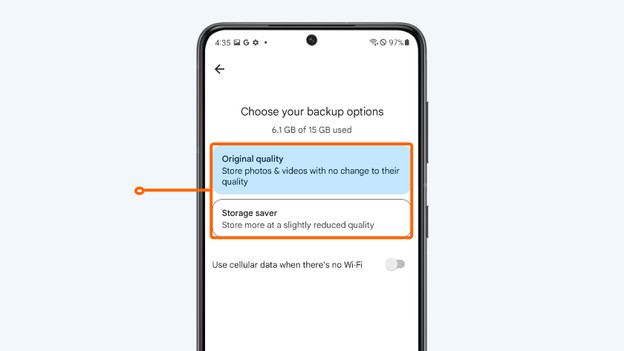
Choose in which quality you want to save your photos and choose Confirm
Google Photos now backs up to your Google account. Keep in mind that this can take several minutes.
1. Download the Google Photos app from the Google Play Store.
2. Open the Google Photos app and choose Allow.
3A. Make sure you're logged in with your Google account.
3B. Add your Google account if it isn't already available.
4. Tap Enable backup.
5. Choose the quality in which you want to save your photos and choose Confirm.
Step 4: open Google photos and turn on backup
-
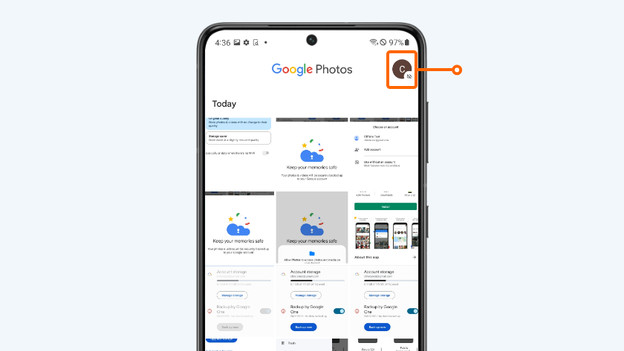
Open Google Photos and tap your profile picture in the top right corner. Don't have a profile photo set up? You'll usually see the first letter of your name instead.
-
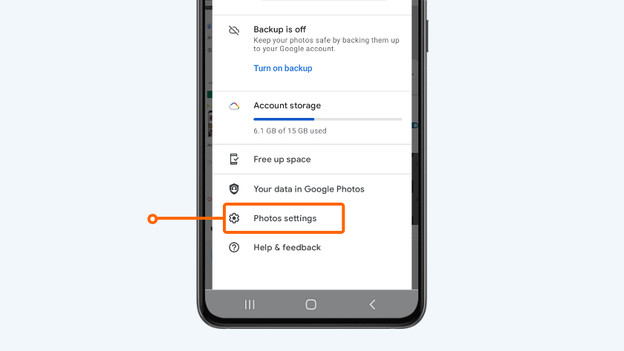
Select Settings for Photos.
-
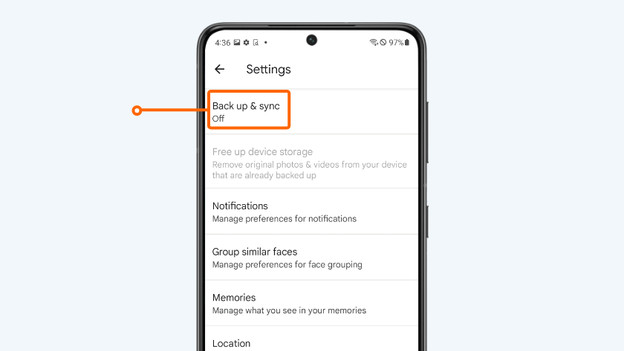
Tap Backup and sync.
-
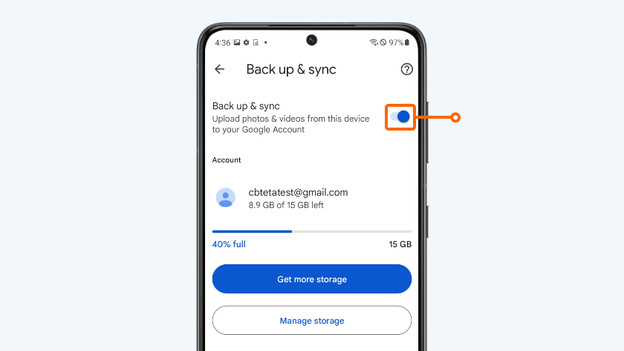
Make sure that the bullet next to Backup and Sync is blue. You can do this by tapping on it.
Google Photos will now back up to your Google account. Keep in mind that this can take a few minutes. Also useful: the app includes all photos you take from now on in future backups.
1. Open Google Photos and tap your profile picture.
2. Select Settings for Photos.
3. Tap Backup and sync.
4. Make the ball blue by tapping on it

Help from an expert in the store
Still couldn't back up your Android smartphone after reading this article? No worries. Our experts are ready to help you in the Coolblue stores. While you enjoy a cup of coffee, they're happy to help you make a backup.
Article by Jesper
Smartphone Expert.