
Written by Evany
Edited on
1 October 2025
·
10:02
How do you block phone numbers on your iPhone?
Do you often get called or distracted by a contact or unknown caller? You can easily block these callers. These can be unknown phone numbers or numbers from your own contact list. We'll explain how to block a phone number on your iPhone in this article.

Block phone numbers on your iPhone
There are different ways in which you can block phone numbers. You can do that via your call history, the Messages app, or FaceTime.
- Tip 1. Block via your call history
- Tip 2. Block numbers in the Messages app
- Tip 3. Block contacts via FaceTime
- Tip 4. Unblock your blocked contacts
Tip 1: block via your call history
In the Phone app, you can find your call history. That's a list with all incoming and outgoing calls. You can easily block a phone number or contact here.
- Open the Phone app and tap 'Recent', towards the bottom.
- Tap the circle with the 'i' after the number or contact your want to block.
- Scroll down and tap 'Block this caller'.
- Next, tap 'Block contact'.
Tap 'Recent'
Tap the circle with an 'i' in it
Tap 'Block this caller'
Choose 'Block contact'


Tip 2: block the numbers via the Messages app
You can find all your incoming and outgoing messages in the Messages app. Spam or messages your don't recognize are often sent by unknown senders. You can block these senders as follows:
- Open the Messages app and tap the message.
- You'll see an avatar at the top with the phone number or contact below it. Tap it.
- Next, tap the icon above 'Info'.
- Tap 'Block this caller'.
- Now tap 'Block contact'.
Open the message
Tap the avatar
Tap the icon above 'info'
Tap 'Block this caller'
Choose 'Block contact'


Tip 3: block contacts via FaceTime
You can also block phone numbers or contacts via the video call app FaceTime. That's just as easy as the previous tips.
- Go to the FaceTime app on your iPhone.
- You'll now see a list with all your contacts.
- Tap the circle with an 'i' after the contact you want to block.
- Scroll down and tap 'Block this caller'.
- Now tap 'Block contact'.
Tap the circle with an 'i' in it
Tap 'Block this caller'
Choose 'Block contact'


Tip 4: unblock your blocked contacts
Did you accidentally block someone or do you want to unblock someone? You can find all your blocked contacts in a useful list. These are all the contacts you blocked via your call history, the Messages app, or FaceTime.
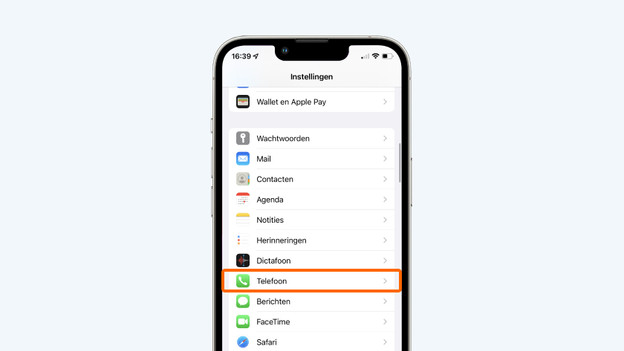
- Go to 'Settings' and tap 'Phone'.
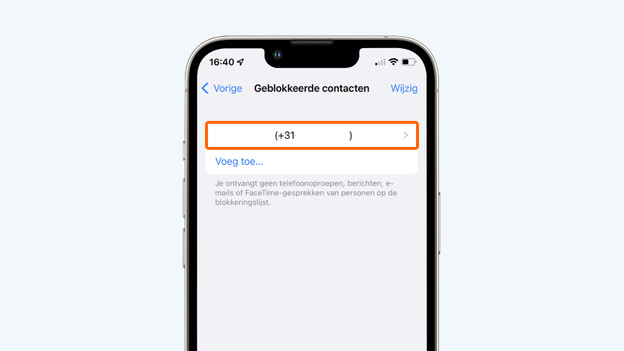
- Scroll down and tap 'Block contacts'.
- You'll know see all your blocked contacts. If you want to unblock somebody, hold your finger on the number or contact and swipe from left to write.
- You'll see 'Unblock' appear. Tap it to unblock the contact.
Tap 'Phone'
Tap 'Blocked contacts'
Swipe from left to right
Tap 'Unblock'


Article by Evany
Apple Expert.

