
Written by Rowan
Edited on
19 August 2026
·
07:31
5 tips if your MacBook keeps shutting down
It's very annoying when your MacBook suddenly crashes. Especially if your MacBook lets you down at an important moment. Luckily, this problem is often easy to solve. In this article, you can read how to solve your MacBook error.

Solve sudden crash
Did your MacBook suddenly crash? With the following tips, you can solve common crash issues.
- Tip 1. Reboot your MacBook
- Tip 2. Charge your MacBook
- Tip 3. Close all open programs
- Tip 4. Disable sleep mode
- Tip 5. Install the latest macOS update

Tip 1: reboot your MacBook
If you use your MacBook every day, you probably never actually turn it off. Closing your MacBook seems enough. It's important that you turn off your MacBook every now and then. Do this as follows:
-
Click on the Apple symbol () in the menu bar. Then, choose from Force stop, Restart, and Turn off.
-
If your MacBook still suddenly crashes after this, press and hold the Command key (⌘) and Control key (Ctrl) then press the on/off button.
-
Your MacBook will now reboot.
Tip 2: charge your MacBook
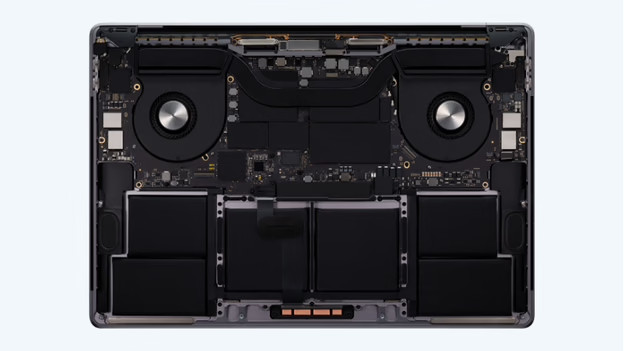
It's also possible that your MacBook is simply out of battery. That's why you should connect the power adapter to your MacBook and to a socket. Charge your MacBook for at least 8 hours. The battery symbol in the menu bar shows you when your MacBook is fully charged. Did you fully charge your MacBook and does it run out of battery fast? Your battery is probably the problem.
Tip 3: close all open programs
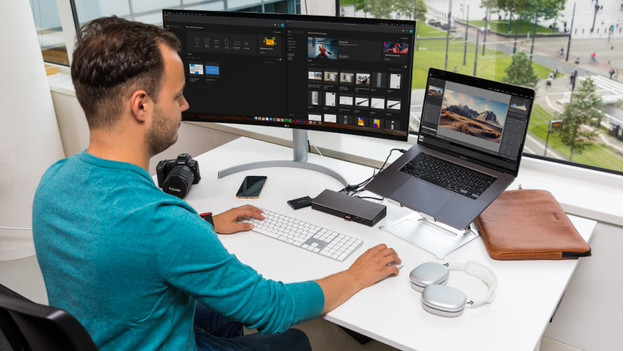
Sometimes, you have too many programs open at the same time. This could cause your MacBook to crash. If you multitask a lot or often switch between programs, you need enough RAM. If you don't have much RAM, it's important that you don't run programs in the background unnecessarily. Close all open programs and only work in the apps you need. Do you want to multitask more? Choose a new MacBook with more RAM.

Tip 4: disable sleep mode
If your MacBook shows a black screen, this doesn't necessarily mean that it has shut down. Does the screen turn on again when you touch the trackpad or press a key? The sleep mode is enabled. If you find this annoying, you can easily disable sleep mode as follows:
- Click on the Apple symbol () in the menu bar.
- Go to the System Settings.
- Navigate to Battery.
- Adjust the sleep mode settings.

Tip 5: update your MacBook with the latest version of macOS
If you have an older macOS version, your MacBook may become slower. This means you can work less smoothly in multiple programs at the same time. It can also cause your MacBook to crash. That's why you should always make sure that you install the most recent macOS version. This way, you can be sure that your MacBook always works properly.
Article by Rowan
Apple Expert.

