Written by Kayleigh
Edited on
21 March 2025
·
16:32
How do you reset a Brother printer?
Is your Brother printer jammed or does it show an error code? Sometimes, you can solve the problem with a reset. There are 2 ways to reset your Brother printer. Which way you use depends on whether your printer has a display or not. We'll explain step by step how to reset your printer.
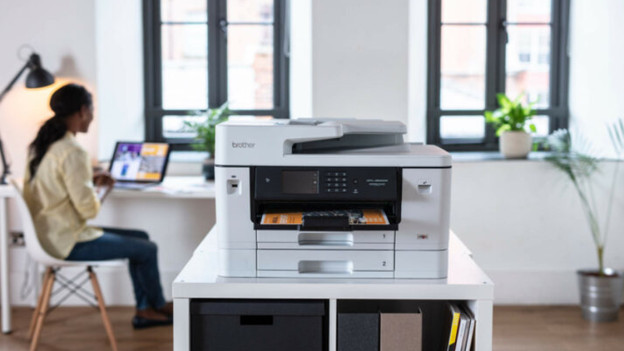
Reset Brother printer
You can reset your Brother printer in 2 different ways. We'll tell you how to reset your printer.
- Tip 1: reset via the screen
- Tip 2: reset with the buttons
Do you want to reset your Brother printer because the display shows an error code? Check the table in the article below first so see if you can solve the problem with one of the solutions.
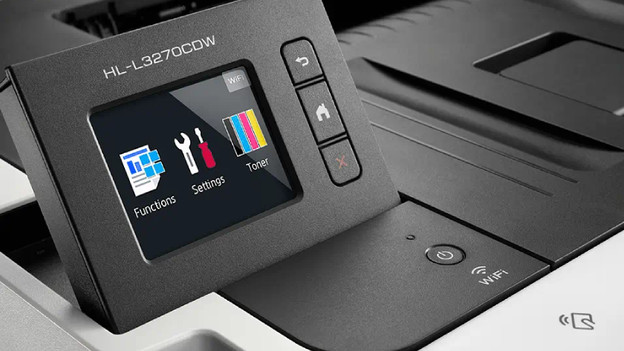
Tip 1: reset via the screen
Does your Brother printer have a display? Reset it like this:
- Go to Settings.
- Then, go to All setting and Standard settings.
- Go to Reset and press OK.
- Go to Reset to factory settings and press OK.
- Press and hold OK for 5 seconds. The printer will now reboot and has been reset.
Doesn't your Brother printer have a display? Read how to reset your printer below.
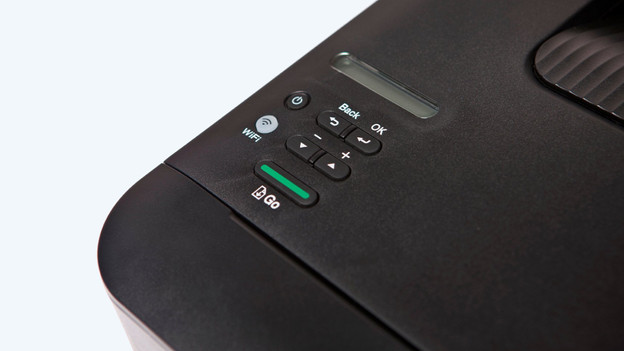
Tip 2: reset with the buttons
Don't have a display on your Brother printer? Perform a reset with these steps:
- Turn off your printer and unplug the connector from the socket.
- Wait 1 minute and plug the connector back into the socket. Leave the printer off.
- Press and hold the GO button.
- Keep pressing the GO button while turning on the printer.
- Wait for the lights of the printer to switch on, then release the GO button.
- Press the GO button 10 times and wait for 2 minutes.
- The printer has now been reset.

