
Written by Kayleigh
Edited on
21 March 2025
·
16:32
How do you reset a HP printer?
Sometimes, your HP printer gets stuck or you see an error code that you can't solve. A reset can sometimes solve this problem. You can reset an HP printer via the screen or with a hard reset. We'll give you a few tips on how to easily reset your printer.

Resetting the HP printer
You can reset your HP printer in 2 different ways. Does your HP printer have a screen? Read tip 1 to find out how to reset your printer. No screen? Go to tip 2.
- Tip 1: reset via the screen
- Tip 2: perform a hard reset
Is your HP printer showing an error code? Check the following article first to see if you can solve the problem with 1 of the solutions.

Tip 1: reset via the screen
Does your HP printer have a screen? You can reset the system of your printer the following way:
- Go to Settings.
- Tap Service.
- Choose Reset factory settings. Tap OK. The printer will restore the factory settings. The printer will restart automatically when it's done.
- Your printer has now been reset.
In the next paragraph, you can read how to reset your HP printer if it doesn't have a screen.
Tip 2: perform a hard reset
You can reset an HP printer without screen the following way:
- Switch on the printer.*
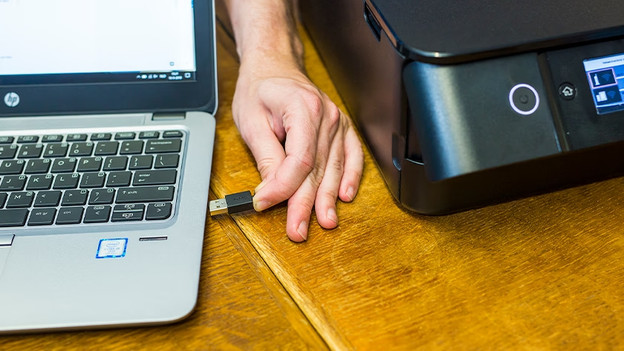
- Is your printer connected via a data or USB cable? Remove it from the printer.
- Remove the cartridges or toner cartridges from your printer.
- Remove the connector from the socket and the printer while the printer is switched on.
- Wait for at least 1 minute.
- Connect the printer to the socket and switch it back on.
- Re-insert the cartridges or toners into the printer and close the cover.
- Does the printer indicate that it needs to calibrate? Press OK and let the printer do its job. *The printer has now been reset.

