Written by Jorn
Edited on
31 December 2025
·
11:24
How do you set up Philips Ambilight?
Did you buy a Philips Ambilight? In this article, we'll explain how to set up your Ambilight in a few simple steps. You'll be able to enjoy this unique viewing experience in no time.
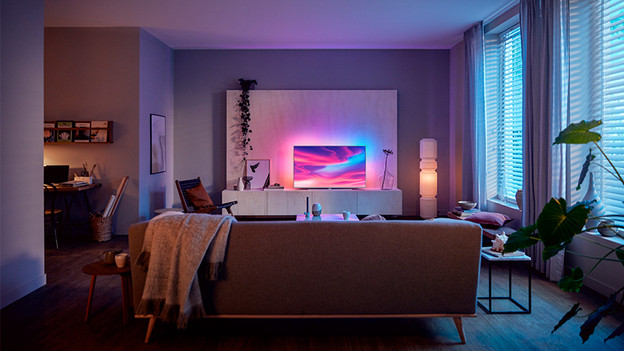
Tips for the ideal setup
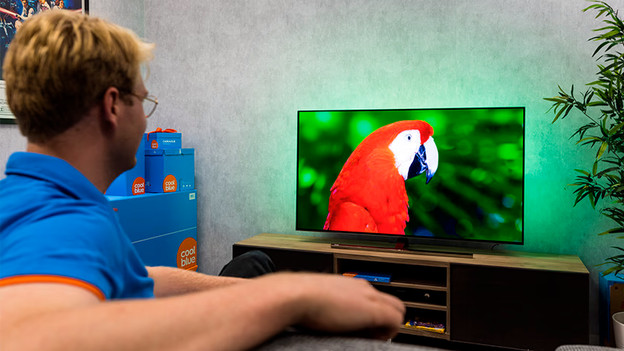
Get the most out of your Ambilight television by applying the following setup tips. For example, Ambilight works best in a slightly darkened room. That's because the color effects are most visible in that environment. Make sure there's 25cm of space between the TV and the wall. It's also good to leave enough space around the television for the best Ambilight effect. Want to mount TV with a wall mount? Ensure there's at least 5cm of space between the wall and the TV for the optimal lighting effect.
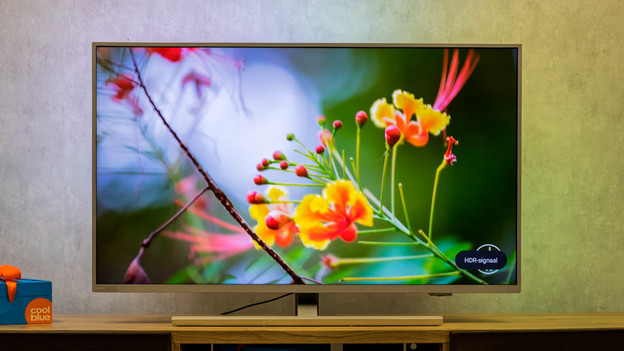
Get started with Ambilight
Follow these 5 steps to set up the Ambilight to your liking quickly and easily.
- Step 1: open the menu and go to 'Settings'.
- Step 2: select the Ambilight settings.
- Step 3: select 'Ambilight style'.
- Step 4: choose from 3 Ambilight styles.
- Step 5: personalize your choice.

Step 1: open the menu and go to 'Settings'
- Click the 'Menu' button on the remote.
- Select 'Settings' at the top right in the menu.

Step 2: select the Amblight settings
- Navigate to 'Ambilight' with the arrow buttons on the remote.
- Use the button in the center of the remote to open the Ambilight settings.

Step 3: select the Ambilight style
- Select the top option: 'Ambilight style'.
- Use the button in the center of the remote to open the Ambilight styles.
Step 4: choose from 3 Ambilight styles
You now get 3 Ambilight style options:
-
Option 1 'Follow video': choose this option if you want the backlight to follow the movements of the images.
-
Option 2 'Follow audio': choose this option of you want the backlight to follow the audio of the television.
-
Option 3 'Lounge light': choose this option if you want the backlight to consist of 1 color.
Navigate with the arrow buttons and confirm your choice with the button in the center of the remote.
Philips Ambilight: 'Follow video'
Philips Ambilight: 'Follow audio'
Philips Ambilight: 'Lounge light'
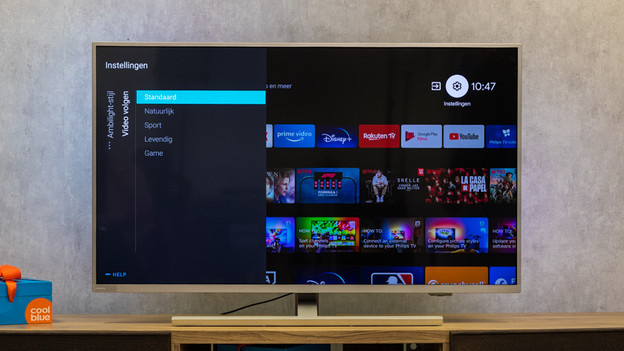
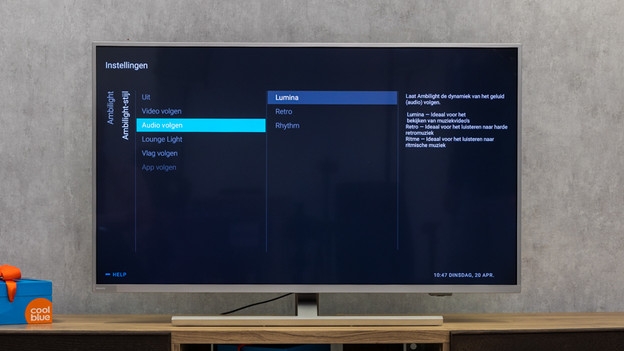
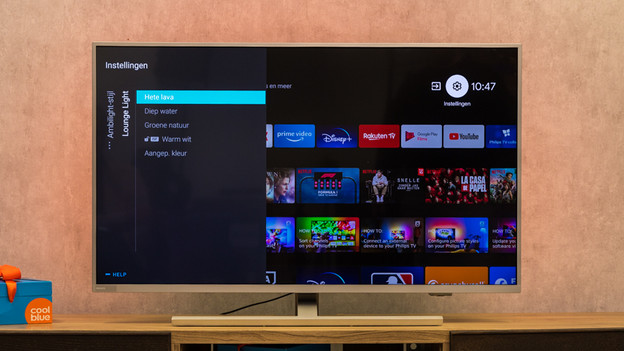
Step 5: personalize your choice
Depending on the choice you made in step 3, you can personalize your chosen Ambilight style here. Did you choose 'Follow video'? Try 'Sports' for the backlight to follow the colors of an exciting horse race, for example. Or, choose 'Game' when you're gaming if you want the Ambilight to respond to your actions faster.