
Written by Bram
Edited on
10 July 2025
·
07:47
How do you solve connection problems with your eufy HomeBase 2 and 3?
Wireless Eufy IP cameras and doorbells set up a WiFi connection with the Eufy HomeBase. Sometimes that connection isn't good enough, so your image doesn't come through or the doorbell reacts too slowly. In this article, you can read how to solve connection problems with the Eufy HomeBase 2 and S308.
Improve the WiFi reception of your Eufy camera or doorbell
Your wireless Eufy devices don't make a connection with your home WiFi network. Your camera or doorbell transmits the image via the WiFi signal of the HomeBase. A regular WiFi extender doesn't solve your connection problems. With these 6 tips, you'll improve the connection of your HomeBase. Before you start, make sure your router is working properly and the Ethernet cable isn't broken.
- Tip 1: place the base station centrally in your home
- Tip 2: make sure there are as few walls as possible between the devices
- Tip 3: make sure you have a stable internet connection
- Tip 4: check your firewall
- Tip 5: charge your device
- Tip 6: reset your HomeBase
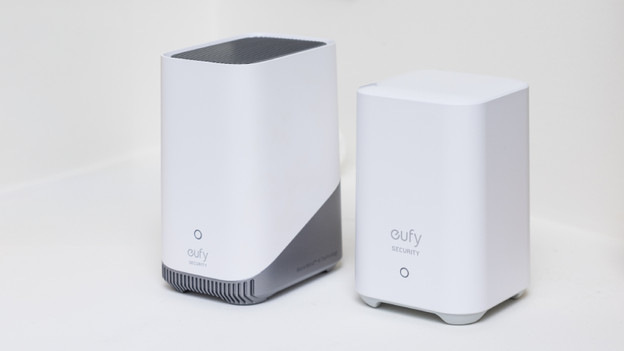

Tip 1: place the base station centrally in your home
Are you guarding your front and backyard with a Eufy system? Place the HomeBase as centrally in your house as possible. This makes the WiFi signal equally strong on both sides. Even when that space isn't close to the router, set your HomeBase to the WiFi setting. Go to the settings of the Eufy app to do this. You should connect the HomeBase 2 to the router before putting it in WiFi mode. Then, you can use it separately from your router.

Tip 2: avoid obstacles
Walls and ceilings weaken your WiFi signal. Coat racks and aquariums also stop the signal. Is there more than 1 of such an obstacle between the HomeBase and the IP camera or doorbell? This means the connection of the base station isn't stable enough. Your reception does remain good if you place the base station close to a door or window. Keep this in mind when the HomeBase isn't in a central space.

Tip 3: ensure a stable internet connection
In some cases, the Eufy doorbell works, but very slowly. You'll notice you have to wait a while to hear the chime after someone rings the bell. In this case, the internet speed that reaches the Eufy HomeBase is probably too slow. Use a network cable or provide stable wireless internet. You can use a WiFi extender, for example. Then check if the speed of your Eufy HomeBase stays above 10Mbps.

Tip 4: check for connection problems caused by a firewall
Sometimes, a firewall protects your internet connection from unwanted intruders, but this differs per router. If your connection is good but you still don't see an image, this could be the problem. You'll want to give the camera access to your firewall. To do this, you have to go to your router settings. Can't make it work? Contact the manufacturer of your router.

Tip 5: charge your Eufy device
If the battery percentage is low, your Eufy camera or doorbell won't work as well. You can charge the camera or doorbell via the USB port on the back of your HomeBase, or with a USB charger. The fastest way to do it is via the HomeBase.

Tip 6: reset your HomeBase
Don't all of the earlier solutions work? Put the HomeBase back to its factory settings. You first have to take the plug out of the HomeBase. Press the Cycle button with an item like a paperclip or skewer. This button is on the side of the HomeBase 2 and on the bottom of the HomeBase 3 base station. Press the button for 10 seconds. You can then plug the base station back into the socket. Note: after a full reset, you have to set up the HomeBase again.
Article by Bram
IP camera expert.

