
Written by Giovanni
Edited on
12 July 2024
·
15:23
How do you solve sound problems with your Razer headset?
Don't you hear audio while gaming with your Razer headset? You can solve this by adjusting the audio settings of the headset. We'll explain how to solve audio problems with your Razer headset.
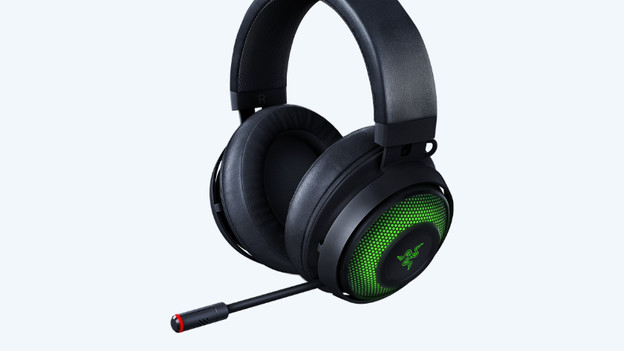
Solve your Razer headset audio problems
Adjust the settings of your headset correctly. Follow the 4 tips below and solve audio problems with your headset.
Tip 1. Solve hardware problems
Tip 2. Troubleshoot
Tip 3. Adjust audio settings
Tip 4. Reinstall Razer gaming software
Tip 1: solve hardware problems
First, check if there's a problem with the hardware. Connect your Razer headset to a different audio connector in your device. Connect the headset to a different device to test if the headset works. If the headset doesn't play audio on the other device either, it's likely that the headset is damaged. If the hardware works properly, it may be caused by the audio settings or the Razer software. We'll discuss these tips.
Tip 2: troubleshoot
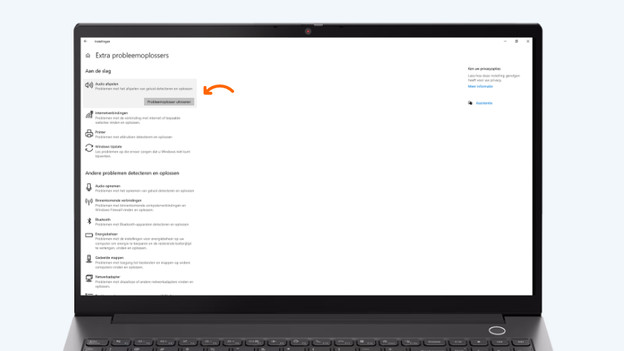
With the Windows troubleshooter for audio, you can easily solve audio problems. Via these 3 steps, you can easily troubleshoot.
- Type 'troubleshoot' in the Windows search bar, and click 'Additional troubleshooters'.
- Click 'Playing audio'. Then, click 'Run the troubleshooter'.
- Follow the instructions on your screen to solve the problems found.
If your Razer headset still won't produce audio, go to the next solution below.
To the troubleshooter
Troubleshoot

Tip 3: adjust the sound settings
Set up your Razer headset as the default playback device. If you don't, it's possible the sound won't come out of your headset. Follow the instructions below to check and adjust your sound settings.
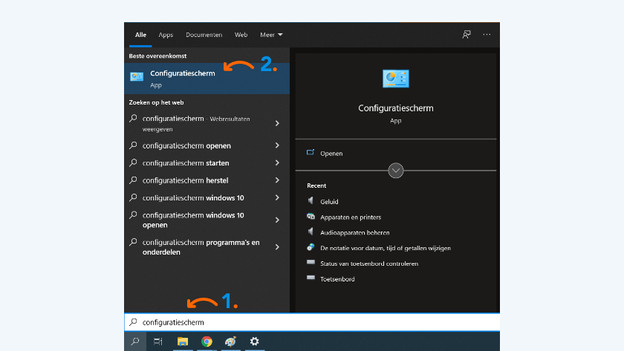
- Type 'control panel' in the Windows search bar and click 'Control panel'.
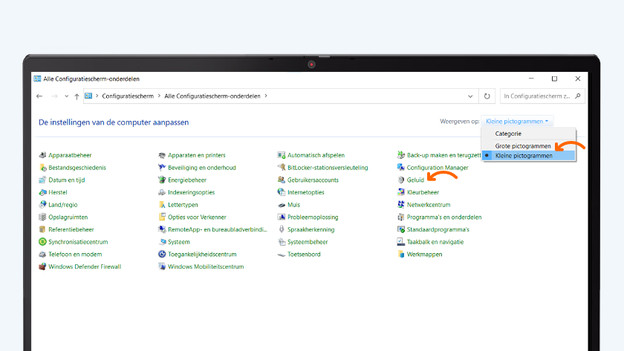
- Select 'Small icons' next to 'View by', and click 'Sound'.
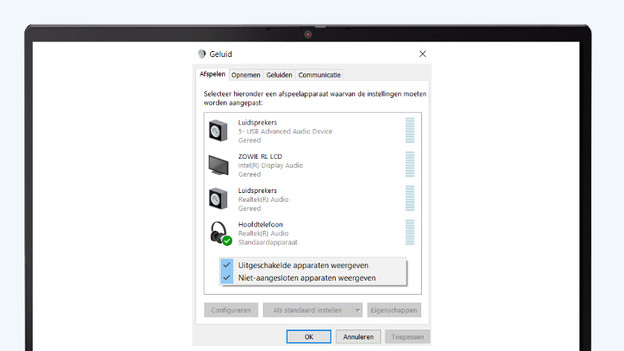
- Right click an empty space and check 'Show disabled devices'.
- Make sure your Razer headset is enabled. If that's not the case, right click it and click 'Enable'.
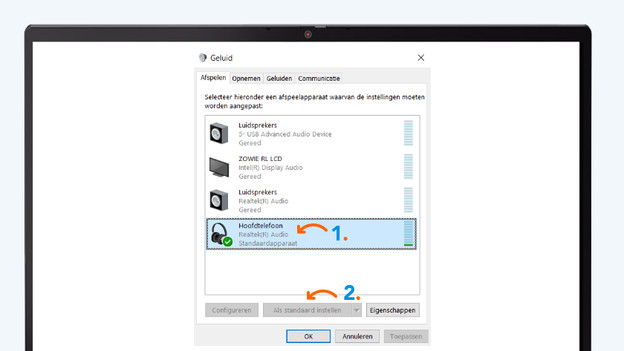
- Next, click your Razer headset. Then click 'Set as default'.
Now that you've chosen the right settings, the Razer headset should work correctly. If that's not the case, you can continue with the last tip to solve problems with the Razer software.
To configuration screen
Select small icons
Turn on Razer headset
Set as default
Tip 4: reinstall the audio driver
The audio driver ensures the audio device works properly. To solve the compatibility problem, you can reinstall the driver.
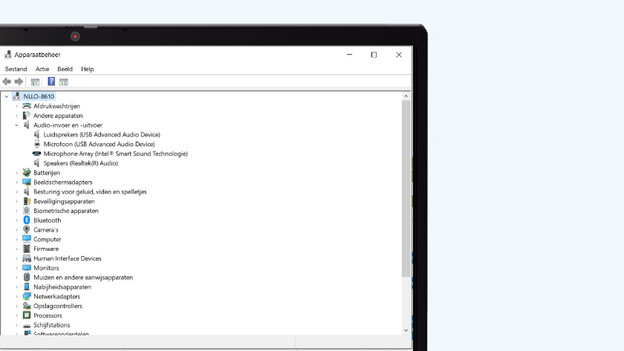
- Press the Windows logo and letter 'S' at the same time. Type 'Application management' and click on the button with the same name.
- Click on the arrow next to the 'Audio input and output' and unfold the list.
- Right-click 'Speakers (Realtek(R) Audio) and click 'Undo installation' to delete the drivers.
- Reboot the PC and the driver will be installed automatically.
Try to use the Razer headset again and check whether the audio is being played over the headset correctly.
To 'Device Manager'
Audio input and output

Article by Giovanni
Gaming Expert.

