
Written by Jelle
Edited on
24 September 2025
·
21:26
How do you unblock your Apple iPad?
Did you enter the wrong passcode on your iPad too many times and did you disable it? If you want to start using your iPad again, you have to erase your device first. If you've made a backup, you can effortlessly restore your data afterwards. Here, we'll tell you how to quickly and easily unblock your Apple iPad.
Unblock Apple iPad
If your Apple iPad has been disabled, you can easily reset it in 2 steps.
- Step 1: connect your Apple iPad to your Mac or PC
- Step 2: reset your Apple iPad
Step 1: connect your Apple iPad to your Mac or PC
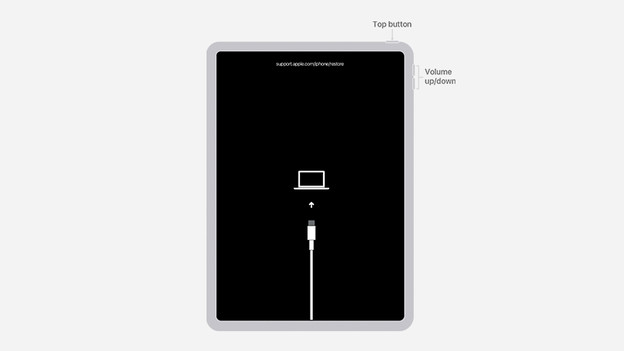
iPad with Face ID
- Press and hold the top button and one of the 2 volume buttons.
- Move the slider to turn the iPad off.
- Connect your iPad to a computer and hold down the top button in the mean time.
- Hold down the top button until you see the recovery mode screen.

iPad with home button
- Press and hold the top button.
- Move the slider to turn the iPad off.
- Connect the iPad to a computer and hold down the home button in the mean time.
- Hold down the home button until you see the recovery mode screen.

Step 2: reset your Apple iPad
Go to your iPad on your computer. Do you have a Mac? You can find the iPad in the Finder. On a Windows PC, you can use iTunes.
- Select your iPad and click Restore.
- Your iPad will now be restored.
- Wait until the process is complete and set up your iPad again.
Does it take longer than 15 minutes to restore your iPad? The process will aborted. Repeat the steps above and try again.
Article by Jelle
Apple Expert.

