Written by Maurits
Edited on
11 August 2023
·
11:45
How do you add a second speaker to the Sonos system?
You want to use a second Sonos speaker to listen to music in several rooms or to make a stereo pair. You have to connect this second speaker. How you do that, I explain to you in this article.
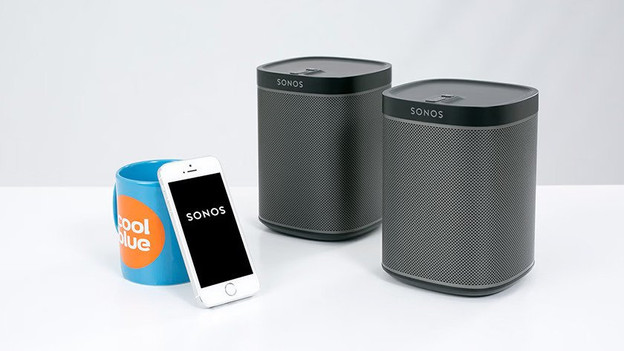
Add a second Sonos speaker to your Sonos system
You can add a second Sonos speaker to your Sonos system in 5 steps.
- Step 1: place your speaker
- Step 2: open the app
- Step 3: open settings
- Step 4: add speaker
- Step 5: wait for a moment

Step 1: place your new speaker
Consider where you want the new speaker and place it in the desired location. Insert the plug of your speaker into the socket.

Step 2: open the Sonos app
Open the Sonos app on your smartphone or tablet. Haven't downloaded the app yet? Search for 'Sonos' in the App Store or Play Store.

Step 3: open settings
When you've opened the app, tap the cogwheel on the bottom right of the screen. Tap the option 'Add product' to add a speaker.

Step 4: tap add
When the app recognizes your new speaker, tap 'Add'.

Step 5: wait for a moment
Your new speaker is being prepared.

Done! Your new speaker has been added
Done! You've now added a speaker to your household. Go back to the settings to personalize the speaker. Do you still have to connect your first speaker? Read our article on how to set up the first Sonos speaker.