
Written by Tobias
Edited on
13 September 2024
·
15:58
How do you reset Windows?
Do you have an issue with your computer and did you already try everything without success? Luckily there's a solution: reinstalling Windows. In this article, you can read how to do so in 3 easy steps.

Reinstall Windows in 3 steps
Reinstalling solves more than just the system problems. It also improves the performance and lifespan of your device.
- Step 1: make a backup
- Step 2: go to the settings
- Step 3: perform the reinstallation

Step 1: make a backup
Make a backup of your laptop before you start. Resetting to the factory settings means that all apps and settings will be deleted. During step 3, you can decide if you want to keep your personal files. With a backup, you can easily return all data after the reinstallation.
If you want to store files on an external device, it's easiest to use an external hard drive for your backup. If you want to store your files in a cloud, it's easiest to use Microsoft OneDrive for your backup.
Step 2: go to settings
- Click the Windows icon at the bottom left.
- Go to Settings, which you can recognize by the gearwheel icon.
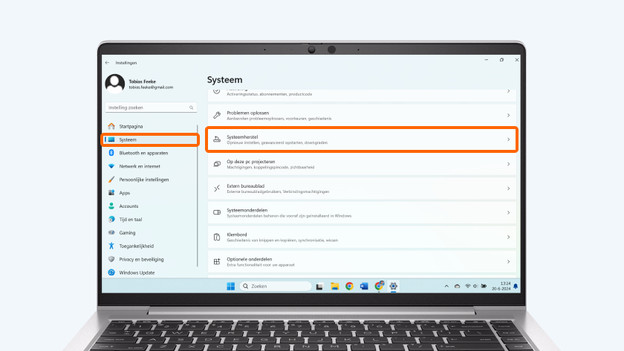
- Select System in the window on the left.
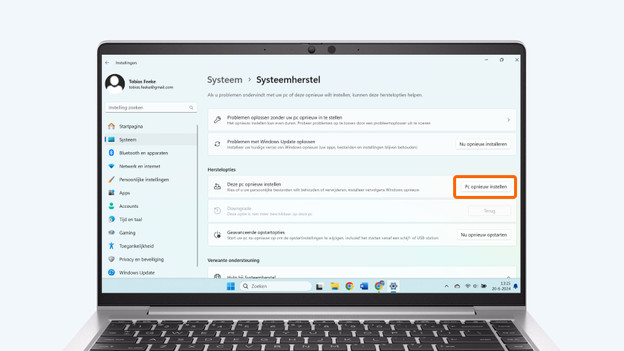
- Search for Recovery.
- Next to Reset this PC, select the option Restart PC now
Click on the Windows button and go to 'Settings'.
Select 'System' and search for 'Recovery'.
Select the option 'Reset this PC'.

Step 3: perform the reinstallation
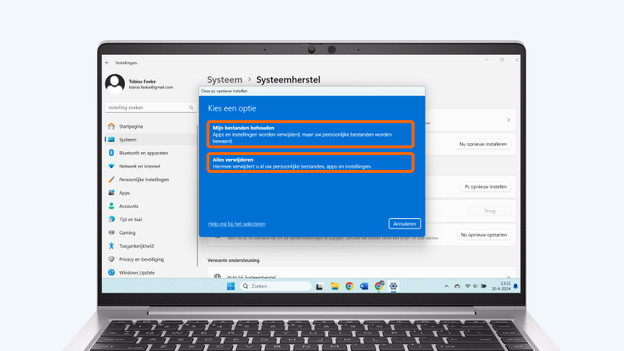
- You now see a blue windows with 2 options on your screen. Choose the option you prefer.
- Choose Cloud download or Local reinstall.
- The recovery takes about 1 hour. Your computer will automatically restart a couple of time. You can do something you don't need your laptop for in the meantime.
- Windows is now reinstalled. Go through the installation process. If you've made a backup, you can restore it now.
Choose the option you prefer.
Choose the cloud or a local download.
Click 'Next'.


Article by Tobias
Laptop Expert.

