Written by Julia
Edited on
10 July 2025
·
07:47
2 tips if your Garmin watch doesn't work well after an iOS update
After you update the iOS of your iPhone, you might still have connection problems with your Garmin Watch. For example, your Garmin watch isn't connected to your smartphone anymore, or you don't receive smartphone notifications. You can easily solve these problems with 1 of these tips.

Solve problems after an iOS update
After you update your iPhone, you might still have problems with your Garmin watch. For example, your smartwatch isn't connected via Bluetooth anymore. You also don't receive smartphone notifications on your Garmin watch anymore. Choose which problem you have and solve it with these tips.
Tip 1: solve Bluetooth problems
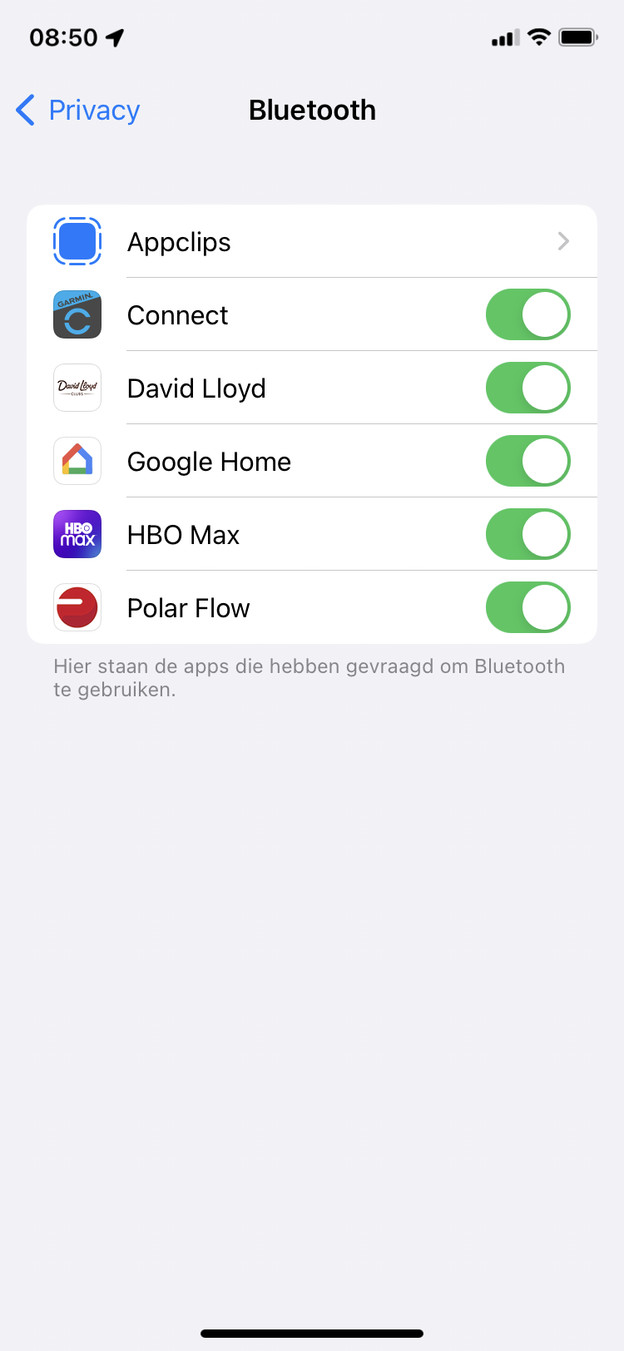
Do you get the 'Bluetooth is disabled' notification in the Garmin Connect app? You have to enable 'Bluetooth sharing' on your smartphone again. Follow the steps below.
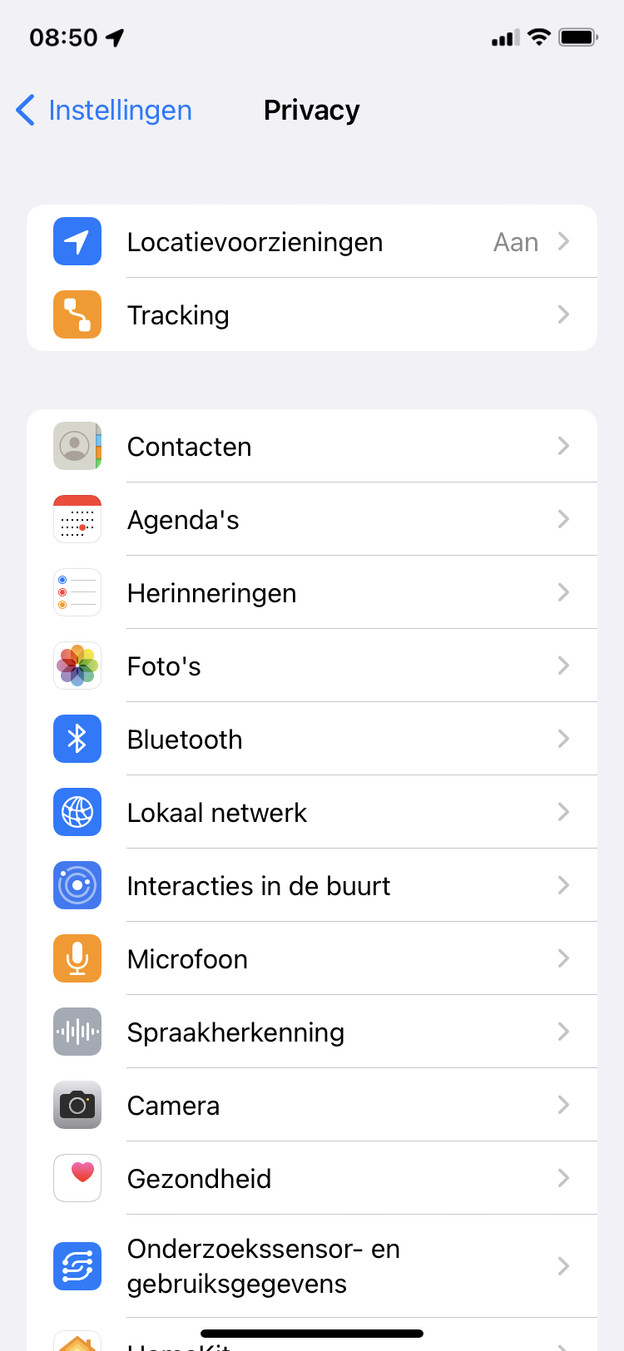
- Go to 'settings' in your iPhone.
- Scroll down, to 'privacy'.
- Tap on the 'Bluetooth' header.
- You'll see apps that requested to use Bluetooth. Turn on the slider at the Garmin Connect app.
Scroll to Privacy in your settings
Tap the 'Bluetooth' header
Set the slider at Garmin to green

Tip 2: solve notification problems
Don't you get smartphone notifications on your watch anymore? Solve this problem via the following steps.
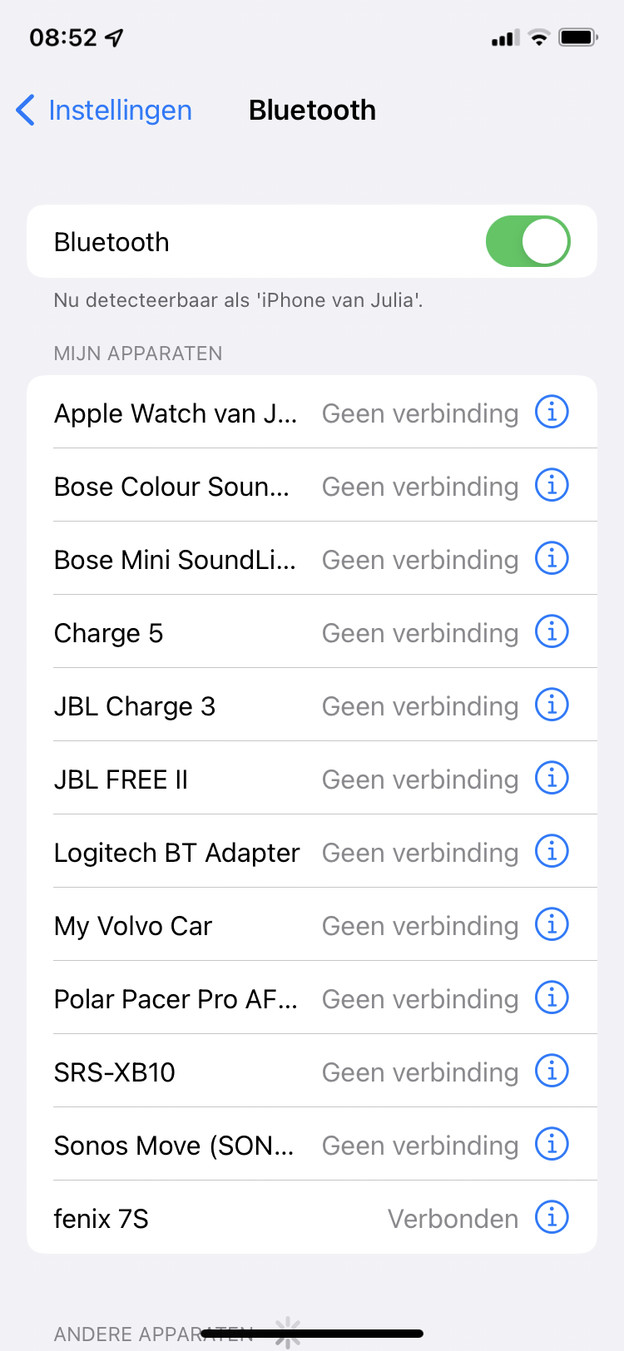
Check your Bluetooth settings.
- Go to the settings on your iPhone.
- Select 'Bluetooth'.
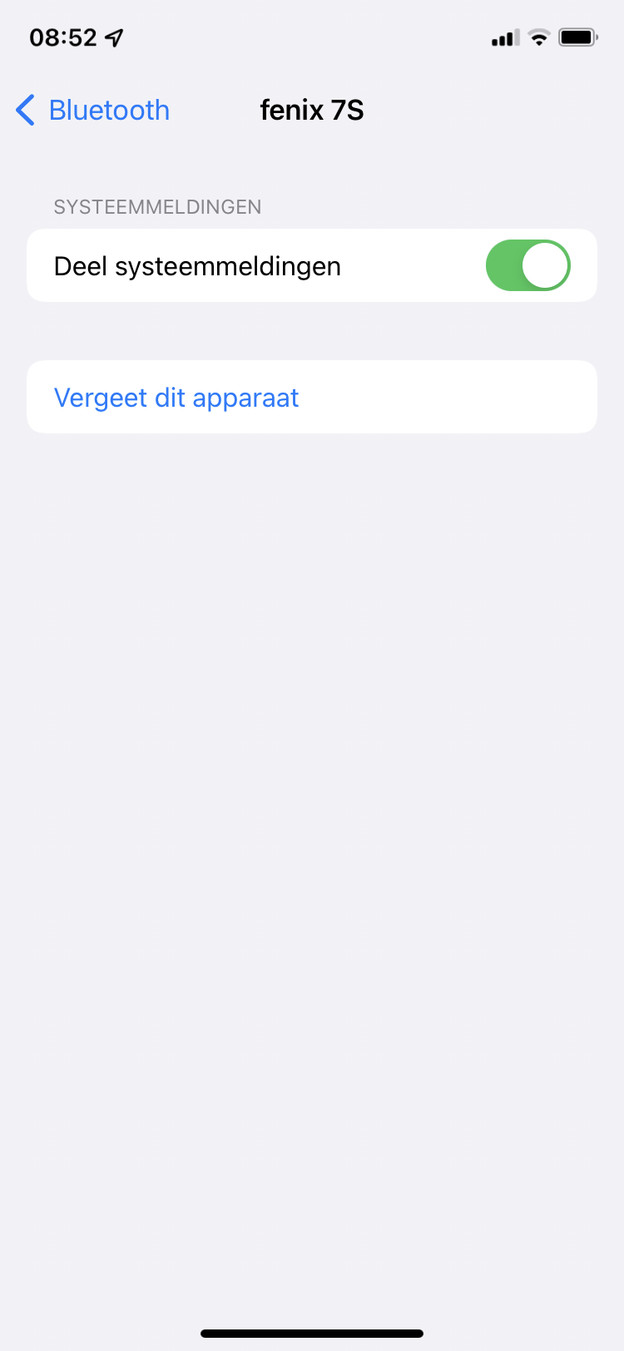
- Go to 'My devices' and tap your Garmin watch.
- Set the slider to 'share system notifications'.
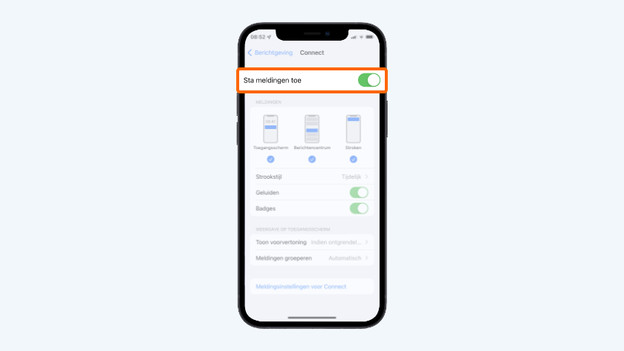
Check your notification settings.
- Go to the settings in your iPhone.
- Scroll down to 'notifications'.
- Find the Garmin Connect app.
- Turn on 'allow notifications'.
- Tap 'show preview', 'always', or 'when unlocked'.
- Tap everything in 'notifications'.
Go to your Bluetooth settings
Turn on 'share system notifications'
Go to notifications and scroll down to the Garmin app
Allow notifications
Tap 'when unlocked' or 'always'
Allow all notifications