
Written by Kayleigh
Edited on
21 March 2025
·
16:32
4 tips to print colors well
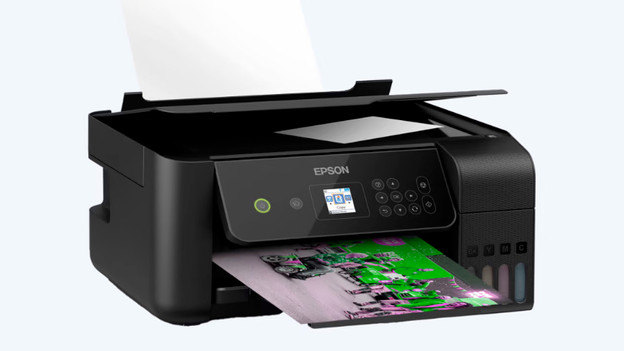
You print a colorful vacation photo for in your scrapbook. But the colors of the print don't match the ones on the photo. Your printer doesn't print the colors correctly. That can have various reasons, like an empty cartridge, or a blocked printhead. We'll give you 4 tips to solve this problem in this article.
Prevent wrong colors
There are various reasons why your printer doesn't print colors correctly. In this article, we'll go over 4 tips that might solve the problem.
Tip 1. Check the cartridges or toner cartridges.
Tip 2. Adjust the settings of your printer.
Tip 3. Clean the printhead.
Tip 4. Calibrate your screen.
Tip 1: check the cartridges or toner cartridge
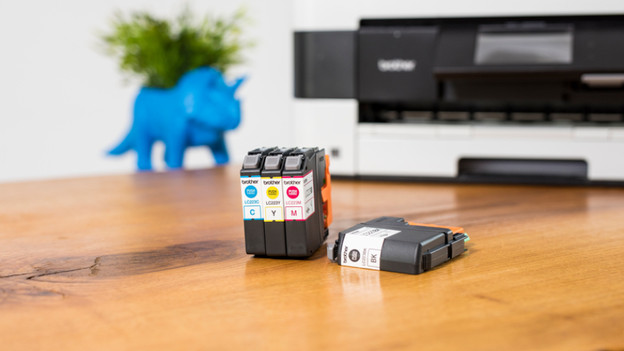
First, check if a cartridge is empty. This can be by your printer prints the wrong colors. Check the ink level of your printer. Are there any empty cartridges? Replace them. When you haven't used your printer for a while, the ink in the cartridges might have dried up. This a shame of the ink, of course. Print a page from time to time to prevent dried-out cartridges.
Tip 2: adjust the color settings
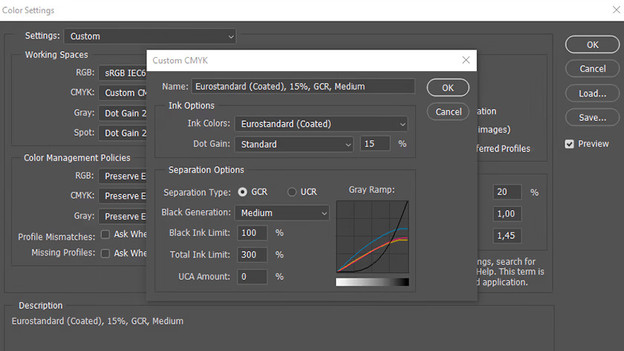
Do you print photos form Photoshop? Check if the colors of your photo are set to the right color settings. A printer uses the colors cyan, magenta, yellow, and black (CMYK). You see images on your screen in the colors red, yellow, and blue (RGB). Adjust the color space of your files an prevent discolored photos. In the following article, you can read how to adjust this color space.
Tip 3: clean the printhead
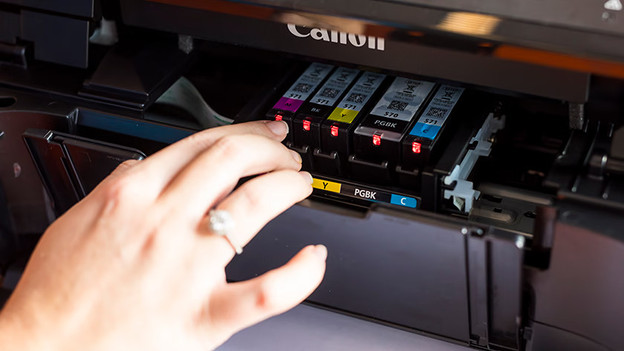
Another reason is a blocked printhead. Clean the printhead via the following steps:
- Put paper in the paper tray.
- Select Setup on the screen of your printer. If this option isn't available, continue to the next step right away.
- Select the option Settings. Depending on the brand and the type of printer, go to Utilities or Maintenance.
- Choose Clean printhead or Print head nozzle check. The printer will make some noise and start to clean the printhead or nozzles.
- After the cleaning process, the printer will automatically print a test page.
Does your printer not have a display? Check in the app or manual of your printer how you can perform the steps above.
Tip 4: calibrate your screen
You edited a nice photo and you want to hang it on the wall. But when the photo rolls out of the printer, the colors look different from those on the screen. That's inconvenient. That's because photos look different on every screen, due to the brightness or other settings, for example. That's why you should calibrate your screen before you print a photo. This way, you make sure colors on your screen don't differ and you make good photo prints. In the article below, you can read how to calibrate your screen.
Article by Kayleigh
Printer Expert.

