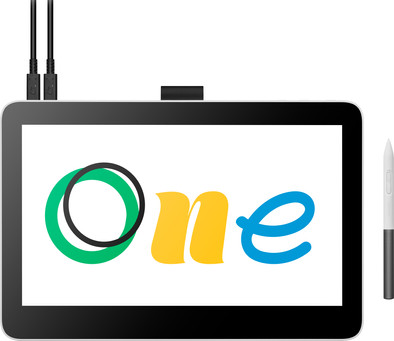
Wacom One 13 Touch
Never available again
View alternatives in the sidebar
View alternatives in the sidebar
Product number | 934450 | |
|---|---|---|
Manufacturer code | DTH134W0B | |
Brand | Wacom | |
Warranty | 2 years | |
Processing of your defect | Via Coolblue |
Drawing tablet has integrated screen | ||
|---|---|---|
Screen size | 13 inches | |
Resolution height | 1080 pixels | |
Resolution width | 1920 pixels | |
Lines per inch (LPI) | 2540 lpi | |
Response time | 19 ms | |
Brightness | 320 cd/m2 | |
Contrast ratio | 2000 | |
Color temperature | 9300 K | |
Color gamut | 100 % | |
Height of active drawing area | 17 cm | |
Width of active drawing area | 29 cm | |
Multi-touch | ||
Number of buttons | 3 | |
Programmable buttons | ||
Tilt sensitive | ||
Tilts | 60 ° | |
Compatible with operating system | ChromeOS, Windows, macOS | |
Without using a computer |
Connection type | Wired | |
|---|---|---|
Bluetooth |
Weight | 1,53 kg | |
|---|---|---|
Width | 33 cm | |
Depth | 22 cm | |
Height | 1,15 cm |
Power source | ||
|---|---|---|
Power supply type | Via a different product |
anything for a smile
Compatible with operating system | ChromeOS, Windows, macOS | |
|---|---|---|
Multi-touch | ||
Connection type | Wired | |
Width | 33 cm | |
Depth | 22 cm | |
Without using a computer |
According to our drawing tablet expert
Thanks to the pen with 4096 pressure levels, you have a lot of control over the thickness of your lines.
Because of multi-touch, you can scroll, zoom, or rotate your project on the drawing tablet with your fingers.
You can see what you draw right away on the built-in screen, so drawing feels more naturally.
With this wired tablet, you have less freedom of movement compared to wireless models.
5 stars
0
4 stars
0
3 stars
0
2 stars
0
1 star
0
The Wacom One 13 Touch is easy to use and draws nicely. You don't get a stand with this drawing tablet, so after drawing for a while I get a bit of a sore neck.
Get started quickly Everything was neatly and tightly packed in the box. I almost threw away the extra pen tips, because they are in such a small bag. I connect the tablet to my laptop within a few minutes. I easily set everything up in the Wacom Center. Depending on what you use the tablet for, there are handy apps that you also get free trial versions of. For example, I now use Magma for my drawings.
Drawing is smooth The pen fits well in my hand and responds quickly. I set the pressure sensitivity and the shortcuts of the buttons myself. I mainly use the tablet for drawing. It took some getting used to the first drawing, but after that I could easily continue drawing. I do notice that I keep looking down, which I feel after drawing for a while. So I recommend using a stand.
Touchscreen button I can easily turn the touchscreen on or off with the button on top. I like this function, because then the tablet ignores my hand or arm while drawing and writing. This way I can just put my wrist on the tablet without it affecting the lines. With the touchscreen on, I can easily zoom in with my fingers and move the image.
Little things Sometimes apps and tabs open on my laptop instead of on the tablet. I then drag them with my laptop mouse. The digital keyboard does not always pop up automatically, but luckily I have a trick for that: I have linked a keyboard shortcut to my pen. The Wacom Notes app works fine. Writing feels natural and you can choose whether you write on blank, lined or grid paper. You can also easily adjust the color of the text after writing, highlight important things or erase mistakes. The only disadvantage was that the app sometimes closed unexpectedly.
Anne. Tekentablet specialist.
11 June 2025
Automatically translated from Nederlands