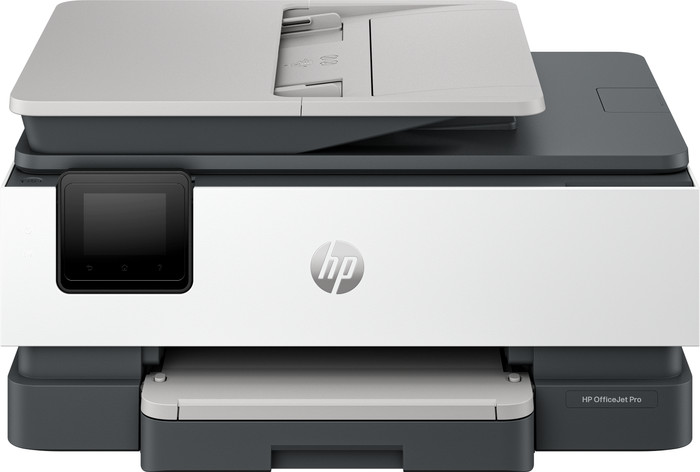
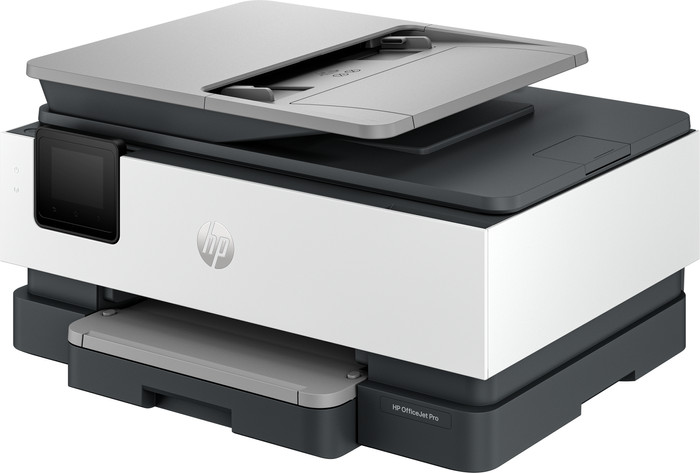
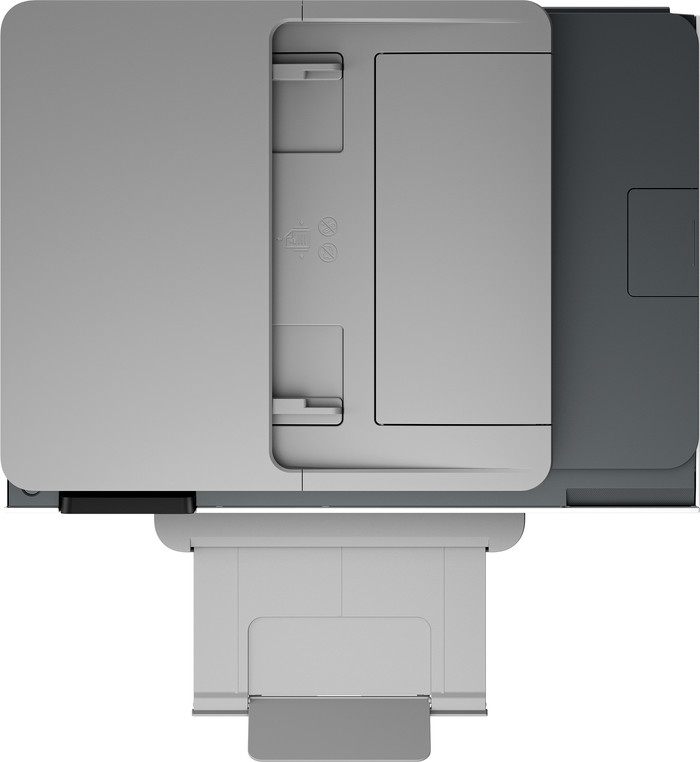
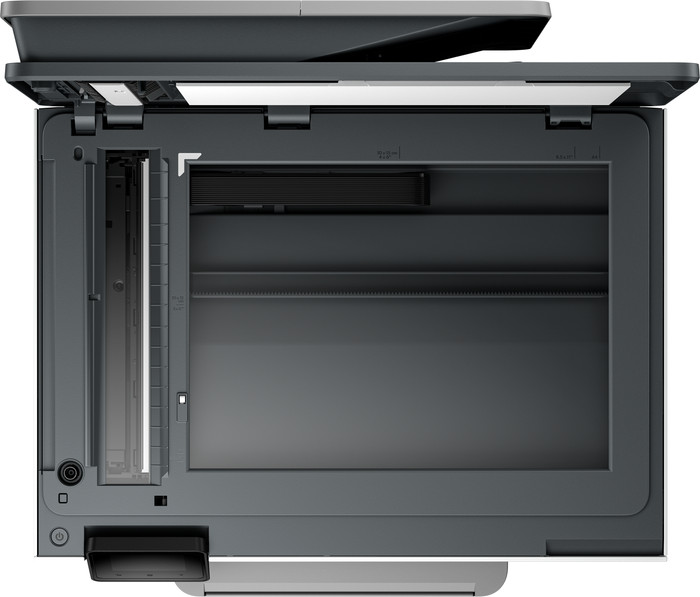
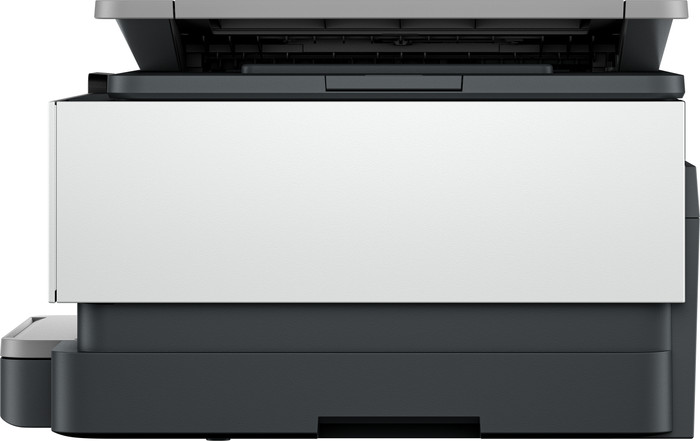
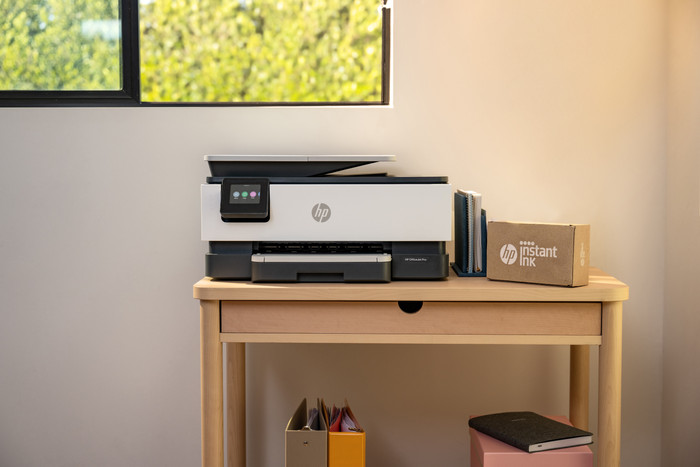
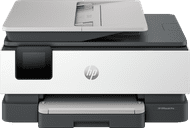
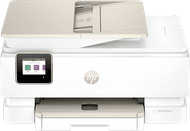
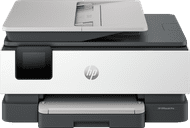
With the HP OfficeJet Pro 8124e I have a productive printer thanks to the shortcuts in the app and I print for 6 months for free thanks to HP Instant Ink. I do not automatically scan my documents double-sided.
Easy installation and wireless connection
I receive a handy installation guide with the printer. I can follow this booklet or scan a QR code to install the printer from my phone. I personally opt for the QR code, which allows me to quickly install the printer. There are multiple ways I connect to the printer. There is WiFi or WiFi direct, but the printer also has an input for a network cable. The printer does not have a USB input, so I only print wirelessly.
6 months of free printing
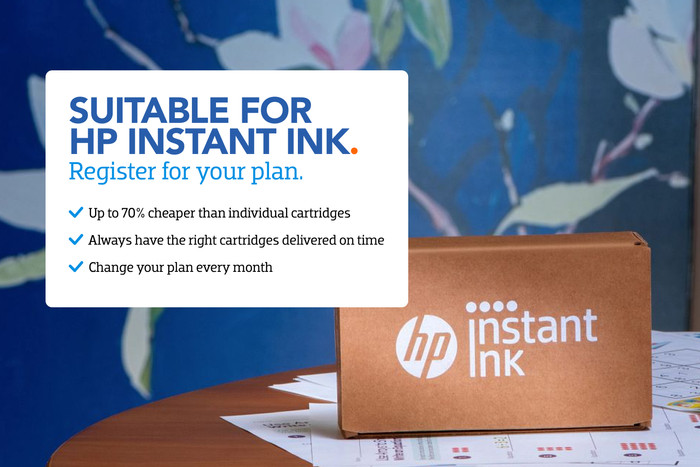
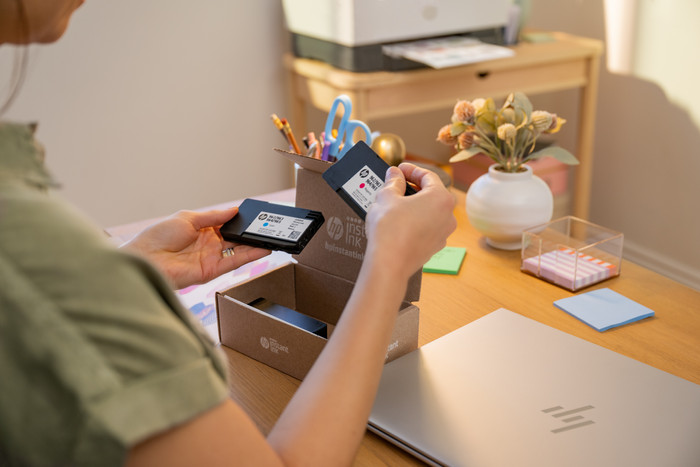
When installing this printer, a pop-up appears stating that I can sign up for a 6-month trial of HP Instant Ink. This allows me to print for free for 6 months and receive new cartridges on time. This way I don't have to worry about running out of ink while printing. I print a lot and individual cartridges are pricey, so I save a lot on my printing costs.
Useful functions and shortcuts
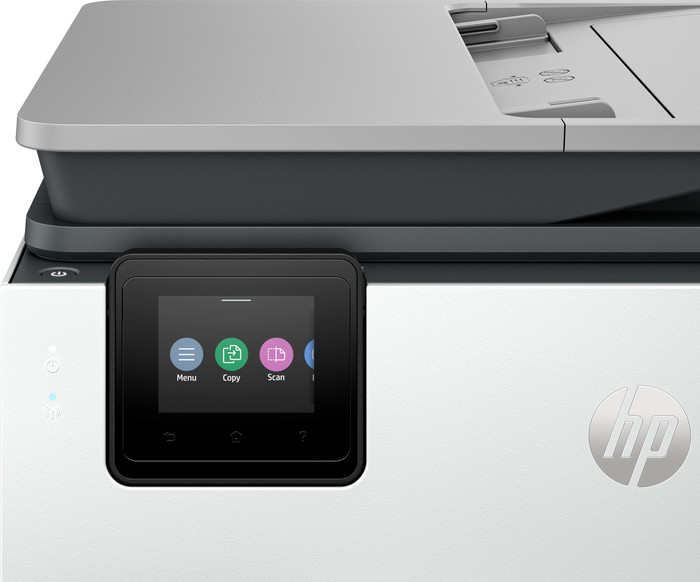
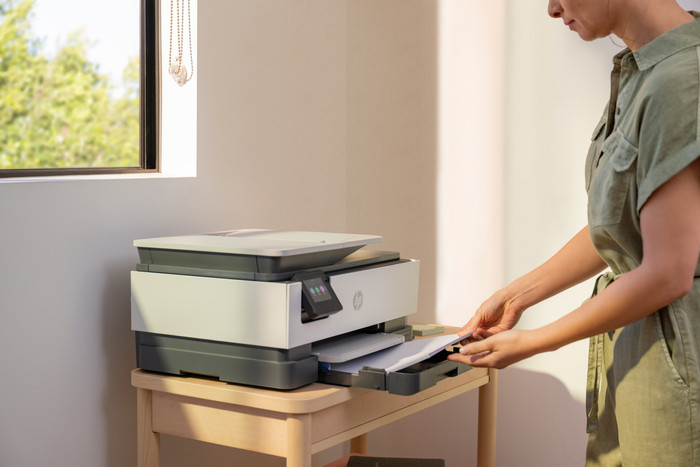
With the OfficeJet Pro 8124e I automatically print double-sided. This saves me half of my paper. Double-sided printing does reduce speed. When printing single-sided, the printer takes about a minute to print 10 color pages. With double-sided printing this takes twice as long. I control the printer with the HP Smart app, to which I add useful shortcuts, such as 'Save to Google Drive'. I add my email address and at the touch of a button I have my copies on my Google Drive.
Fast scanning with ADF
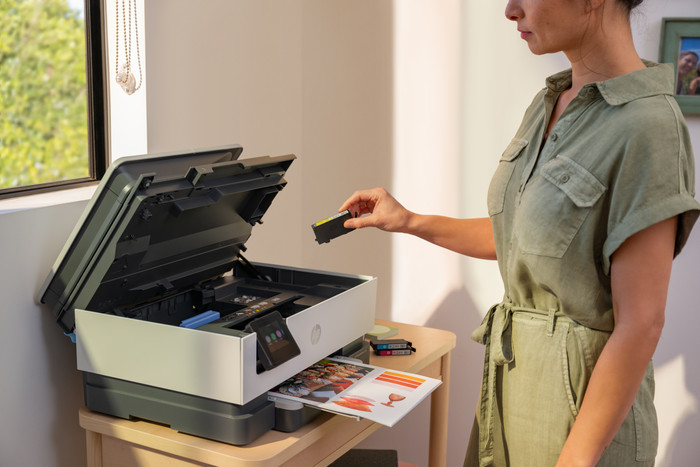
This is an all-in-one printer, so I also scan and copy with it. The automatic document feeder (ADF) makes this easy and quick. I place a stack of paper in the input, click on 'scan' or 'copy' and the printer pulls in my document per A4 and scans it. The printer does not automatically scan double-sided, so I only do this with single-sided printed paper. This saves me a lot of time and makes multiple copies in no time.