Written by Jesper
Edited on
21 April 2023
·
14:42
How do you reset a Nokia smartphone?
Are you desperate because your Nokia smartphone often crashes? Or do you want to sell or trade-in your smartphone? It's wise to reset your phone. You can easily reset your Nokia phone via the following 7 steps.
Soft reset
A soft reset is the solution for most smaller problems. For example, restarting your smartphone often helps if your keyboard doesn't work anymore or when your device crashes. No data will be lost during a soft reset.
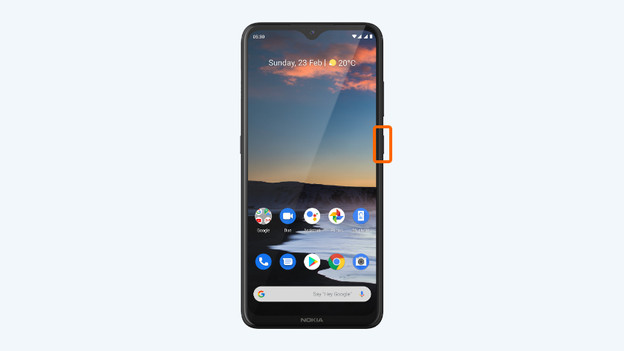
- press and hold the standby button. This button is on the right side of your smartphone.
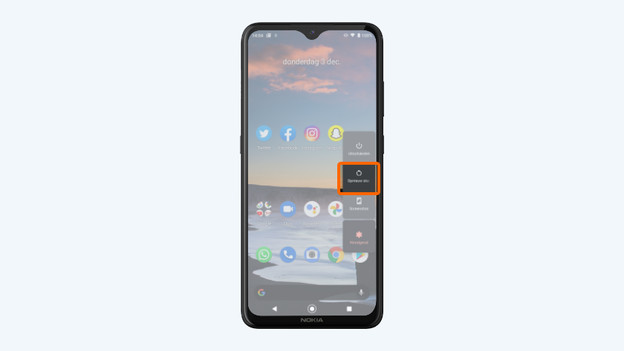
- choose Restart in the menu.
1: press and hold the standby button.
Choose Restart.
Make a backup
With a reset, you bring your phone back to the factory settings. This means your files, photos, and contacts also disappear. So always make sure to make a backup before you reset your phone. Store your files on a memory card or in the cloud, for example.
Step 1: make sure your device is charged
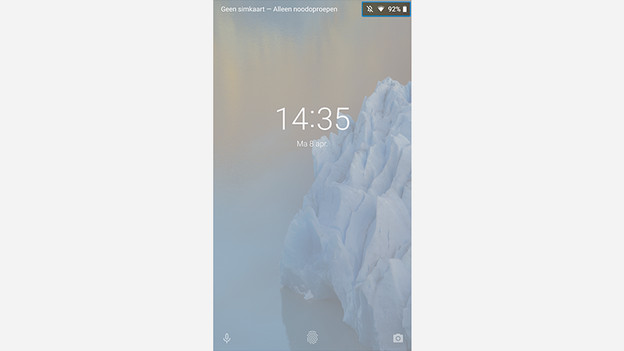
It takes a lot from your battery to reset your smartphone. Make sure your phone is charged for 60% at least. You can also keep your phone connected to the charger during the reset. This way, you can avoid the risk of your phone running empty during the reset.

Step 2: choose settings
Choose settings by clicking the icon with the gearwheel.
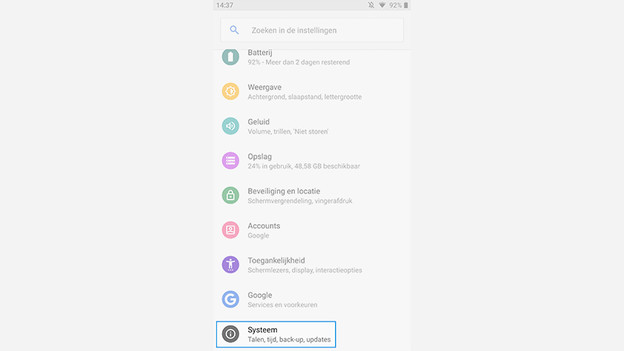
Step 3: choose system
Choose 'System'.
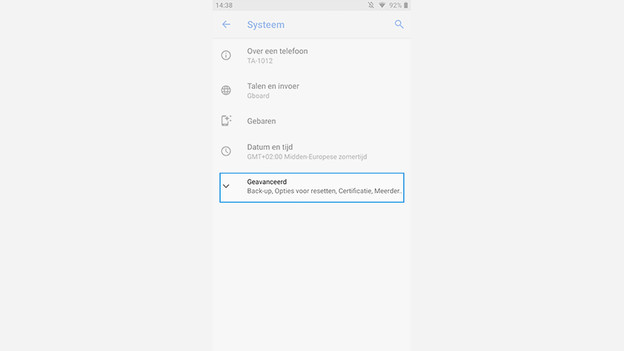
Step 4: choose advanced
Choose 'Advanced' to unfold the rest of the menu.
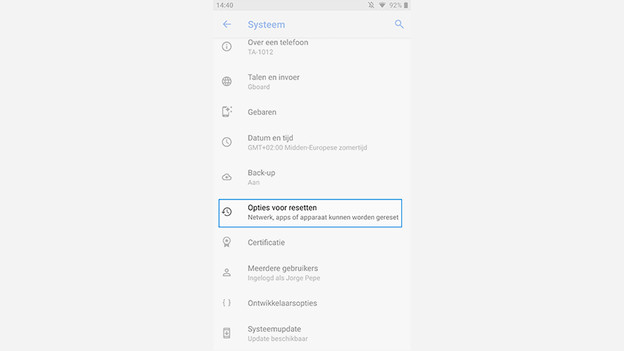
Step 5: choose reset options
Click 'Reset options'.
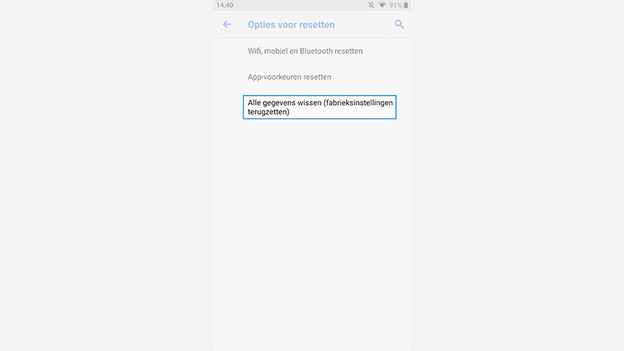
Step 6: clear all data
Choose 'Erase all data (factory reset)'
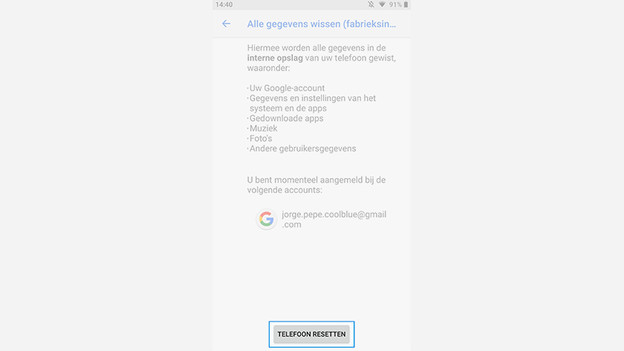
Step 7: reset and confirm
Click 'Reset phone'. Your Nokia device will ask you for your password. Enter it to start the reset.