How do I take screenshots on a QWERTZ keyboard?
Screenshots may seem complicated at first, but you'll need them in everyday life for work, studies, and support. This article explains how to quickly create various screenshots in Windows on a QWERTZ laptop. We'll also show you how to find your captured images and which keyboard shortcuts are important on a German keyboard.
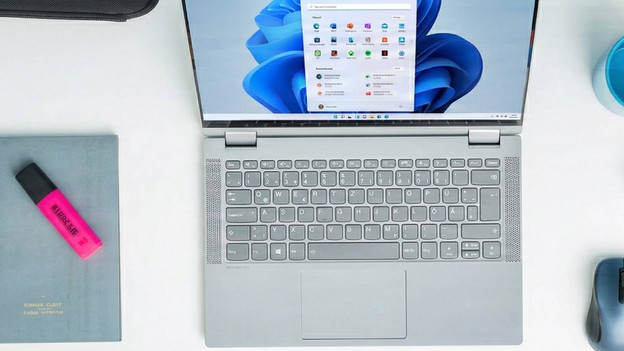
Find the right screenshot keyboard shortcut in just a few steps
The right screenshot saves time and clearly explains problems. However, different keyboard shortcuts and laptops can quickly become confusing. This article guides you step-by-step to the right screenshot method for you.
Ask yourself these questions:
-
Am I using a German QWERTZ keyboard or a different layout?
-
Do I need screenshots of the entire screen, a window, or just a specific area?
-
Am I using a laptop with or without an [Fn] key?
-
Do I need screenshots saved as a file or inserted directly into programs?
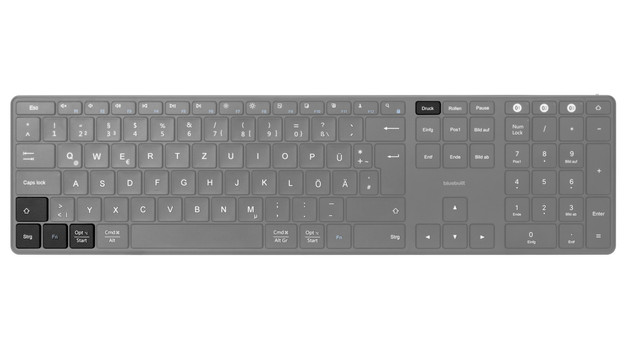
The most important keys on the QWERTZ keyboard
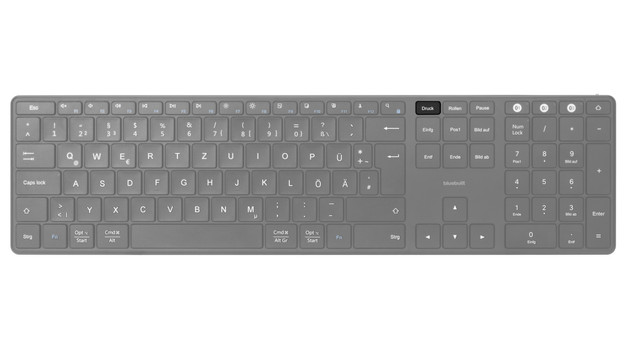
Compared to QWERTY keyboards, some keys on QWERTZ keyboards are arranged differently. For screenshots, these keys are particularly important:
- [Print Screen] top or bottom center
- [Windows] bottom left
- [Ctrl] bottom left
- [Fn] bottom left next to [Ctrl]
- [Shift] is above [Fn]
Tip: Take a good look at your keyboard first.
This will make it easier to find all the keys.
Option 1: Use the [Windows] keyboard shortcut
The easiest way to take a screenshot is with the Windows keyboard shortcut.
-
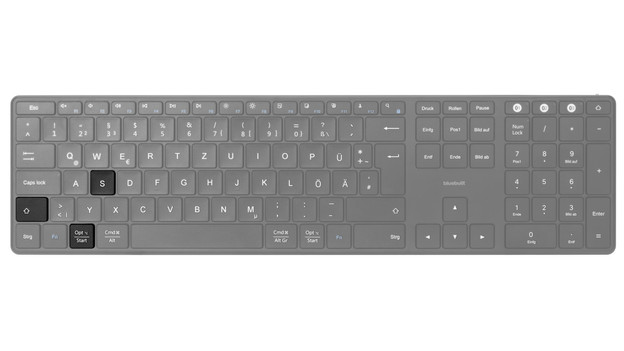
Press the [Windows] + [Shift] + [S] keys simultaneously.
-
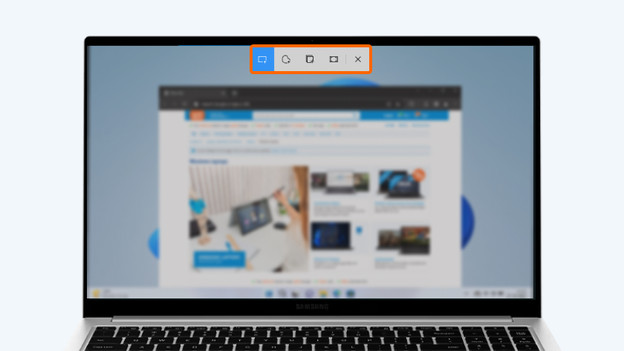
A bar with various screenshot options will appear at the top center of your screen.
-
Select the type of screenshot you want to take from the bar:
- Rectangular selection for classic screenshots
- Window selection for an entire program window
- Fullscreen selection for the entire screen
-
If you only want to capture part of the screen, hold down the left mouse button and drag the frame over the desired area.
-
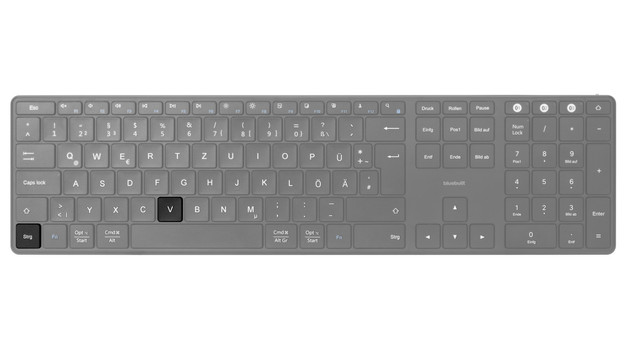
Your screenshot will be saved to the clipboard. Paste it, for example, into a text document or a chat using the keyboard shortcut [Ctrl] + [V].
Press [Windows] + [Shift] + [S] simultaneously
Choose what type of screenshot you want to create.
Press [Ctrl] + [V]
Option 2: Use the [Print Screen] key
You'll often find a key for taking a screenshot on your keyboard, usually labeled [Print Screen] or [PrtScn]. Not every keyboard or laptop has this key.
-
Press the [Print Screen] or [PrtScn] key to take a screenshot. If the label is blue, press [Fn] + [PrtScn].
-
Your screenshot will be saved to the clipboard.
-
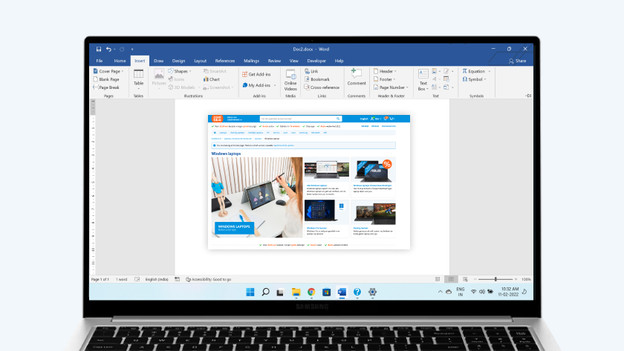
Paste it into a text document or chat using the keyboard shortcut [Ctrl] + [V].
Press the [Print Screen] key
Open the file for your screenshot
Press the key combination [Ctrl] + [V]
Option 3: Use the Snipping Tool
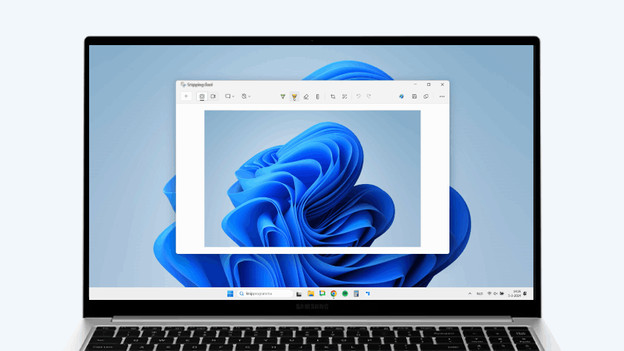
Another way to take screenshots of specific areas of your screen is with the pre-installed Snipping Tool.
-
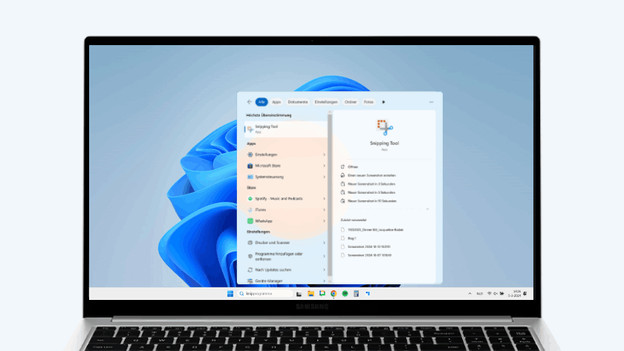
Search for "Snipping Tool" in the search bar and click on the program.
-
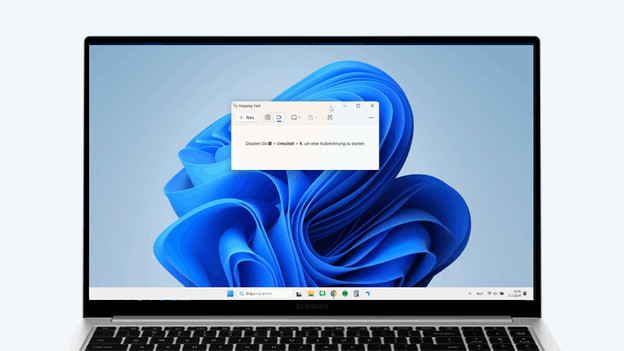
Select the area of the screen you want to capture. 3. Hold down the left mouse button and drag the mouse across the screen.
-
Your screenshot will now appear in a new window.
-
Click "Save." Choose a name for your screenshot and the location where you want to save it.
Search for the Snipping Tool in Windows
Take a screenshot of your screen
Save your screenshot
If no screenshot is taken
Sometimes, nothing seems to happen after pressing a key.
In that case, a few simple checks can help.
-
Open Paint and press [Ctrl] and [V].
-
If an image appears, the screenshot was successful.
Nothing happens? Try this step.
-
Try pressing [Print Screen] with and without [Fn].
-
Make sure you press all the keys simultaneously.
Is your laptop displaying different characters than expected? For example, is a different symbol appearing?
Then the selected keyboard language might be incorrect. In Windows settings, change the keyboard language to German. This will ensure the keys correspond to the characters again.
Article by Jacqueline
Laptop Expert
