Written by Sam
Edited on
29 April 2024
·
09:29
How do you install your BlueBuilt Monitor Arm Mechanical Spring for 1 monitor?
You want to connect your new BlueBuilt monitor arm with gas spring to a monitor. On this page, we'll explain how to do this in 9 steps.

Setup in 9 steps
You can install your new BlueBuilt monitor arm in 9 steps.
- Step 1. Determine whether you want to use a clamp or drill a hole
- Step 2a. Attach the clamp and tighten the base
- Step 2b. Drill a hole in your desk and twist the base to secure
- Step 3. Attach the swivel arm
- Step 4. Attach the lift arm
- Step 5. Attach the VESA plate to the monitor arm
- Step 6. Place the screws in the monitor
- Step 7. Attach the monitor arm to the monitor
- Step 8. Hide your cables via the cable duct
- Step 9. Determine the flexibility of your monitor arm

Step 1: choose one of the 2 installation options
There are 2 possible ways to install your monitor arm. With a clamp mount, you attach the base firmly with a clamp. This is possible with desks between 10 and 80mm thick. If you choose feed-through mount, you have to drill a hole in your desk and screw the base into place. This is only suitable for desks with a thickness between 10 and 45mm. Did you choose a method? Check the VESA size of your monitor. This way, you can be sure that it fits on the monitor arm.
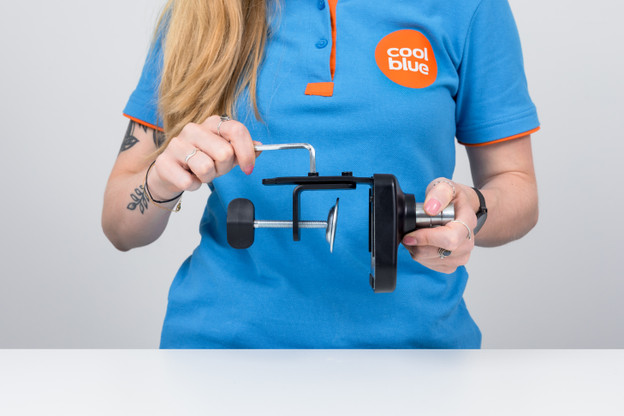
Step 2a: attach the clamp
-
Remove the cover from the base. Place the clamp attachment on the base and tighten the bolts.
-
Measure the precise thickness of your desk. Depending on how thick the desktop is, place your desk clamp in the top or bottom holes. Then, tighten the bolts.
-
Place the clamp on the desk and turn the screw upwards to secure the base.
1. Place the clamp attachment on the base.
2. Determine the position of the clamp.
3. Twist the base into place.


Step 2b: drill a hole in your desk
-
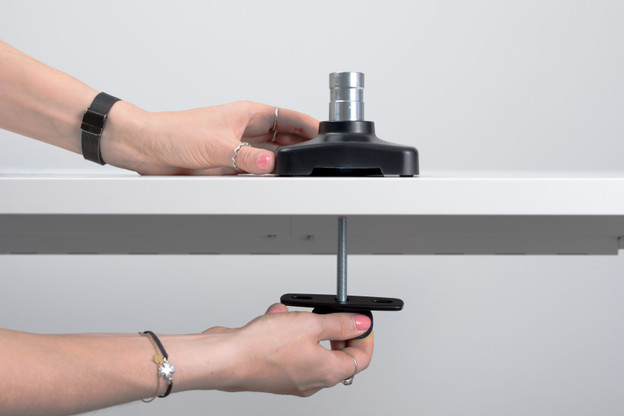
Unscrew the disc from the clamp and unscrew the clamp attachment
-
Drill a 10mm hole in your desk where you want to place your monitor arm.
-
Place the mounting plate around the feed-through mount. Then, screw it into the base through the hole until it's firmly secured.
1. Unscrew the disc from the clamp.
2. Drill a hole in your desk.
3. Attach the base.



Step 3: attach the swivel arm
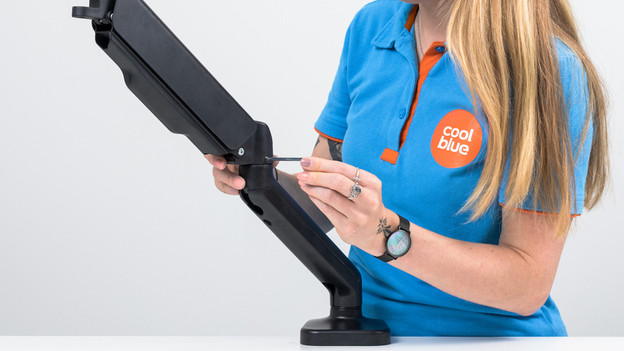
Attach the swivel arm to the stand. Tighten the screw to your liking. The tighter the screw, the less flexibly the arm can move.
Step 4: attach the lift arm
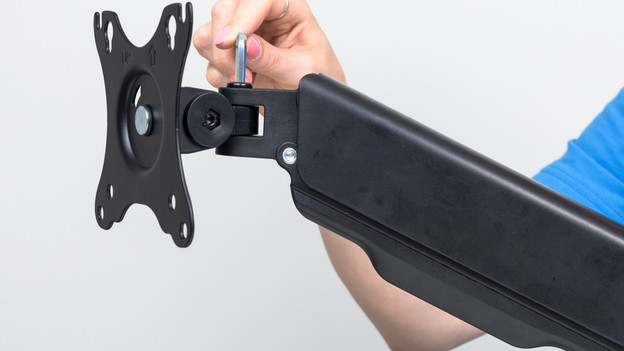
Attach the lift arm. Tighten the screw to your liking.
Step 5: attach the VESA plate to the monitor arm
Attach the VESA plate to the monitor arm and tighten the screw.

Step 6: place the screws in the monitor
Place your monitor on a rug and insert the top screws into the monitor. You can use the washers to make it sturdier.

Step 7: attach the monitor arm on the monitor
Slide the monitor onto the VESA plate and screw the bottom screws into the monitor.

Step 8: hide your cables via the cable duct
Slide the cable duct upwards to open it. Put the cables of your monitor inside and close it again.

Step 9: determine the flexibility of your monitor arm
Adjust the torque of the monitor arm with the included Allen key to determine the flexibility of the arm.
Your new BlueBuilt monitor arm is now completely installed.

