
Written by Jelle
Edited on
29 June 2023
·
14:15
How do you solve sound problems with your Apple iPad?
Does the sound of your Apple iPad not work? Or is the sound dull or shrill? Usually, you can easily solve this by changing a couple of settings. Here, we'll tell you how to solve sound problems with your Apple iPad in 4 easy steps.

Solve sound problems in 4 steps
To solve sound problems with your iPad, follow the steps below:
- Check if Silent Mode is turned off.
- Check the speakers of your iPad.
- Check the sound settings of your iPad.
- Try to play sound on your iPad.
Step 1: check if Silent Mode is turned off
First, check if Silent Mode is turned off.
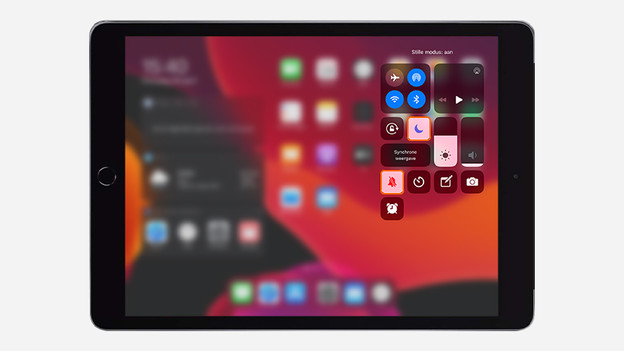
- Swipe down from the right top corner of the screen.
- Check if Silent Mode and Do Not Disturb are turned off.
- Turn off Silent Mode.
- Turn off Do Not Disturb.
Swipe down from the right top corner
Turn Silent Mode and Do Not Disturb off

Step 2: check the speakers of your iPad
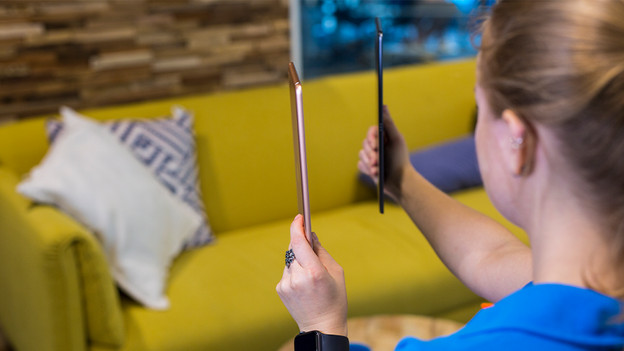
If your iPad doesn't produce any sound or just distorted sound, check the speakers for dirt.
- Do you have a cover on your iPad? Remove it first.
- Check if the speaker opening at the bottom of your iPad is free of dirt.
Step 3: check the sound settings of your iPad
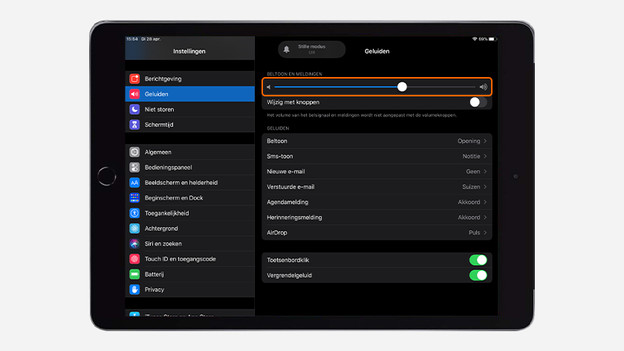
Check the sound of your iPad in the sound settings.
- Go to Settings and tap Sounds.
- Slide the switch for Ringer and Alerts left and right a couple of times.
- Don't hear any sound? Your speaker might need to be repaired.

Step 4: try to play sound on your iPad
Check if the sound works when you play a video. Check if video calls work as well.
- Play a video on YouTube and check if the sound works.
- Start a FaceTime call and check if the sound works.
- No sound or bad quality? In that case, your internet connection might be the problem.
- check the internet connection and try again.
Article by Jelle
Apple Expert.

